cancel
Showing results for 
Search instead for 
Did you mean: 

The Power BI Data Visualization World Championships is back! Get ahead of the game and start preparing now! Learn more

Reply
janwillem
Frequent Visitor

Column order

I have made a calculate column:

Inactive Group =  Calculate( IF('.....'[Days in-active] < 30; "< 30 days"; IF( '.....'[Days in-active] < 90; "30 < 90 days"; IF('.....'[Days in-acitve] < 365; "90 < 365 days"; "> 365 days"))))


Now I become de coloms as follow:


< 30 days  |  > 365 days  |  30 < 90 days  |  90 < 365 days


It should be:


< 30 days  |  30 < 90 days  |  90 < 365 days  |  > 365 days


How can I do that? 

Must I something change in the formula?


1 ACCEPTED SOLUTION
TomMartens
Super User
Super User

Hey,


you can't change the order by changing your formula. The default order is derived from the values of signs representing the character code.


For this reason I would recommend to create a new table in the modeling section using this DAX statement

Inactive Group = 
UNION(
	ROW("Inactive Group", "< 30 days", "Sort Order", 1)
	,ROW("Inactive Group", "30 < 90 days", "Sort Order", 2)
	,ROW("Inactive Group", "90 < 365 days", "Sort Order", 3)
	,ROW("Inactive Group", "> 365 days", "Sort Order", 4)
)

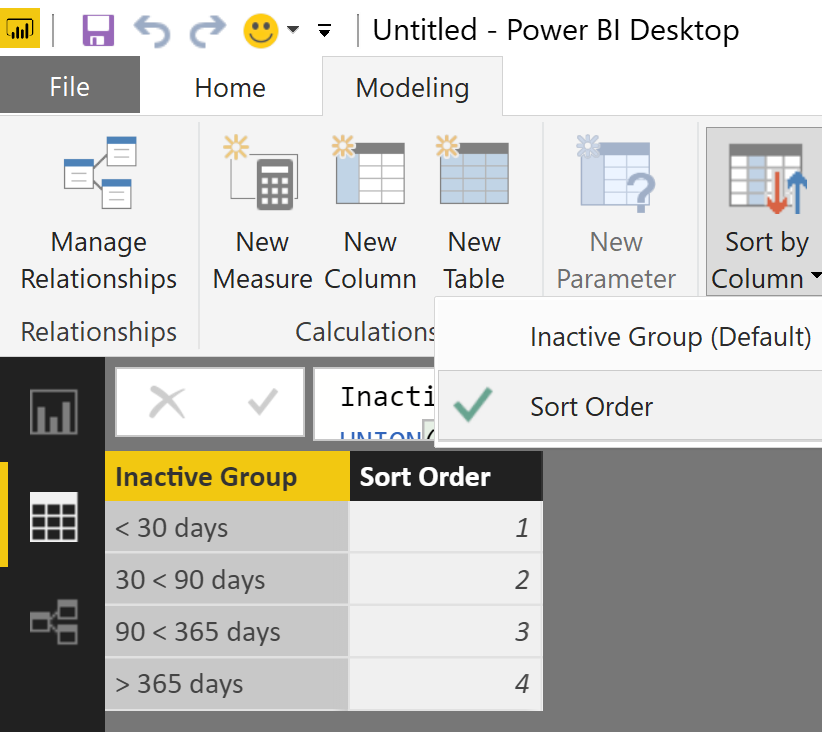
 Next change the default order, goto the model pane mark the column of  "Inactive Group" and choose colum to sort by

2017-08-18_16-14-28.png


In the relationship pane connect the columns with the new table on the one side and your calculated column on the many side. Hide your calculated column from report view and just use the column from the new table.


Hope this helps


Did I answer your question? Mark my post as a solution, this will help others!

Proud to be a Super User!
I accept Kudos 😉
Hamburg, Germany

View solution in original post

2 REPLIES 2
TomMartens
Super User
Super User

Hey,


you can't change the order by changing your formula. The default order is derived from the values of signs representing the character code.


For this reason I would recommend to create a new table in the modeling section using this DAX statement

Inactive Group = 
UNION(
	ROW("Inactive Group", "< 30 days", "Sort Order", 1)
	,ROW("Inactive Group", "30 < 90 days", "Sort Order", 2)
	,ROW("Inactive Group", "90 < 365 days", "Sort Order", 3)
	,ROW("Inactive Group", "> 365 days", "Sort Order", 4)
)

 Next change the default order, goto the model pane mark the column of  "Inactive Group" and choose colum to sort by

2017-08-18_16-14-28.png


In the relationship pane connect the columns with the new table on the one side and your calculated column on the many side. Hide your calculated column from report view and just use the column from the new table.


Hope this helps


Did I answer your question? Mark my post as a solution, this will help others!

Proud to be a Super User!
I accept Kudos 😉
Hamburg, Germany

 Hi Tom

In this case the headers are numeric and special charachters, what if I want to move one column left or right?

Helpful resources

Announcements
Power BI DataViz World Championships

Power BI Dataviz World Championships

The Power BI Data Visualization World Championships is back! Get ahead of the game and start preparing now!

December 2025 Power BI Update Carousel

Power BI Monthly Update - December 2025

Check out the December 2025 Power BI Holiday Recap!

FabCon Atlanta 2026 carousel

FabCon Atlanta 2026

Join us at FabCon Atlanta, March 16-20, for the ultimate Fabric, Power BI, AI and SQL community-led event. Save $200 with code FABCOMM.

Top Solution Authors