Join us in Barcelona for FabCon and SQLCon, September 28 - October 1, 2026.
This is best Fabric, Power BI, SQL and AI community event. How do we know? The last event sold out! Save €200 with code FABCMTY200.
Register now- Power BI forums
- Get Help with Power BI
- Desktop
- Service
- Report Server
- Power Query
- Mobile Apps
- Developer
- DAX Commands and Tips
- Custom Visuals Development Discussion
- Health and Life Sciences
- Power BI Spanish forums
- Translated Spanish Desktop
- Training and Consulting
- Instructor Led Training
- Dashboard in a Day for Women, by Women
- Galleries
- Data Stories Gallery
- Themes Gallery
- Contests Gallery
- QuickViz Gallery
- Quick Measures Gallery
- Visual Calculations Gallery
- Fabric Apps Gallery
- Notebook Gallery
- Translytical Task Flow Gallery
- TMDL Gallery
- R Script Showcase
- Webinars and Video Gallery
- Ideas
- Custom Visuals Ideas (read-only)
- Issues
- Issues
- Events
- Upcoming Events
The Fabric community is upgrading! Read all of the details including the timeline and what you can expect. Learn more
- Power BI forums
- Forums
- Get Help with Power BI
- Desktop
- Re: CSV file issue
- Subscribe to RSS Feed
- Mark Topic as New
- Mark Topic as Read
- Float this Topic for Current User
- Bookmark
- Subscribe
- Printer Friendly Page

- Mark as New
- Bookmark
- Subscribe
- Mute
- Subscribe to RSS Feed
- Permalink
- Report Inappropriate Content
CSV file issue
Hi,
I'm trying to import a CSV file that is using commas as separator. But once I import the data, then some rows are separated and some not. If I try it in Excel, then it separates all the rows, but not in Power BI.
I also tried custom separator and then typed ',' there, but it also didn't work.
What might be the issue here?
Thank you for the help!
Solved! Go to Solution.
- Mark as New
- Bookmark
- Subscribe
- Mute
- Subscribe to RSS Feed
- Permalink
- Report Inappropriate Content
The problem was with the file. After downloading it from the source system, I didn't open and save it as a csv file anymore, but just took the file from the Downloads folder and now it works.


- Mark as New
- Bookmark
- Subscribe
- Mute
- Subscribe to RSS Feed
- Permalink
- Report Inappropriate Content
I've just faced that issue as well. Just in case someone still needs the solution: the easiest way so far is to set the QuoteStyle parameter to QuoteStyle.Csv of the Csv.Document function in the Advansed editor of your connection.
As the documentation states (https://docs.microsoft.com/en-us/powerquery-m/csv-document😞
QuoteStyle: Specifies how quoted line breaks are handled. QuoteStyle.None (default): All line breaks are treated as the end of the current row, even when they occur inside a quoted value. QuoteStyle.Csv: Quoted line breaks are treated as part of the data, not as the end of the current row.

- Mark as New
- Bookmark
- Subscribe
- Mute
- Subscribe to RSS Feed
- Permalink
- Report Inappropriate Content
Thank you very much!!!!


- Mark as New
- Bookmark
- Subscribe
- Mute
- Subscribe to RSS Feed
- Permalink
- Report Inappropriate Content
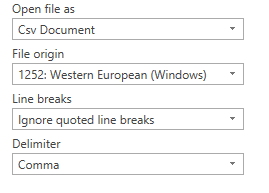
Are you able to take a screenshot of what you see when it fails?
I often have CSV files which include carriage returns within fields and these can cause the rows and columns to get a bit messed up. It might be worth checking this first, although I would expect you to have an issue opening in Excel if this were the case. To check/correct this, open the source item and set Line Breaks to "Ignore".
- Mark as New
- Bookmark
- Subscribe
- Mute
- Subscribe to RSS Feed
- Permalink
- Report Inappropriate Content
Hi @Gazzer,
From where can I find the line breaks option, as when I import the file with Text/CSV option, then this is what I get:

- Mark as New
- Bookmark
- Subscribe
- Mute
- Subscribe to RSS Feed
- Permalink
- Report Inappropriate Content
You have to go back to the Source step after the initial import.
Go to the Applied Steps section on the right-hand side and click the little gear wheel icon next to "Source" to edit the import settings. It should look a bit like the image in my previous post.
- Mark as New
- Bookmark
- Subscribe
- Mute
- Subscribe to RSS Feed
- Permalink
- Report Inappropriate Content
- Mark as New
- Bookmark
- Subscribe
- Mute
- Subscribe to RSS Feed
- Permalink
- Report Inappropriate Content
The problem was with the file. After downloading it from the source system, I didn't open and save it as a csv file anymore, but just took the file from the Downloads folder and now it works.
- Mark as New
- Bookmark
- Subscribe
- Mute
- Subscribe to RSS Feed
- Permalink
- Report Inappropriate Content
Hi @Anonymous
Glad to hear you got there in the end.
Helpful resources

FabCon & SQLCon – Barcelona 2026
Join us in Barcelona for FabCon and SQLCon, the Fabric, Power BI, SQL, and AI community event. Save €200 with code FABCMTY200.

Power BI DataViz World Championships - June 2026
A new Power BI DataViz World Championship is coming this June! Don't miss out on submitting your entry.

| User | Count |
|---|---|
| 24 | |
| 22 | |
| 20 | |
| 18 | |
| 14 |


| User | Count |
|---|---|
| 45 | |
| 38 | |
| 24 | |
| 22 | |
| 20 |


