cancel
Showing results for 
Search instead for 
Did you mean: 

The Power BI Data Visualization World Championships is back! Get ahead of the game and start preparing now! Learn more

Reply
ammartino44
Helper III
Helper III

Adding date table from excel file

How do I add a date table into power bi? I tried creating a date table in excel power pivot and then importing into current power bi file but it copied over everything that I was working on. Why does it copy over all my existing stuff? 

2 ACCEPTED SOLUTIONS
Baskar
Resident Rockstar
Resident Rockstar

Hi, 


I think u aware of Power Query window, If no 


1. 1. Query Editor1. Query Editor
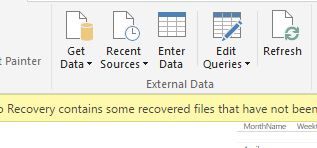
 

From New Source create on " Blank Query "


and then Click Advanced Editor 
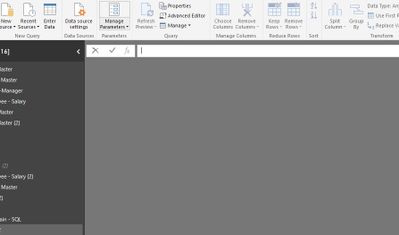
 

Advanced EditorAdvanced Editor


 In Advanced Editor replace with the following code , 


let
Source = (StartDate as date, EndDate as date, optional Culture as nullable text) as table =>
let
DayCount = Duration.Days(Duration.From(EndDate - StartDate)),
Source = List.Dates(StartDate,DayCount,#duration(1,0,0,0)),
TableFromList = Table.FromList(Source, Splitter.SplitByNothing()),
ChangedType = Table.TransformColumnTypes(TableFromList,{{"Column1", type date}}),
RenamedColumns = Table.RenameColumns(ChangedType,{{"Column1", "Date"}}),
InsertYear = Table.AddColumn(RenamedColumns, "Year", each Date.Year([Date])),
InsertQuarter = Table.AddColumn(InsertYear, "QuarterOfYear", each Date.QuarterOfYear([Date])),
InsertMonth = Table.AddColumn(InsertQuarter, "MonthOfYear", each Date.Month([Date])),
InsertDay = Table.AddColumn(InsertMonth, "DayOfMonth", each Date.Day([Date])),
InsertDayInt = Table.AddColumn(InsertDay, "DateInt", each [Year] * 10000 + [MonthOfYear] * 100 + [DayOfMonth]),
InsertMonthName = Table.AddColumn(InsertDayInt, "MonthName", each Date.ToText([Date], "MMMM", Culture), type text),
InsertCalendarMonth = Table.AddColumn(InsertMonthName, "MonthInCalendar", each (try(Text.Range([MonthName],0,3)) otherwise [MonthName]) & "'" & Text.Range(Number.ToText([Year]),2,2)),
InsertCalendarQtr = Table.AddColumn(InsertCalendarMonth, "QuarterInCalendar", each "Q" & Number.ToText([QuarterOfYear]) & " " & Number.ToText([Year])),
InsertDayWeek = Table.AddColumn(InsertCalendarQtr, "DayInWeek", each Date.DayOfWeek([Date])),
InsertDayName = Table.AddColumn(InsertDayWeek, "DayOfWeekName", each Date.ToText([Date], "dddd", Culture), type text),
InsertWeekEnding = Table.AddColumn(InsertDayName, "WeekEnding", each Date.EndOfWeek([Date]), type date),
InsertWeekStarting = Table.AddColumn(InsertWeekEnding, "WeekStart", each Date.StartOfWeek([Date]), type date)
in
InsertWeekStarting,
#"Invoked FunctionSource" = Source(#date(2016, 1, 1), #date(2016, 10, 31), null),
#"Changed Type" = Table.TransformColumnTypes(#"Invoked FunctionSource",{{"MonthOfYear", Int64.Type}, {"QuarterOfYear", Int64.Type}, {"DayOfMonth", Int64.Type}, {"DayInWeek", Int64.Type}}),
#"Duplicated Column" = Table.DuplicateColumn(#"Changed Type", "Date", "Date - Copy"),
#"Calculated Week of Year" = Table.TransformColumns(#"Duplicated Column",{{"Date - Copy", Date.WeekOfYear}}),
#"Renamed Columns" = Table.RenameColumns(#"Calculated Week of Year",{{"Date - Copy", "WeekofMonth"}}),
#"Changed Type1" = Table.TransformColumnTypes(#"Renamed Columns",{{"Year", Int64.Type}, {"DateInt", Int64.Type}, {"MonthInCalendar", type text}, {"QuarterInCalendar", type text}}),
#"Added Custom" = Table.AddColumn(#"Changed Type1", "Sorting Order", each [Year]*100 + [MonthOfYear]),
#"Filtered Rows" = Table.SelectRows(#"Added Custom", each true),
#"Changed Type2" = Table.TransformColumnTypes(#"Filtered Rows",{{"Sorting Order", Int64.Type}}),
#"Inserted Quarter" = Table.AddColumn(#"Changed Type2", "Quarter", each Date.QuarterOfYear([Date]), type number),
#"Changed Type3" = Table.TransformColumnTypes(#"Inserted Quarter",{{"Quarter", Int64.Type}})
in
#"Changed Type3"


----------------------


It will give u the Date Master , if you want more columns u can added in power Query

View solution in original post

v-caliao-msft
Microsoft Employee
Microsoft Employee

Hi @ammartino44,


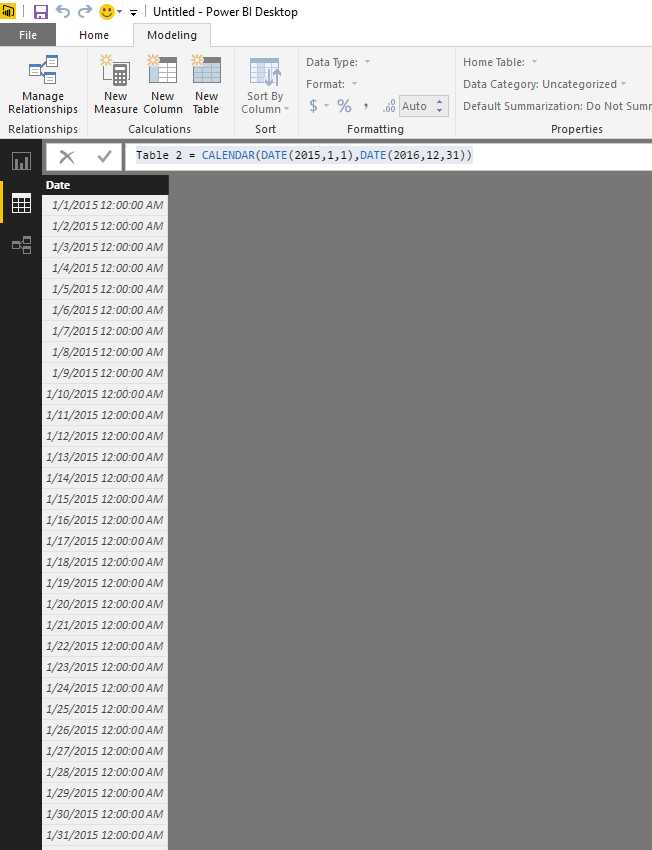
You can add a date in Power BI easily. Click a new table and then use the DAX below.
Table 2 = CALENDAR(DATE(2015,1,1),DATE(2016,12,31))

Capture.PNG


Reference
https://msdn.microsoft.com/en-us/library/dn802546.aspx?f=255&MSPPError=-2147217396


Regards,

Charlie Liao

View solution in original post

2 REPLIES 2
v-caliao-msft
Microsoft Employee
Microsoft Employee

Hi @ammartino44,


You can add a date in Power BI easily. Click a new table and then use the DAX below.
Table 2 = CALENDAR(DATE(2015,1,1),DATE(2016,12,31))

Capture.PNG


Reference
https://msdn.microsoft.com/en-us/library/dn802546.aspx?f=255&MSPPError=-2147217396


Regards,

Charlie Liao

Baskar
Resident Rockstar
Resident Rockstar

Hi, 


I think u aware of Power Query window, If no 


1. 1. Query Editor1. Query Editor


From New Source create on " Blank Query "


and then Click Advanced Editor 


Advanced EditorAdvanced Editor


 In Advanced Editor replace with the following code , 


let
Source = (StartDate as date, EndDate as date, optional Culture as nullable text) as table =>
let
DayCount = Duration.Days(Duration.From(EndDate - StartDate)),
Source = List.Dates(StartDate,DayCount,#duration(1,0,0,0)),
TableFromList = Table.FromList(Source, Splitter.SplitByNothing()),
ChangedType = Table.TransformColumnTypes(TableFromList,{{"Column1", type date}}),
RenamedColumns = Table.RenameColumns(ChangedType,{{"Column1", "Date"}}),
InsertYear = Table.AddColumn(RenamedColumns, "Year", each Date.Year([Date])),
InsertQuarter = Table.AddColumn(InsertYear, "QuarterOfYear", each Date.QuarterOfYear([Date])),
InsertMonth = Table.AddColumn(InsertQuarter, "MonthOfYear", each Date.Month([Date])),
InsertDay = Table.AddColumn(InsertMonth, "DayOfMonth", each Date.Day([Date])),
InsertDayInt = Table.AddColumn(InsertDay, "DateInt", each [Year] * 10000 + [MonthOfYear] * 100 + [DayOfMonth]),
InsertMonthName = Table.AddColumn(InsertDayInt, "MonthName", each Date.ToText([Date], "MMMM", Culture), type text),
InsertCalendarMonth = Table.AddColumn(InsertMonthName, "MonthInCalendar", each (try(Text.Range([MonthName],0,3)) otherwise [MonthName]) & "'" & Text.Range(Number.ToText([Year]),2,2)),
InsertCalendarQtr = Table.AddColumn(InsertCalendarMonth, "QuarterInCalendar", each "Q" & Number.ToText([QuarterOfYear]) & " " & Number.ToText([Year])),
InsertDayWeek = Table.AddColumn(InsertCalendarQtr, "DayInWeek", each Date.DayOfWeek([Date])),
InsertDayName = Table.AddColumn(InsertDayWeek, "DayOfWeekName", each Date.ToText([Date], "dddd", Culture), type text),
InsertWeekEnding = Table.AddColumn(InsertDayName, "WeekEnding", each Date.EndOfWeek([Date]), type date),
InsertWeekStarting = Table.AddColumn(InsertWeekEnding, "WeekStart", each Date.StartOfWeek([Date]), type date)
in
InsertWeekStarting,
#"Invoked FunctionSource" = Source(#date(2016, 1, 1), #date(2016, 10, 31), null),
#"Changed Type" = Table.TransformColumnTypes(#"Invoked FunctionSource",{{"MonthOfYear", Int64.Type}, {"QuarterOfYear", Int64.Type}, {"DayOfMonth", Int64.Type}, {"DayInWeek", Int64.Type}}),
#"Duplicated Column" = Table.DuplicateColumn(#"Changed Type", "Date", "Date - Copy"),
#"Calculated Week of Year" = Table.TransformColumns(#"Duplicated Column",{{"Date - Copy", Date.WeekOfYear}}),
#"Renamed Columns" = Table.RenameColumns(#"Calculated Week of Year",{{"Date - Copy", "WeekofMonth"}}),
#"Changed Type1" = Table.TransformColumnTypes(#"Renamed Columns",{{"Year", Int64.Type}, {"DateInt", Int64.Type}, {"MonthInCalendar", type text}, {"QuarterInCalendar", type text}}),
#"Added Custom" = Table.AddColumn(#"Changed Type1", "Sorting Order", each [Year]*100 + [MonthOfYear]),
#"Filtered Rows" = Table.SelectRows(#"Added Custom", each true),
#"Changed Type2" = Table.TransformColumnTypes(#"Filtered Rows",{{"Sorting Order", Int64.Type}}),
#"Inserted Quarter" = Table.AddColumn(#"Changed Type2", "Quarter", each Date.QuarterOfYear([Date]), type number),
#"Changed Type3" = Table.TransformColumnTypes(#"Inserted Quarter",{{"Quarter", Int64.Type}})
in
#"Changed Type3"


----------------------


It will give u the Date Master , if you want more columns u can added in power Query

Helpful resources

Announcements
Power BI DataViz World Championships

Power BI Dataviz World Championships

The Power BI Data Visualization World Championships is back! Get ahead of the game and start preparing now!

December 2025 Power BI Update Carousel

Power BI Monthly Update - December 2025

Check out the December 2025 Power BI Holiday Recap!

FabCon Atlanta 2026 carousel

FabCon Atlanta 2026

Join us at FabCon Atlanta, March 16-20, for the ultimate Fabric, Power BI, AI and SQL community-led event. Save $200 with code FABCOMM.