Join us at FabCon Atlanta from March 16 - 20, 2026, for the ultimate Fabric, Power BI, AI and SQL community-led event. Save $200 with code FABCOMM.
Register now!Vote for your favorite vizzies from the Power BI Dataviz World Championship submissions. Vote now!
Hi,
I am getting data from a dataflow for my dataset. The dataflow that I receive data is huge, millions of records. It really slows down my report if I get it all. I wonder if it is possible to compute the dataflow and get the computed entity for my report.
For example; this is an example for the dataflow:
| Count | Date | type | value |
| a1 | 01.2019 | s | 1 |
| a2 | 01.2019 | m | 2 |
| a3 | 01.2019 | a | 1 |
| q1 | 01.2019 | s | 2 |
| q2 | 01.2019 | a | 1 |
| q3 | 01.2019 | m | 2 |
| w1 | 01.2019 | a | 1 |
| w2 | 01.2019 | a | 2 |
| w3 | 01.2019 | m | 2 |
| e1 | 01.2019 | a | 1 |
| e3 | 01.2019 | m | 2 |
| e4 | 01.2019 | a | 1 |
| e5 | 01.2019 | a | 2 |
| w4 | 01.2019 | m | 1 |
| w5 | 01.2019 | m | 3 |
I want to make a computed entity from this data and use it as a dataflow for my report. It should show:
| Date | type | value | count |
| 01.2019 | s | 3 | 15 |
| 01.2019 | m | 12 | 15 |
| 01.2019 | a | 9 | 15 |
In order to decrease the data size, I want to do it in this way:
Date: I should be able to selected the data for last 18 months.
Type: total of values for eah type category.
Value: total of values in that category
count: count of the count column at the previous table.
Is it possible to do it?
Thanks in advance!
Solved! Go to Solution.
Hi @IF ,
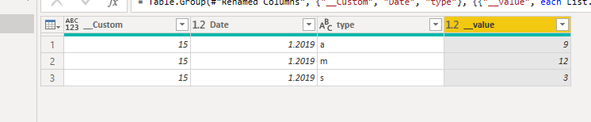
After you create a data stream and connect to the data source, transform the table in ‘Edit Query’, please refer to the following code.
let
Source = Excel.Workbook(File.Contents("C:\Users\lionelch\Desktop\Sample data\1.xlsx"), null, true),
Sheet3_Sheet = Source{[Item="Sheet3",Kind="Sheet"]}[Data],
#"Promoted Headers" = Table.PromoteHeaders(Sheet3_Sheet, [PromoteAllScalars=true]),
#"Changed Type" = Table.TransformColumnTypes(#"Promoted Headers",{{"Count", type text}, {"Date", type number}, {"type", type text}, {"value", Int64.Type}}),
#"Added Custom" = Table.AddColumn(#"Changed Type", "Custom", each Table.RowCount(#"Changed Type")),
#"Changed Type1" = Table.TransformColumnTypes(#"Added Custom",{{"value", Int64.Type}}),
#"Renamed Columns" = Table.RenameColumns(#"Changed Type1",{{"Custom", "__Custom"}}),
#"Grouped Rows" = Table.Group(#"Renamed Columns", {"__Custom", "Date", "type"}, {{"__value", each List.Sum([value]), type nullable number}})
in
#"Grouped Rows"
Hi @IF ,
After you create a data stream and connect to the data source, transform the table in ‘Edit Query’, please refer to the following code.
let
Source = Excel.Workbook(File.Contents("C:\Users\lionelch\Desktop\Sample data\1.xlsx"), null, true),
Sheet3_Sheet = Source{[Item="Sheet3",Kind="Sheet"]}[Data],
#"Promoted Headers" = Table.PromoteHeaders(Sheet3_Sheet, [PromoteAllScalars=true]),
#"Changed Type" = Table.TransformColumnTypes(#"Promoted Headers",{{"Count", type text}, {"Date", type number}, {"type", type text}, {"value", Int64.Type}}),
#"Added Custom" = Table.AddColumn(#"Changed Type", "Custom", each Table.RowCount(#"Changed Type")),
#"Changed Type1" = Table.TransformColumnTypes(#"Added Custom",{{"value", Int64.Type}}),
#"Renamed Columns" = Table.RenameColumns(#"Changed Type1",{{"Custom", "__Custom"}}),
#"Grouped Rows" = Table.Group(#"Renamed Columns", {"__Custom", "Date", "type"}, {{"__value", each List.Sum([value]), type nullable number}})
in
#"Grouped Rows"
Vote for your favorite vizzies from the Power BI World Championship submissions!
If you love stickers, then you will definitely want to check out our Community Sticker Challenge!
Check out the January 2026 Power BI update to learn about new features.
| User | Count |
|---|---|
| 19 | |
| 13 | |
| 9 | |
| 9 | |
| 7 |
| User | Count |
|---|---|
| 47 | |
| 40 | |
| 39 | |
| 25 | |
| 25 |