Join us at FabCon Atlanta from March 16 - 20, 2026, for the ultimate Fabric, Power BI, AI and SQL community-led event. Save $200 with code FABCOMM.
Register now!The Power BI Data Visualization World Championships is back! Get ahead of the game and start preparing now! Learn more
Hi,
It seems that the table.profile while being a very powerful tool for quick analysis of a table data content but it seems to very slow when querying long tables. Are there any specific tips that would help in making the table.profile queries more performant from e.g. Azure SQL database imports? The query seems to be stuck "evaluation" phase for a long time. Is there any good rule-of-thumbs for making the table.profile queries more performant?
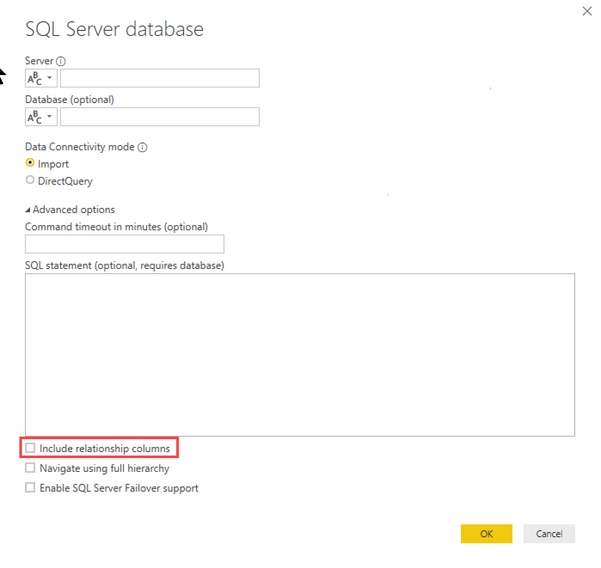
It is very important to disable "Include Relationship columns" (which is enabled by default)
Imke Feldmann (The BIccountant)
If you liked my solution, please give it a thumbs up. And if I did answer your question, please mark this post as a solution. Thanks!
How to integrate M-code into your solution -- How to get your questions answered quickly -- How to provide sample data -- Check out more PBI- learning resources here -- Performance Tipps for M-queries
Hi - Table.Profile will scan each Column and Row of the Table, so performance will always be an issue with large Tables with more Columns and more Rows. To improve performance.
1) Reduce the no of columns. If there are any Text columns or other columns for which profiling is not required, remove them from Table.Profile
2) Reduce No of Rows - Always perform Table.Profile on last step after doing transformations that will reduce the number of Rows like filter, Group, Distinct etc. This way the number of Rows required for profiling will be less.
Thanks
Ankit Jain
Do Mark it as solution if the response resolved your problem. Do Kudo the response if it seems good and helpful.
The Power BI Data Visualization World Championships is back! Get ahead of the game and start preparing now!