This time we’re going bigger than ever. Fabric, Power BI, SQL, AI and more. We're covering it all. You won't want to miss it.
Learn moreLevel up your Power BI skills this month - build one visual each week and tell better stories with data! Get started
Hi all,
I have a set of data that requires me to set up personnel that is active/inactive.
The dataset is about a set of professional that took exam on certain timeframe.
The dataset sample are shown as follow
| Exam Session | Name |
| Dec-23 | A |
| Jun-23 | A |
| Dec-22 | A |
| Jun-23 | B |
| Dec-22 | B |
| Dec-22 | C |
| Jun-23 | D |
| Jun-22 | E |
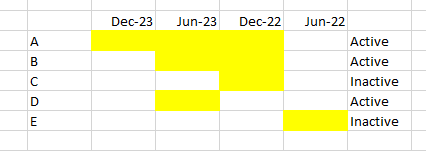
The expected output are attached as image below.
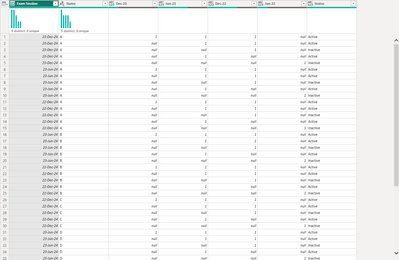
As you can see, Candidate C and E are consider as inactive because they are not taking exam on dec 23 and jun 23. However, since this excel is going to be update constantly, the date of dec 23 will move to jun 24 when the next result comes in. hence there will be a new col and the condition will change according to that.
With the following condition, how should I create my formula for it in excel and even better, for power query instead?
Solved! Go to Solution.
Hi @profilewatercli, check this.
Result

let
Source = Table.FromRows(Json.Document(Binary.Decompress(Binary.FromText("i45WcklN1jUyVtJRclSK1YlW8irNQ+aCZY0wZZ1QZdG4zqiKXRBckKyrUmwsAA==", BinaryEncoding.Base64), Compression.Deflate)), let _t = ((type nullable text) meta [Serialized.Text = true]) in type table [#"Exam Session" = _t, Name = _t]),
#"Grouped Rows" = Table.Group(Source, {"Name"}, {{"All", each _, type table [Exam Session=nullable text, Name=nullable text]}}),
#"Added Helper" = Table.AddColumn(#"Grouped Rows", "Helper", each 1, Int64.Type),
#"Expanded All" = Table.ExpandTableColumn(#"Added Helper", "All", {"Exam Session"}, {"Exam Session"}),
#"Added DateHelper" = Table.AddColumn(#"Expanded All", "DateHelper", each Date.FromText([Exam Session] & "-1", [Format="MMM-yy-d", Culture="en-US"]), type date),
#"Sorted Rows" = Table.Sort(#"Added DateHelper",{{"DateHelper", Order.Descending}}),
#"Removed Columns" = Table.RemoveColumns(#"Sorted Rows",{"DateHelper"}),
#"Pivoted Column" = Table.Pivot(#"Removed Columns", List.Distinct(#"Removed Columns"[#"Exam Session"]), "Exam Session", "Helper"),
#"Added Status" = Table.AddColumn(#"Pivoted Column", "Status", each
[ a = List.RemoveNulls(List.FirstN(Record.ToList(Record.RemoveFields(_, "Name")),2)),
b = if List.Count(a) > 0 then "Active" else "Inactive"
][b], type text)
in
#"Added Status"
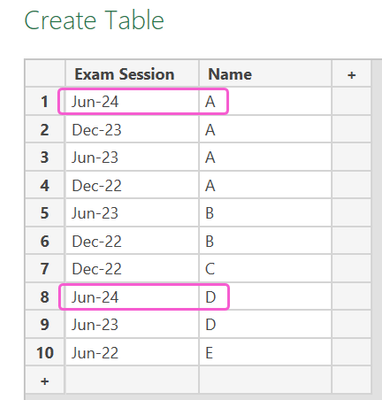
Hi there, I tried running your formula using an updated data as below.
| Exam Session | Name |
| Dec-23 | A |
| Jun-23 | A |
| Dec-22 | A |
| Jun-23 | B |
| Dec-22 | B |
| Dec-22 | C |
| Jun-23 | D |
| Jun-22 | E |
| Jun-24 | C |
| Jun-24 | E |
However, the formula doesnt sync as the updated version. It's still showing Dec-23, Jun-23, Dec-22 and Jun-22 as follows.
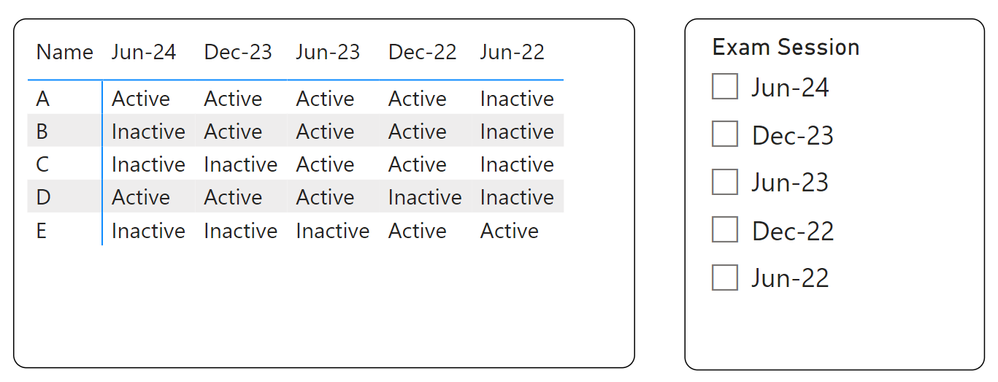
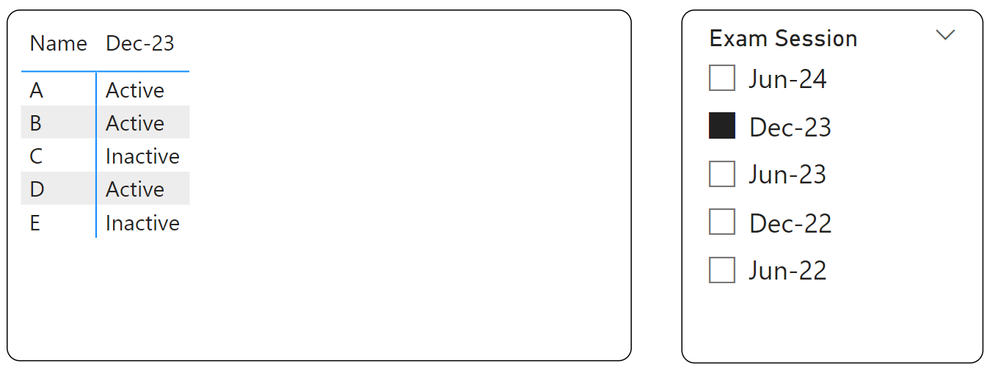
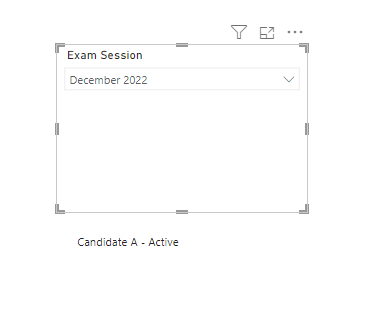
My final plan if to have a slicer selecting the session (datemonth) and showing the candidate if its active or non-active
Check out the April 2026 Power BI update to learn about new features.
Sign up to receive a private message when registration opens and key events begin.
If you have recently started exploring Fabric, we'd love to hear how it's going. Your feedback can help with product improvements.