Join us in Barcelona for FabCon and SQLCon, September 28 - October 1, 2026.
This is best Fabric, Power BI, SQL and AI community event. How do we know? The last event sold out! Save €200 with code FABCMTY200.
Register now60 Days of Data Days! Live and on-demand sessions, challenges, study groups and more! And it's all FREE!. Join now. Learn more
- Microsoft Fabric Community
- Fabric community blogs
- Power BI Community Blog
- Data Gateway : Automation using PowerShell - Part ...
- Subscribe to RSS Feed
- Mark as New
- Mark as Read
- Bookmark
- Subscribe
- Printer Friendly Page
- Report Inappropriate Content


- Subscribe to RSS Feed
- Mark as New
- Mark as Read
- Bookmark
- Subscribe
- Printer Friendly Page
- Report Inappropriate Content
Introduction:
Recently, with the new release of Data Gateway Automation, we can now install and configure the gateway using PowerShell itself.

In this blog, we are going to see how to use the new PowerShell scripts to install and configure the data gateway and some best practices.
Note: This feature is still in public preview.
Simple Script:
The below is the simple script used to install and configure the data gateway.
$Psversion = (Get-Host).Version

if($Psversion.Major -ge 7)
{

if (!(Get-Module "DataGateway")) {
Install-Module -Name DataGateway
}

$securePassword = "" | ConvertTo-SecureString -AsPlainText -Force;
$ApplicationId ="";
$Tenant = "";
$GatewayName = "MyGateway";
$RecoverKey = "Demo@123" | ConvertTo-SecureString -AsPlainText -Force;
$userIDToAddasAdmin = ""


#Gateway Login

Connect-DataGatewayServiceAccount -ApplicationId $ApplicationId -ClientSecret $securePassword  -Tenant $Tenant


#Installing Gateway

Install-DataGateway -AcceptConditions


#Configuring Gateway

$GatewayDetails = Add-DataGatewayCluster -Name $GatewayName -RecoveryKey  $RecoverKey


#Add User as Admin
Add-DataGatewayClusterUser -GatewayClusterId $GatewayDetails.GatewayObjectId -PrincipalObjectId $userIDToAddasAdmin -AllowedDataSourceTypes $null -Role Admin

}
else{
exit 1
}
Output:
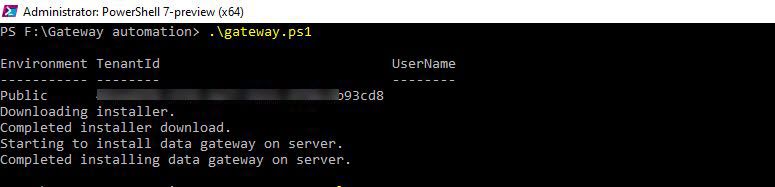
You can also find the above script on GitHub.
You can find the Official PowerShell script here.
Limitations: (As of May 2020)
- Only PowerShell version 7 and above is supported.
- You can't create a new data source .
- You can't restore an existing gateway.
- You can’t upgrade a gateway with this feature, right now the PowerShell script is only applicable for installing DataGateway.
- Adding Gateway Members to newly created cluster is not supported yet.
- The "Add-DataGatewayCluster" script will install the gateway cluster that must be `3000.37.35` (April 2020) or higher gateway version.
Best Practices:
- Make sure you have the PowerShell version 7 because these scripts only work with version 7 and above.
- You have to run the script in the PowerShell in Admin mode.
- If you want to overwrite the existing gateway configuration on the local machine and configure a new one, use -OverwriteExistingGateway in "Add-DataGatewayCluster" script.
- By default, the "Add-DataGatewayCluster" script will install the gateway in Power BI default tenant region, if you want to change the region then you have to provide the correct region which you can get from the "Get-DataGatewayRegion" module.
You must be a registered user to add a comment. If you've already registered, sign in. Otherwise, register and sign in.
- Need a Running Total for Just One Chart? Power BI'...
- Data Days Contests | Announcing SQL + AI Promptath...
- The Hidden Architecture of Power BI Publishing Exp...
- Power BI Dataviz World Champs Barcelona | Round 2 ...
- Power BI Copilot Custom Instructions: Prep Data fo...
- Power BI Dataviz World Champs | Round 3
- Community Sticker Challenge Barcelona 2026
- Power BI Copilot Set Limits
- Tired of Viewers Clicking "+" on Every Row? Power ...
- Power Bi Alerts with DAX at Power Automate
- SANTOSHI123 on: Need a Running Total for Just One Chart? Power BI'...
- SANTOSHI123 on: Data Days Contests | Announcing SQL + AI Promptath...
- albarwahab on: Power BI Dataviz World Champs Barcelona | Round 2 ...
-
azizquazi_sg
 on:
Power BI Dataviz World Champs | Round 3
on:
Power BI Dataviz World Champs | Round 3
- bharathkodi284 on: Community Sticker Challenge Barcelona 2026
-
Aaryan_23
 on:
Power Bi Alerts with DAX at Power Automate
on:
Power Bi Alerts with DAX at Power Automate
-
 InsightsByV
on:
Clone report pointing to desired LH or workspace -...
InsightsByV
on:
Clone report pointing to desired LH or workspace -...
-
alicegray
on:
4 Key Steps to Optimize Power BI Copilot Accuracy ...
-
tanziyaashaq
 on:
Give Users Full Control Over KPI Scale with Dynami...
on:
Give Users Full Control Over KPI Scale with Dynami...
-
tanziyaashaq
on:
Power BI Design Skills: Why Accessibility Still St...
-
How to
809 -
Tips & Tricks
795 -
Events
215 -
Support insights
121 -
Opinion
114 -
DAX
66 -
Power BI
65 -
Power Query
62 -
Power BI Dev Camp
45 -
Power BI Desktop
40 -
Roundup
40 -
Dataflow
33 -
Featured User Group Leader
30 -
Data Protection
23 -
Power BI Embedded
20 -
Time Intelligence
19 -
Tips&Tricks
18 -
PowerBI REST API
12 -
Power Query Tips & Tricks
8 -
finance
8 -
Power BI Service
8 -
Direct Query
7 -
Power BI REST API
6 -
Auto ML
6 -
Data Analysis
6 -
financial reporting
6 -
Power Automate
6 -
Data Visualization
6 -
Python
6 -
Tips and Tricks
6 -
Dax studio
5 -
Income Statement
5 -
powerbi
5 -
service
5 -
Power BI PowerShell
5 -
Machine Learning
5 -
M language
4 -
Life Sciences
4 -
External tool
4 -
Paginated Reports
4 -
Power BI Goals
4 -
Desktop
4 -
PowerShell
4 -
Bookmarks
4 -
Group By
4 -
Line chart
4 -
Community
4 -
RLS
4 -
Visualisation
3 -
Administration
3 -
M code
3 -
SQL Server 2017 Express Edition
3 -
Visuals
3 -
R script
3 -
Aggregation
3 -
Webinar
3 -
calendar
3 -
Gateways
3 -
R
3 -
M Query
3 -
R visual
3 -
CALCULATE
3 -
Reports
3 -
PowerApps
3 -
Data Science
3 -
Azure
3 -
Data model
3 -
Conditional Formatting
3 -
Split
2 -
Forecasting
2 -
REST API
2 -
Editor
2 -
Working with Non Standatd Periods
2 -
powerbi.tips
2 -
Custom function
2 -
Reverse
2 -
measure
2 -
Microsoft-flow
2 -
Paginated Report Builder
2 -
PUG
2 -
Custom Measures
2 -
Filtering
2 -
Row and column conversion
2 -
Python script
2 -
Nulls
2 -
DVW Analytics
2 -
Industrial App Store
2 -
Week
2 -
Date duration
2 -
parameter
2 -
Weekday Calendar
2 -
Support insights.
2 -
construct list
2 -
Formatting
2 -
Workday
2 -
external tools
2 -
slicers
2 -
SAP
2 -
Power Platform
2 -
index
2 -
RANKX
2 -
Integer
2 -
Date
2 -
PBI Desktop
2 -
Date Dimension
2 -
Power BI Challenge
2 -
Query Parameter
2 -
Visualization
2 -
Tabular Editor
2 -
SharePoint
2 -
Power BI Installation and Updates
2 -
How Things Work
2 -
Troubleshooting
2 -
Date DIFF
2 -
Transform data
2 -
Healthcare
2 -
rank
2 -
ladataweb
2 -
Incremental Refresh
2 -
Query Plans
2 -
Power BI & Power Apps
2 -
Random numbers
2 -
Day of the Week
2 -
Number Ranges
2 -
M
2 -
hierarchies
2 -
Power BI Anniversary
2 -
Language M
2 -
Custom visual
2 -
VLOOKUP
2 -
pivot
2 -
calculated column
2 -
Power BI Premium Per user
2 -
inexact
2 -
Date Comparison
2 -
Issues
1 -
function
1 -
stacked column chart
1 -
ho
1 -
ABB
1 -
KNN algorithm
1 -
List.Zip
1 -
optimization
1 -
Artificial Intelligence
1 -
Map Visual
1 -
Text.ContainsAll
1 -
Tuesday
1 -
Power Pivot
1 -
API
1 -
Kingsley
1 -
Merge
1 -
variable
1 -
financial reporting hierarchies RLS
1 -
Featured Data Stories
1 -
MQTT
1 -
Custom Periods
1 -
Partial group
1 -
Reduce Size
1 -
FBL3N
1 -
Wednesday
1 -
Data Engineering
1 -
Help
1 -
group
1 -
Scorecard
1 -
Json
1 -
Tops
1 -
Multivalued column
1 -
Pipeline
1 -
Path
1 -
Yokogawa
1 -
Dynamic calculation
1 -
Data Wrangling
1 -
native folded query
1 -
transform table
1 -
UX
1 -
Cell content
1 -
General Ledger
1 -
Thursday
1 -
Notebook
1 -
Q&A
1 -
Quick Tips
1 -
data
1 -
PBIRS
1 -
Usage Metrics in Power BI
1 -
HR Analytics
1 -
keepfilters
1 -
Connect Data
1 -
Financial Year
1 -
Schneider
1 -
dynamically delete records
1 -
Copy Measures
1 -
Friday
1 -
Lakehouse
1 -
update
1 -
Table
1 -
Natural Query Language
1 -
Infographic
1 -
automation
1 -
Prediction
1 -
newworkspacepowerbi
1 -
Performance KPIs
1 -
Active Employee
1 -
Custom Date Range on Date Slicer
1 -
refresh error
1 -
PAS
1 -
certain duration
1 -
DA-100
1 -
bulk renaming of columns
1 -
Single Date Picker
1 -
Monday
1 -
PCS
1 -
Saturday
1 -
Data Pipeline
1 -
Training
1 -
Event
1 -
Custom Visuals
1 -
Free vs Pro
1 -
Format
1 -
Current Employees
1 -
date hierarchy
1 -
relationship
1 -
SIEMENS
1 -
Multiple Currency
1 -
Power BI Premium
1 -
On-premises data gateway
1 -
Binary
1 -
Power BI Connector for SAP
1 -
Sunday
1 -
User Data Functions
1 -
Slicer
1 -
Visual
1 -
forecast
1 -
Regression
1 -
CICD
1 -
sport statistics
1 -
Intelligent Plant
1 -
Circular dependency
1 -
GE
1 -
Exchange rate
1 -
Dendrogram
1 -
range of values
1 -
activity log
1 -
Decimal
1 -
Charticulator Challenge
1 -
Field parameters
1 -
Workspace
1 -
Announcement
1 -
Features
1 -
domain
1 -
pbiviz
1 -
Color Map
1 -
Industrial
1 -
Weekday
1 -
Working Date
1 -
Space Issue
1 -
Emerson
1 -
Date Table
1 -
Cluster Analysis
1 -
Stacked Area Chart
1 -
union tables
1 -
Number
1 -
Start of Week
1 -
Tips& Tricks
1 -
deployment
1 -
ssrs traffic light indicators
1 -
SQL
1 -
trick
1 -
Scripts
1 -
Topper Color On Map
1 -
Historians
1 -
context transition
1 -
Custom textbox
1 -
OPC
1 -
Zabbix
1 -
Label: DAX
1 -
Business Analysis
1 -
Supporting Insight
1 -
rank value
1 -
Synapse
1 -
End of Week
1 -
Tips&Trick
1 -
Theme Colours
1 -
Text
1 -
Flow
1 -
Publish to Web
1 -
Extract
1 -
Top Category Color
1 -
A&E data
1 -
Previous Order
1 -
Substring
1 -
Wonderware
1 -
Power M
1 -
Format DAX
1 -
Custom functions
1 -
accumulative
1 -
DAX&Power Query
1 -
Premium Per User
1 -
GENERATESERIES
1 -
Excel
1 -
Showcase
1 -
custom connector
1 -
Waterfall Chart
1 -
Power BI On-Premise Data Gateway
1 -
patch
1 -
Top Brand Color on Map
1 -
Tutorial
1 -
Previous Date
1 -
XMLA End point
1 -
color reference
1 -
Date Time
1 -
Marker
1 -
Lineage
1 -
CSV file
1 -
conditional accumulative
1 -
Matrix Subtotal
1 -
Check
1 -
null value
1 -
Report Server
1 -
Audit Logs
1 -
analytics pane
1 -
step by step
1 -
pandas
1 -
Networkdays
1 -
Button
1 -
Dataset list
1 -
Keyboard Shortcuts
1 -
Fill Function
1 -
LOOKUPVALUE()
1 -
Tips &Tricks
1 -
Plotly package
1 -
Show and Tell
1 -
Cumulative Totals
1 -
Report Theme
1 -
Bookmarking
1 -
oracle
1 -
mahak
1 -
total
1 -
Filter context
1 -
Difference between two dates
1 -
get data
1 -
OSI
1 -
Query format convert
1 -
ETL
1 -
Json files
1 -
Merge Rows
1 -
CONCATENATEX()
1 -
take over Datasets;
1 -
Networkdays.Intl
1 -
refresh M language Python script Support Insights
1 -
Sameperiodlastyear
1 -
Office Theme
1 -
matrix
1 -
bar chart
1 -
Measures
1 -
powerbi argentina
1 -
Canvas Apps
1 -
REMOVEFILTERS
1 -
XMLA endpoint
1 -
translations
1 -
OSI pi
1 -
Parquet
1 -
Change rows to columns
1 -
remove spaces
1 -
Get row and column totals
1 -
Tutorial Requests
1 -
Governance
1 -
Fun
1 -
Power BI gateway
1 -
gateway
1 -
Elementary
1 -
Custom filters
1 -
Vertipaq Analyzer
1 -
powerbi cordoba
1 -
Model Driven Apps
1 -
Sandbox
1 -
Honeywell
1 -
Combine queries
1 -
X axis at different granularity
1 -
ADLS
1 -
Primary Key
1 -
Microsoft 365 usage analytics data
1 -
Randomly filter
1 -
Week of the Day
1 -
Azure AAD
1 -
Retail
1 -
Power BI Report Server
1 -
School
1 -
Cost-Benefit Analysis
1 -
DIisconnected Tables
1 -
Ties
1 -
unpivot
1 -
Practice Model
1 -
Continuous streak
1 -
ProcessVue
1 -
Create function
1 -
Table.Schema
1 -
Acknowledging
1 -
Postman
1 -
Text.ContainsAny
1 -
Power BI Show
1 -
Get latest sign-in data for each user
1 -
query
1 -
Dynamic Visuals
1 -
KPI
1 -
Intro
1 -
Icons
1 -
ISV
1
- 08-02-2026 - 08-08-2026
- 07-26-2026 - 08-01-2026
- 07-19-2026 - 07-25-2026
- 07-12-2026 - 07-18-2026
- 07-05-2026 - 07-11-2026
- 06-28-2026 - 07-04-2026
- 06-21-2026 - 06-27-2026
- 06-14-2026 - 06-20-2026
- 06-07-2026 - 06-13-2026
- 05-31-2026 - 06-06-2026
- 05-24-2026 - 05-30-2026
- 05-17-2026 - 05-23-2026
- 05-10-2026 - 05-16-2026
- View Complete Archives