cancel
Showing results for 
Search instead for 
Did you mean: 

We've captured the moments from FabCon & SQLCon that everyone is talking about, and we are bringing them to the community, live and on-demand. Starts on April 14th. Register now

Reply
Anonymous
Not applicable

column chart missing groups

Hello


I'm building a stacked column chart. The Axis is a date field, filtered to show the next 31 days. The Value is a cumulative sum obtained with the following DAX code:


Cumulative Sum = (
    CALCULATE(
       SUM('All Invoices'[Value]),
        FILTER(
            ALLSELECTED('All Invoices'),
            ISONORAFTER('All Invoices'[DueDate], MAX('All Invoices'[DueDate]), DESC)
        )
    )
)

This works fine. I am then adding a field to the Legend of the bar chart to break out the columns into different categories, which looks like this:
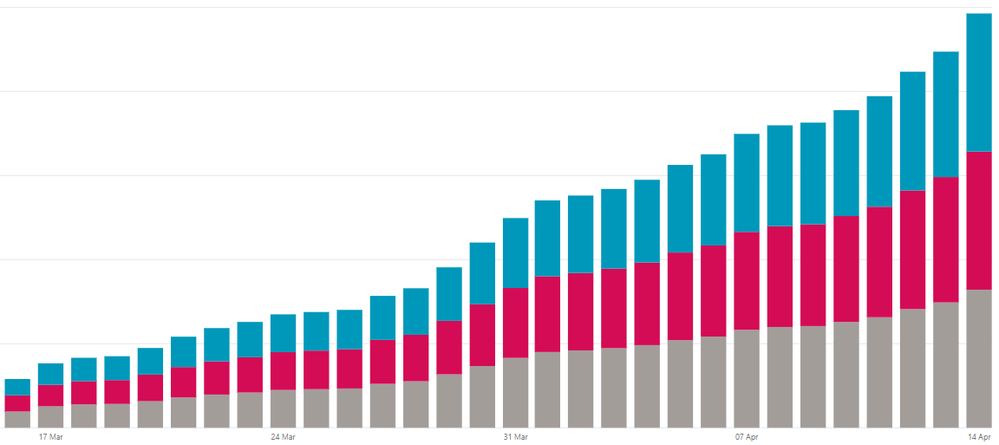
 

image.png


The problem I'm having is when particular slicer settings are set, a group might not have any value on a particular day. My expectation is that the group still display on the column, but that its size does not increase. Instead, for days where a group has no row in the data, it simply does not appear at all on the column:
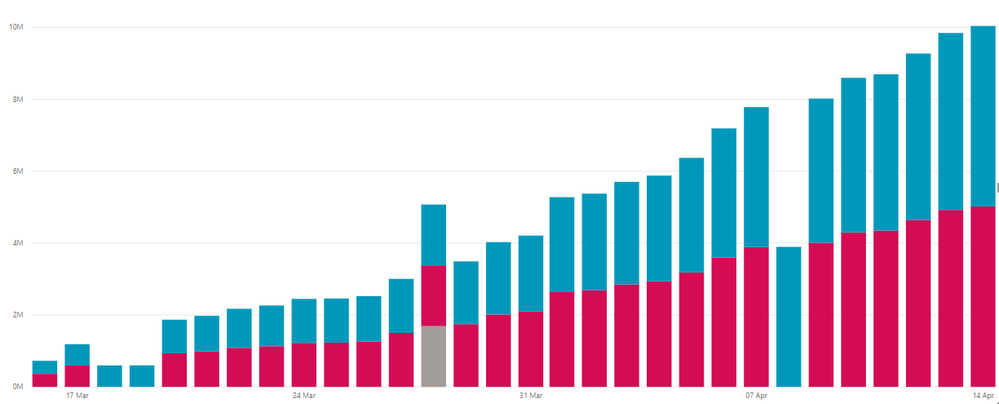
 

image.png


The third and 4th columns there had no rows in the red group and so that group isn't listed.


Is there a way to force them to still appear without simply creating a new grouped dataset manually?


Cheers

1 ACCEPTED SOLUTION
Anonymous
Not applicable

Never mind, I got it. Full DAX for the answer was:

    CumulativeValue = 
    
        VAR CurrActionDate = MAX('Table 2'[Date])
        VAR CurrTransType = MAX('Table 2'[Category])
        
        RETURN (
            CALCULATE(
                SUM('Table 1'[Value],
                FILTER(
                    ALLSELECTED('Table 1'),
                  'Table 1'[Date] <= CurrActionDate
                ),
                FILTER(
                    ALLSELECTED('Table 1'),
                    'Table 1'[Category] = CurrTransType
                )
            )
        )


Ta-da! Cumulative sum across different groups with no blank values.

View solution in original post

4 REPLIES 4
v-piga-msft
Resident Rockstar
Resident Rockstar

Hi @Anonymous ,


Actually, I'm afraid that is the default behaviour of the stacked column chart. If the cumulative sum is blank, it will not show in the chart.


If you want to show the value for the red group when no rows, you could create a measure to set a default value when the is blank with IF function.


Please refer to the formula below.


Measure= IF([cumulative sum]=blank(),default value,[cumulative sum])


Best Regards,

Cherry

Community Support Team _ Cherry Gao
If this post helps, then please consider Accept it as the solution to help the other members find it more quickly.
Anonymous
Not applicable

@v-piga-msftThanks for your reply. Unfortunately your suggestion didn't work, the graph displays exactly as it did before.


I tried an alternate route around the problem; I created a new table which displays all the dates and categories I need such that there is guaranteed to be a row for all of them. I'm now trying to perform the cumulative sum over the source table with a measure on the new table, however I'm struggling to make that work. For example given the source table:


DateCategoryValue
18/03/2019A651
18/03/2019B354
18/03/2019C56
19/03/2019A564
19/03/2019C616
20/03/2019B354
20/03/2019C

1268


Note missing rows for 19/03/2019 Category B and 20/03/2019 Category A. I have built a new table which *does* have those rows, and I'm trying to create a measure that creates the Cumulative Value field:


DateCategoryCumulative Value
18/03/2019A651
18/03/2019B354
18/03/2019C56
19/03/2019A1215
19/03/2019B354
19/03/2019C672
20/03/2019A1215
20/03/2019B708
20/03/2019C1940


I can't seem to get the =CALCULATE() syntax right though; I have no problem getting the cumulative sum to work but I can't seem to make it "break out" by Category.


Cheers

Anonymous
Not applicable

Never mind, I got it. Full DAX for the answer was:

    CumulativeValue = 
    
        VAR CurrActionDate = MAX('Table 2'[Date])
        VAR CurrTransType = MAX('Table 2'[Category])
        
        RETURN (
            CALCULATE(
                SUM('Table 1'[Value],
                FILTER(
                    ALLSELECTED('Table 1'),
                  'Table 1'[Date] <= CurrActionDate
                ),
                FILTER(
                    ALLSELECTED('Table 1'),
                    'Table 1'[Category] = CurrTransType
                )
            )
        )


Ta-da! Cumulative sum across different groups with no blank values.

Hi, can you elaborate on how you create 'Table 2' ?

Helpful resources

Announcements
New to Fabric survey Carousel

New to Fabric Survey

If you have recently started exploring Fabric, we'd love to hear how it's going. Your feedback can help with product improvements.

Power BI DataViz World Championships carousel

Power BI DataViz World Championships - June 2026

A new Power BI DataViz World Championship is coming this June! Don't miss out on submitting your entry.

Join our Fabric User Panel

Join our Fabric User Panel

Share feedback directly with Fabric product managers, participate in targeted research studies and influence the Fabric roadmap.

March Power BI Update Carousel

Power BI Community Update - March 2026

Check out the March 2026 Power BI update to learn about new features.