cancel
Showing results for 
Search instead for 
Did you mean: 

The Power BI Data Visualization World Championships is back! Get ahead of the game and start preparing now! Learn more

Reply
Leo64
New Member

Year interval

Hello,


I have 3 year intervals:


2020 - 2024

2025 - 2029

2030 - 2034


I would like to transform it to:

2020

2021

2022

2023

2024

2025 

etc. until 2034


How can I accomplish this?


Thank you in advance.


Leo


1 ACCEPTED SOLUTION
Anonymous
Not applicable

Hi @Leo64 ,


If you want to implement it in Power Query Editor, please refer to the following command.

let
  Source = Table.FromRows(
    Json.Document(
      Binary.Decompress(
        Binary.FromText("i45WMjIwMtAFEiZKsTpgnimIZwnlGYPkjIFysQA=", BinaryEncoding.Base64), 
        Compression.Deflate
      )
    ), 
    let
      _t = ((type nullable text) meta [Serialized.Text = true])
    in
      type table [Year = _t]
  ), 
  #"Changed Type" = Table.TransformColumnTypes(Source, {{"Year", type text}}), 
  #"Inserted Text Before Delimiter" = Table.AddColumn(
    #"Changed Type", 
    "Text Before Delimiter", 
    each Text.BeforeDelimiter([Year], "-"), 
    type text
  ), 
  #"Inserted Text After Delimiter" = Table.AddColumn(
    #"Inserted Text Before Delimiter", 
    "Text After Delimiter", 
    each Text.AfterDelimiter([Year], "-"), 
    type text
  ), 
  #"Renamed Columns" = Table.RenameColumns(
    #"Inserted Text After Delimiter", 
    {{"Text Before Delimiter", "StartYear"}, {"Text After Delimiter", "EndYear"}}
  ), 
  #"Changed Type1" = Table.TransformColumnTypes(
    #"Renamed Columns", 
    {{"StartYear", Int64.Type}, {"EndYear", Int64.Type}}
  ), 
  #"Added Custom" = Table.AddColumn(#"Changed Type1", "Custom", each [EndYear] - [StartYear]), 
  #"Changed Type2" = Table.TransformColumnTypes(#"Added Custom", {{"Custom", Int64.Type}}), 
  #"Added Custom1" = Table.AddColumn(
    #"Changed Type2", 
    "Custom.1", 
    each List.Numbers([StartYear], [Custom] + 1, 1)
  ), 
  #"Expanded Custom.1" = Table.ExpandListColumn(#"Added Custom1", "Custom.1"), 
  #"Removed Columns" = Table.RemoveColumns(
    #"Expanded Custom.1", 
    {"Year", "StartYear", "EndYear", "Custom"}
  )
in
  #"Removed Columns"

Attached PBIX file for reference, you can observe each step in APPLIED STEPS on the right.
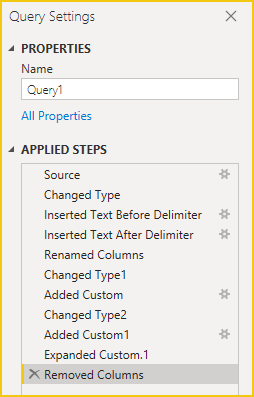
vcgaomsft_0-1652950880642.png

Best Regards,
Gao

Community Support Team


If there is any post helps, then please consider Accept it as the solution to help the other members find it more quickly. If I misunderstand your needs or you still have problems on it, please feel free to let us know. Thanks a lot!

How to get your questions answered quickly -- How to provide sample data

View solution in original post

2 REPLIES 2
Anonymous
Not applicable

Hi @Leo64 ,


If you want to implement it in Power Query Editor, please refer to the following command.

let
  Source = Table.FromRows(
    Json.Document(
      Binary.Decompress(
        Binary.FromText("i45WMjIwMtAFEiZKsTpgnimIZwnlGYPkjIFysQA=", BinaryEncoding.Base64), 
        Compression.Deflate
      )
    ), 
    let
      _t = ((type nullable text) meta [Serialized.Text = true])
    in
      type table [Year = _t]
  ), 
  #"Changed Type" = Table.TransformColumnTypes(Source, {{"Year", type text}}), 
  #"Inserted Text Before Delimiter" = Table.AddColumn(
    #"Changed Type", 
    "Text Before Delimiter", 
    each Text.BeforeDelimiter([Year], "-"), 
    type text
  ), 
  #"Inserted Text After Delimiter" = Table.AddColumn(
    #"Inserted Text Before Delimiter", 
    "Text After Delimiter", 
    each Text.AfterDelimiter([Year], "-"), 
    type text
  ), 
  #"Renamed Columns" = Table.RenameColumns(
    #"Inserted Text After Delimiter", 
    {{"Text Before Delimiter", "StartYear"}, {"Text After Delimiter", "EndYear"}}
  ), 
  #"Changed Type1" = Table.TransformColumnTypes(
    #"Renamed Columns", 
    {{"StartYear", Int64.Type}, {"EndYear", Int64.Type}}
  ), 
  #"Added Custom" = Table.AddColumn(#"Changed Type1", "Custom", each [EndYear] - [StartYear]), 
  #"Changed Type2" = Table.TransformColumnTypes(#"Added Custom", {{"Custom", Int64.Type}}), 
  #"Added Custom1" = Table.AddColumn(
    #"Changed Type2", 
    "Custom.1", 
    each List.Numbers([StartYear], [Custom] + 1, 1)
  ), 
  #"Expanded Custom.1" = Table.ExpandListColumn(#"Added Custom1", "Custom.1"), 
  #"Removed Columns" = Table.RemoveColumns(
    #"Expanded Custom.1", 
    {"Year", "StartYear", "EndYear", "Custom"}
  )
in
  #"Removed Columns"

Attached PBIX file for reference, you can observe each step in APPLIED STEPS on the right.

vcgaomsft_0-1652950880642.png

Best Regards,
Gao

Community Support Team


If there is any post helps, then please consider Accept it as the solution to help the other members find it more quickly. If I misunderstand your needs or you still have problems on it, please feel free to let us know. Thanks a lot!

How to get your questions answered quickly -- How to provide sample data

speedramps
Super User
Super User

You seem to have rushed this description.  😀

You will get a quicker resposne if you take time to include propoer input data examples. Thank you  😀

Helpful resources

Announcements
Power BI DataViz World Championships

Power BI Dataviz World Championships

The Power BI Data Visualization World Championships is back! Get ahead of the game and start preparing now!

December 2025 Power BI Update Carousel

Power BI Monthly Update - December 2025

Check out the December 2025 Power BI Holiday Recap!

FabCon Atlanta 2026 carousel

FabCon Atlanta 2026

Join us at FabCon Atlanta, March 16-20, for the ultimate Fabric, Power BI, AI and SQL community-led event. Save $200 with code FABCOMM.