Hi,
I got a problem when creating a calculated member in PowerBI.
Here is the sample data:
| Category | Product | Sold | Total |
| 1 | 1 | 123 | 4444 |
| 1 | 2 | 0 | 0 |
| 1 | 3 | 3 | 66 |
| 2 | 4 | 1 | 2 |
| 2 | 5 | 5 | 5 |
| 2 | 6 | 10 | 12 |
| 3 | 7 | 999 | 2000 |
| 3 | 8 | 50 | 50 |
| 3 | 9 | 12 | 22 |
I want to have a Sold Rate as a calculated column.
If I create a calculated column in Excel pivot table, it would be: IF(Sold = 0 , 0 , Sold/Total)
It works perfect as below:
| | | Values | | |
| Category | Product | Sum of Sold | Sum of Total | Sum of Sold Rate |
| 1 | 1 | 123 | 4444 | 2.8% |
| | 2 | 0 | 0 | 0.0% |
| | 3 | 3 | 66 | 4.5% |
| 1 Total | | 126 | 4510 | 2.8% |
| 2 | 4 | 1 | 2 | 50.0% |
| | 5 | 5 | 5 | 100.0% |
| | 6 | 10 | 12 | 83.3% |
| 2 Total | | 16 | 19 | 84.2% |
| 3 | 7 | 999 | 2000 | 50.0% |
| | 8 | 50 | 50 | 100.0% |
| | 9 | 12 | 22 | 54.5% |
| 3 Total | | 1061 | 2072 | 51.2% |
| Grand Total | | 1203 | 6601 | 18.2% |
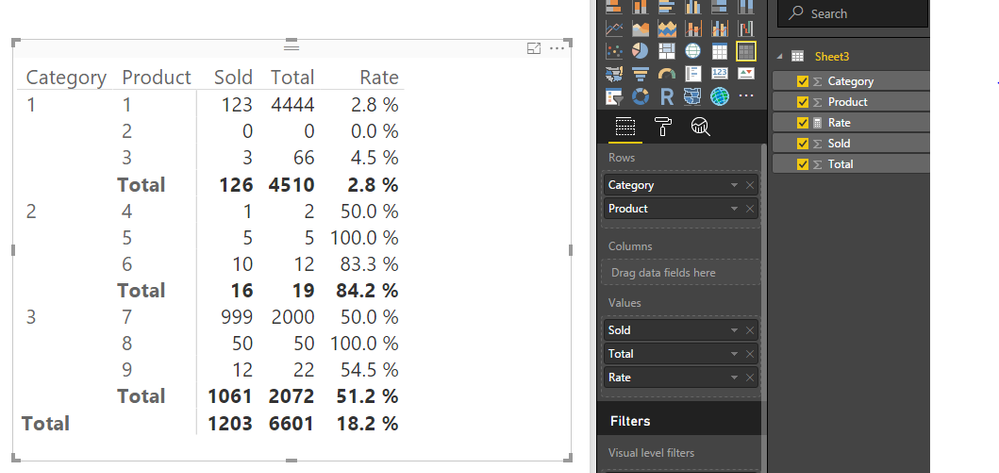
However, when using the same calculation method in PowerBI Devide(Sheet1[Sold],Sheet1[Total],0), it doesn't show the same number especially after aggregation.
It show 49% in the grand total by averaging each Sold Rate item... That's not reasonable...
If I write Devide(sum(Sheet1[Sold]),sum(Sheet1[Total],0) , then every single row of Sold Rate shows 18.2%.
I just want it to be exactly the same as the data showed up in Excel pivot table. Any suggestions?