cancel
Showing results for 
Search instead for 
Did you mean: 

Learn from the best! Meet the four finalists headed to the FINALS of the Power BI Dataviz World Championships! Register now

Reply
KarlConstruct
Frequent Visitor

Week to Week Trend Analysis

Hi All! 


I have built a PowerBI report to better manage our inspections process here at work. I found out in addtion to this live report, the inspections team is still doing a lot of manual work in excel to trend out certain things. I feel like PowerBI should be able to automate this process for them. 


Below is some sample data that is exported daily out of our inspection software and posted to a SharePoint folder, PowerBI looks to that sharepoint folder and updates my report & all the visuals on a daily basis. 

sample data.png


As mentioned above the inspections team is working in excel to track/trend Failed Inspections from week to week (looks like the image below). All of the data in the table is manually input and is only referring to inspections that have failed (total # of failed Inspections that week, total new "failed" this week, total closed this week that were previously failed). 
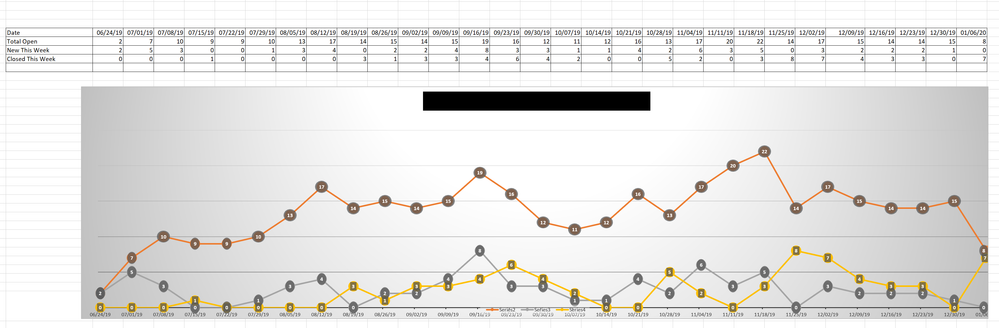
Failed Insepction Trends.png


I've been scratching my head on how to do this trend chart in PowerBI. I started by creating a Dates Table in my model as I felt this was neccessary to eventually group inspections into weekly "buckets". I'm really lost on next steps and i've exhausted following other posts in the forum as I keep running into dead ends. 


Any help on how I would go about doing this would be greatly appreciated!

4 REPLIES 4
v-lili6-msft
Community Support
Community Support

hi @KarlConstruct 

Just add a weeknum in date table, then just use Year and WeekNo in X-axis of visual.

https://docs.microsoft.com/en-us/dax/weeknum-function-dax

By the way, you could also add a begin date of a week column by weeknum column too.

For example: use 06/24/19 instead of week 26 year 2019


Regards,

Lin

Community Support Team _ Lin
If this post helps, then please consider Accept it as the solution to help the other members find it more quickly.
amitchandak
Super User
Super User

Not sure what is the issue.

In you date table add, these date. This might be need in open formula. Also you need to adjust first and last week in calendar

Week Start date = DATEADD('Compare Date'[Compare Date],-1*WEEKDAY('Compare Date'[Compare Date])+1,DAY)
Week End date = DATEADD('Compare Date'[Compare Date],7-1*WEEKDAY('Compare Date'[Compare Date]),DAY)


Now to get open, close you can refer.

https://community.powerbi.com/t5/Community-Blog/HR-Analytics-Active-Employee-Hire-and-Termination-tr...


Ideally min max date should work, when you view by time. But if needed, use week start and end date.


To get the best of the time intelligence function. Make sure you have a date calendar and it has been marked as the date in model view. Also, join it with the date column of your fact/s.

Refer
https://radacad.com/creating-calendar-table-in-power-bi-using-dax-functions


Appreciate your Kudos. In case, this is the solution you are looking for, mark it as the Solution. In case it does not help, please provide additional information and mark me with @
Thanks. My Recent Blog -
https://community.powerbi.com/t5/Community-Blog/Winner-Topper-on-Map-How-to-Color-States-on-a-Map-wi...
https://community.powerbi.com/t5/Community-Blog/Power-BI-Working-with-Non-Standard-Time-Periods/ba-p...
https://community.powerbi.com/t5/Community-Blog/Comparing-Data-Across-Date-Ranges/ba-p/823601

Share with Power BI Enthusiasts: Full Power BI Video (20 Hours) YouTube
Microsoft Fabric Series 60+ Videos YouTube
Microsoft Fabric Hindi End to End YouTube

@amitchandak thank you for your reply. 


I've adjusted my dates table so it has Week Start / Week End. 


I can see how the HR example you sent could potentially work, however I see two issues with the data I have. Let me know what you think. 


1. I dont have "start" and "end" dates. I have a "Scheduled Date" for inspections and then a Status. Specfically I am trying to see each week what is going on with "Failed" inspections. 


For Example

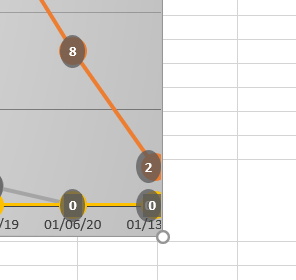
  • i.e - Week 1/6/2020 to 1/11/2020 there were a total of 8 failed inspections in the system. 
  • i.e - Then on week 1/13/2020 to 1/18/2020 there were a total of 2 failed in the system. 

So my trend from 1/6/2020 to 1/13/2020 would be a line graph going from 8 to 2.

trend down.png


2. How do I perform a Count function on text? In the HR example they were able to count employee ID, but how would I go about Counting Failed status's by week? 


Since my data is constantly changing each week, how would I even compare this week to previous weeks?


I was checking the data. I per you there 8 insepection failed in week on 1/6/2020. I did not get that via status. Can you let me know calculation.

Share with Power BI Enthusiasts: Full Power BI Video (20 Hours) YouTube
Microsoft Fabric Series 60+ Videos YouTube
Microsoft Fabric Hindi End to End YouTube

Helpful resources

Announcements
Power BI DataViz World Championships carousel

Power BI DataViz World Championships - June 2026

A new Power BI DataViz World Championship is coming this June! Don't miss out on submitting your entry.

Join our Fabric User Panel

Join our Fabric User Panel

Share feedback directly with Fabric product managers, participate in targeted research studies and influence the Fabric roadmap.

March Power BI Update Carousel

Power BI Community Update - March 2026

Check out the March 2026 Power BI update to learn about new features.