Join us at FabCon Atlanta from March 16 - 20, 2026, for the ultimate Fabric, Power BI, AI and SQL community-led event. Save $200 with code FABCOMM.
Register now!The Power BI Data Visualization World Championships is back! Get ahead of the game and start preparing now! Learn more
Hello everyone, I need some help.
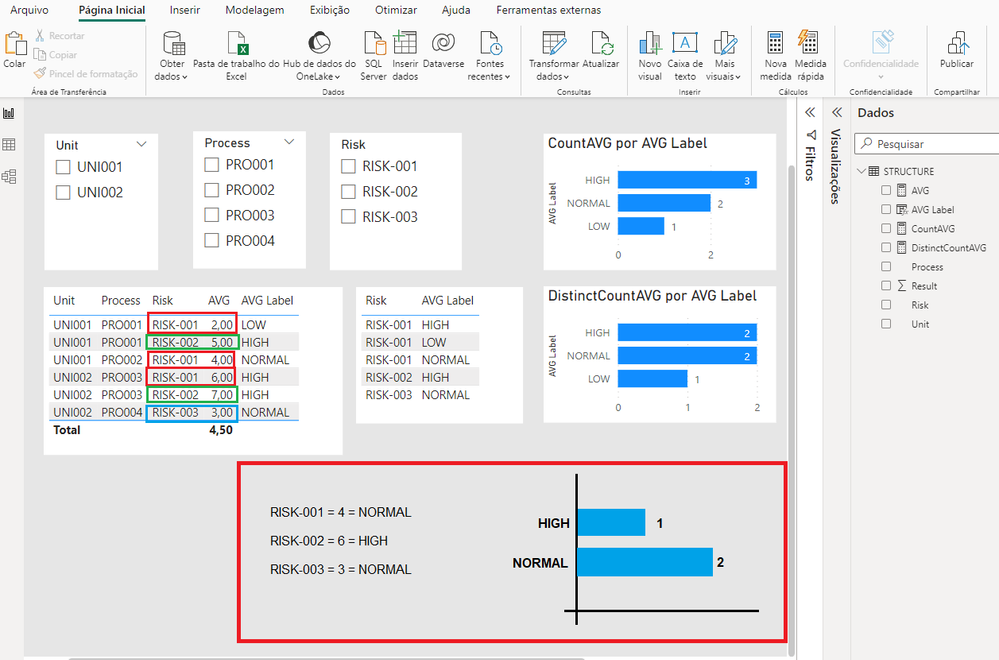
I have a database with a hierarchy of Units, Processes, and Risks. Each Risk can have a different Result outcome according to its hierarchy, and I classify it as LOW, NORMAL, and HIGH (measure "AVG Label") based on the filter defined by the user.
What I need is a chart (similar to the example in the image), showing distinct count risks and their classification, according to the selected filter. However, I'm not finding a way to create this chart.
Solved! Go to Solution.
Hi @Interact ,
Here some steps that I want to share, you can check them if they suitable for your requirement.
Here is my test data:
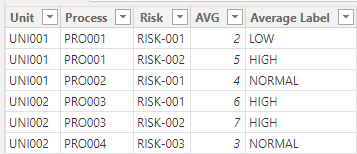
Create a measure
Average by Risk =
VAR _count =
CALCULATE(
COUNT('Table'[Risk]),
ALLEXCEPT(
'Table',
'Table'[Risk]
)
)
VAR _sum =
CALCULATE(
SUM('Table'[AVG]),
ALLEXCEPT(
'Table',
'Table'[Risk]
)
)
RETURN
_sum/_count
Create two columns
Average Label risk = SWITCH(TRUE(),
[Average by Risk]>0 && [Average by Risk]<=2, "LOW",
[Average by Risk]>2 && [Average by Risk]<=4, "NORMAL",
[Average by Risk]>4,"HIGH"
)Count =
VAR _distinctcount =
CALCULATE(
DISTINCTCOUNT('Table'[Risk]),
FILTER(
'Table',
'Table'[Average Label risk] = EARLIER('Table'[Average Label risk])
)
)
VAR _count =
CALCULATE(
COUNT('Table'[Average Label risk]),
ALLEXCEPT(
'Table',
'Table'[Average Label risk]
)
)
RETURN
_distinctcount/_count
Final output
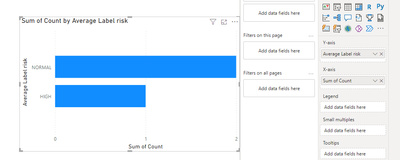
Because neither the x-axis nor the y-axis can be categorized in power bi using MEASURE as a value, but only COLUMN
Best regards,
Albert He
If this post helps, then please consider Accept it as the solution to help the other members find it more quickly
Hi @Interact ,
Here some steps that I want to share, you can check them if they suitable for your requirement.
Here is my test data:
Create a measure
Average by Risk =
VAR _count =
CALCULATE(
COUNT('Table'[Risk]),
ALLEXCEPT(
'Table',
'Table'[Risk]
)
)
VAR _sum =
CALCULATE(
SUM('Table'[AVG]),
ALLEXCEPT(
'Table',
'Table'[Risk]
)
)
RETURN
_sum/_count
Create two columns
Average Label risk = SWITCH(TRUE(),
[Average by Risk]>0 && [Average by Risk]<=2, "LOW",
[Average by Risk]>2 && [Average by Risk]<=4, "NORMAL",
[Average by Risk]>4,"HIGH"
)Count =
VAR _distinctcount =
CALCULATE(
DISTINCTCOUNT('Table'[Risk]),
FILTER(
'Table',
'Table'[Average Label risk] = EARLIER('Table'[Average Label risk])
)
)
VAR _count =
CALCULATE(
COUNT('Table'[Average Label risk]),
ALLEXCEPT(
'Table',
'Table'[Average Label risk]
)
)
RETURN
_distinctcount/_count
Final output
Because neither the x-axis nor the y-axis can be categorized in power bi using MEASURE as a value, but only COLUMN
Best regards,
Albert He
If this post helps, then please consider Accept it as the solution to help the other members find it more quickly
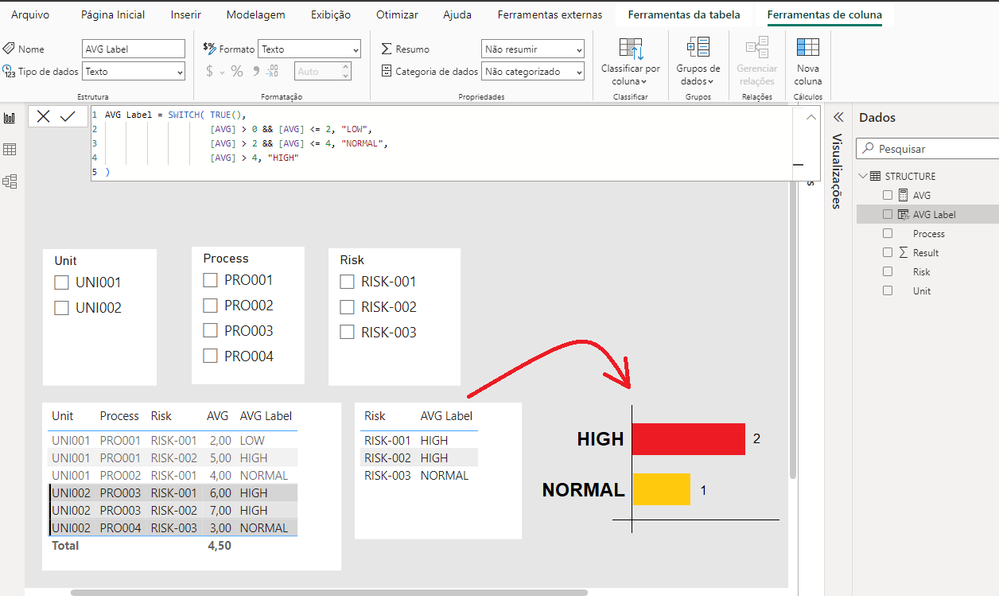
Create a Count measure - HighLowCount = Count(tablename[columnname]) and place on the same visual as the High Low measure.
Hello, thanks for your help!
But there's one more point, in the chart I need to count each Risk only once, and its classification should be the average of its Results.
In the example, RISK-001 should be 4 = NORMAL ((2 + 4 + 6)/3 = 4).
The Power BI Data Visualization World Championships is back! Get ahead of the game and start preparing now!
Check out the November 2025 Power BI update to learn about new features.
| User | Count |
|---|---|
| 59 | |
| 43 | |
| 42 | |
| 23 | |
| 17 |
| User | Count |
|---|---|
| 190 | |
| 122 | |
| 96 | |
| 66 | |
| 47 |