Get Fabric or SQL Certified for Free.
Get certified for free when you join Fabric Data Days 2026 and dive into Fabric, Power BI, SQL, AI, and other essential data skills.
Join now- Power BI forums
- Get Help with Power BI
- Desktop
- Service
- Report Server
- Power Query
- Mobile Apps
- Developer
- DAX Commands and Tips
- Custom Visuals Development Discussion
- Health and Life Sciences
- Power BI Spanish forums
- Translated Spanish Desktop
- Training and Consulting
- Instructor Led Training
- Dashboard in a Day for Women, by Women
- Galleries
- Data Stories Gallery
- Themes Gallery
- Contests Gallery
- QuickViz Gallery
- Quick Measures Gallery
- Visual Calculations Gallery
- Fabric Apps Gallery
- Notebook Gallery
- Translytical Task Flow Gallery
- TMDL Gallery
- R Script Showcase
- Webinars and Video Gallery
- Ideas
- Custom Visuals Ideas (read-only)
- Issues
- Issues
- Events
- Upcoming Events
July 7 - July 17 | Round 2 of the Power BI Dataviz World Championships. Don't miss your chance! Learn more
- Power BI forums
- Forums
- Get Help with Power BI
- Desktop
- Text Categorization based on multiple Keywords
- Subscribe to RSS Feed
- Mark Topic as New
- Mark Topic as Read
- Float this Topic for Current User
- Bookmark
- Subscribe
- Printer Friendly Page


- Mark as New
- Bookmark
- Subscribe
- Mute
- Subscribe to RSS Feed
- Permalink
- Report Inappropriate Content
Text Categorization based on multiple Keywords
Hi
I need to your kind help to categorize the sentence based on two or more keywords, Please refer the below reference . In Table 2 I can maintain the keyword and category.
Table 1

Table 2

Solved! Go to Solution.
- Mark as New
- Bookmark
- Subscribe
- Mute
- Subscribe to RSS Feed
- Permalink
- Report Inappropriate Content
Hello @k_mathana
You can try Approximate Merge in the Power Query Editor to add a Category column in Table1.
First, we combine the column (Keyword1 and Keyword2) into Table2. Select two columns, right-click, and select the join column.
Then combine approximately Table1 and Table2 by description and merged column. Click with the fuzzy merge option. Set Similar threshold to 0.3 and Maximum number of matches, 1 to Approximate match options.
Expand category in table2
Result:
You can download the pbix file from this link: Categorizing text based on multiple keywords
Best regards
Rico Zhou
If this post helps,then consider Accepting it as the solution to help other members find it faster.
- Mark as New
- Bookmark
- Subscribe
- Mute
- Subscribe to RSS Feed
- Permalink
- Report Inappropriate Content
Hi @k_mathana
You can try to build a calculated column by dax. However I think there may be something wrong in the screenshot Table2 you shared with us. In table1 we see Clean the Filter(keyword1=clean , keyword2 = filter), category = Filter Cleaning, but in Table2 if keyword1= clean , keyword2 = filter we can see Category = Filter Replacement. So I update Table 2.
Firstly, we need to transform Table2. Duplicate keyword1 and keyword2 and merge columns (keyword1 * keyword2 , again keyword2.1 * keyword1.1)
Result:
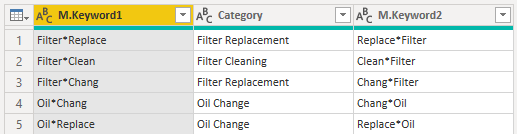
Then build a calculated column as below.
Category =
VAR _Description = 'Table 1 (2)'[Description]
VAR _Result1 =
    MAXX (
        'Table 2 (2)',
        VAR _Keyword1 = 'Table 2 (2)'[M.Keyword1]
        VAR _Category = 'Table 2 (2)'[Category]
        VAR _Search =
            SEARCH ( _Keyword1, _Description, 1, 0 )
        RETURN
            IF ( _Search <> 0, _Category)
    )
VAR _Result2 =
    MAXX (
        'Table 2 (2)',
        VAR _Keyword2 = 'Table 2 (2)'[M.Keyword2]
        VAR _Category = 'Table 2 (2)'[Category]
        VAR _Search =
            SEARCH ( _Keyword2, _Description, 1, 0 )
        RETURN
            IF ( _Search <> 0, _Category)
    )
RETURN
    IF(ISBLANK(_Result1),_Result2,_Result1)
Result is as below.
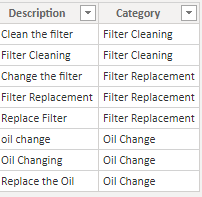
You can download the pbix file from this link: Multi-keyword-based text categorization
Best Regards,
Rico Zhou
If this post helps, then please consider Accept it as the solution to help the other members find it more quickly.


- Mark as New
- Bookmark
- Subscribe
- Mute
- Subscribe to RSS Feed
- Permalink
- Report Inappropriate Content
Try the following formula. Add a new column
Column =
SWITCH( TRUE(),
SEARCH( "filter", Table[Description],,0) <> 0 , "Filter",
SEARCH( "oil", Table[Description],,0) <> 0 , "Oil",
BLANK()
)
- Mark as New
- Bookmark
- Subscribe
- Mute
- Subscribe to RSS Feed
- Permalink
- Report Inappropriate Content
Hi, Thanks for the reply. but Its not only about the lowercase and Upppercase. In table 2 I can maintain the keywords based on that In table 1 it should categorize as per the table 2 keywords.
- Mark as New
- Bookmark
- Subscribe
- Mute
- Subscribe to RSS Feed
- Permalink
- Report Inappropriate Content
Hello @k_mathana
You can try Approximate Merge in the Power Query Editor to add a Category column in Table1.
First, we combine the column (Keyword1 and Keyword2) into Table2. Select two columns, right-click, and select the join column.
Then combine approximately Table1 and Table2 by description and merged column. Click with the fuzzy merge option. Set Similar threshold to 0.3 and Maximum number of matches, 1 to Approximate match options.
Expand category in table2
Result:
You can download the pbix file from this link: Categorizing text based on multiple keywords
Best regards
Rico Zhou
If this post helps,then consider Accepting it as the solution to help other members find it faster.
- Mark as New
- Bookmark
- Subscribe
- Mute
- Subscribe to RSS Feed
- Permalink
- Report Inappropriate Content
@RicoZhou Thank you, I have tried this before, few Issues I have faced in this solution. Any way thank you so much for your kind response.
- Mark as New
- Bookmark
- Subscribe
- Mute
- Subscribe to RSS Feed
- Permalink
- Report Inappropriate Content
Hi @k_mathana
You can try to build a calculated column by dax. However I think there may be something wrong in the screenshot Table2 you shared with us. In table1 we see Clean the Filter(keyword1=clean , keyword2 = filter), category = Filter Cleaning, but in Table2 if keyword1= clean , keyword2 = filter we can see Category = Filter Replacement. So I update Table 2.
Firstly, we need to transform Table2. Duplicate keyword1 and keyword2 and merge columns (keyword1 * keyword2 , again keyword2.1 * keyword1.1)
Result:
Then build a calculated column as below.
Category =
VAR _Description = 'Table 1 (2)'[Description]
VAR _Result1 =
    MAXX (
        'Table 2 (2)',
        VAR _Keyword1 = 'Table 2 (2)'[M.Keyword1]
        VAR _Category = 'Table 2 (2)'[Category]
        VAR _Search =
            SEARCH ( _Keyword1, _Description, 1, 0 )
        RETURN
            IF ( _Search <> 0, _Category)
    )
VAR _Result2 =
    MAXX (
        'Table 2 (2)',
        VAR _Keyword2 = 'Table 2 (2)'[M.Keyword2]
        VAR _Category = 'Table 2 (2)'[Category]
        VAR _Search =
            SEARCH ( _Keyword2, _Description, 1, 0 )
        RETURN
            IF ( _Search <> 0, _Category)
    )
RETURN
    IF(ISBLANK(_Result1),_Result2,_Result1)
Result is as below.
You can download the pbix file from this link: Multi-keyword-based text categorization
Best Regards,
Rico Zhou
If this post helps, then please consider Accept it as the solution to help the other members find it more quickly.
- Mark as New
- Bookmark
- Subscribe
- Mute
- Subscribe to RSS Feed
- Permalink
- Report Inappropriate Content
Dear @Anonymous , Thats the exact solution I am looking for. Thank you so much for your time and the fantastic solution. Thats worked great.

Helpful resources

FabCon & SQLCon – Barcelona 2026
Join us in Barcelona for FabCon and SQLCon, the Fabric, Power BI, SQL, and AI community event. Save €200 with code FABCMTY200.

Fabric Community Sticker Challenge - Barcelona 2026
If you love stickers, then you will definitely want to check out our community sticker challenge, Barcelona edition!

Power BI Monthly Update - July 2026
Check out the July 2026 Power BI update to learn about new features.

Power BI DataViz World Championships - June 2026
A new Power BI DataViz World Championship is coming this June! Don't miss out on submitting your entry.

| User | Count |
|---|---|
| 30 | |
| 26 | |
| 23 | |
| 23 | |
| 14 |


| User | Count |
|---|---|
| 47 | |
| 33 | |
| 20 | |
| 18 | |
| 16 |


