Join us at FabCon Atlanta from March 16 - 20, 2026, for the ultimate Fabric, Power BI, AI and SQL community-led event. Save $200 with code FABCOMM.
Register now!The Power BI Data Visualization World Championships is back! Get ahead of the game and start preparing now! Learn more
I was wondering what the best way to fix this visual would be.
My table in excel to create this visual is as follows (the 3rd and 4th column are actual values I just wrote them like that for the purposes of showing what I'm doing here)
And my tachometer is like this
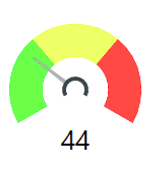
In this case, the left side is green because the less requests, the better.
When I showed my boss, he said he would rather have only green and red areas, and that he wanted them switched.
So how would I make my table/format this visual to have red (bad/high # requests) on the left side and green (good/low # requests) on the right? I know you can switch the colors in each range but I still don't really know how to manipulate the data to get what he wants in a way that will still show 44 on the bottom.
Thank you! I hope that made sense!
Solved! Go to Solution.
Hi @sy898661
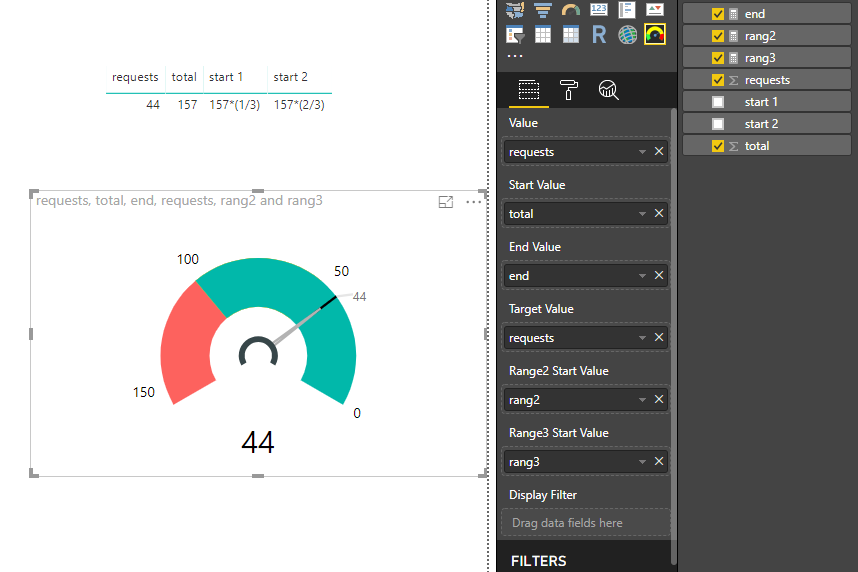
Create measures
end = 0 rang2 = 157*(1/3) rang3 = 157*(2/3)
Drag columns and measures to the following fields
And change colors for rang1 to rang3
Best Regards
Maggie
Hi @sy898661
Create measures
end = 0 rang2 = 157*(1/3) rang3 = 157*(2/3)
Drag columns and measures to the following fields
And change colors for rang1 to rang3
Best Regards
Maggie
Thank you Maggie!
The Power BI Data Visualization World Championships is back! Get ahead of the game and start preparing now!
| User | Count |
|---|---|
| 41 | |
| 38 | |
| 36 | |
| 31 | |
| 28 |
| User | Count |
|---|---|
| 129 | |
| 88 | |
| 79 | |
| 68 | |
| 63 |