cancel
Showing results for 
Search instead for 
Did you mean: 

The Power BI Data Visualization World Championships is back! Get ahead of the game and start preparing now! Learn more

Reply
Anonymous
Not applicable

Size Bubbles - Map

Hi All,


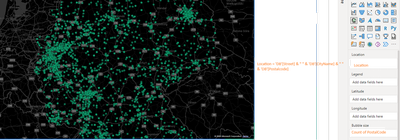
I am trying to build a heat map on PBI Desktop.


The location field of the map is calculated column as follows :


Location = 'DB'[Street] & " " & 'DB'[CityName] & " " & 'DB'[Postalcode]
 
Now on the size bubble I pull in the Postalcode as a count, but the map does not cluster based on the Location field. How can I get over this issue. This works directly if I use the CityName field instead of the calculated column. The problem though is many Postalcodes are outside the map area which is incorrect. So I cannot use the direct column and hence combined the fields in the above.
 
GallopPBI_0-1713191088288.png


Please advise.
 
Thanks
1 ACCEPTED SOLUTION
Anonymous
Not applicable

Hi, @Anonymous 

Make sure that the categories and fields are correctly categorized in Power BI Desktop. This helps Bing Maps interpret and geocode the data correctly. You can set a data category by selecting a column in the Data view, and then under the Column Tools tab, you can set the Data Category to the appropriate type (for example, Zip Code, City, Address). For more information about data classification, you can check the link:

Data categorization in Power BI Desktop - Power BI | Microsoft Learn


If possible, add latitude and longitude data to the dataset. This approach eliminates ambiguity in location data, resulting in more accurate mapping. You can then drag these fields into the latitude and longitude buckets in the map visualization settings. This method eliminates the need for Bing to geocode location data, allowing for more accurate clustering and positioning on the map.


If the built-in map visuals in Power BI Desktop don't meet your needs, consider exploring custom visuals from the Power BI Visuals Marketplace, or using Azure Maps visuals for Power BI, which may provide more flexibility and accuracy for specific use cases. Azure Maps visuals allow for detailed customization and potentially more control over how data is displayed and clustered. For more insights on improving map visuals in Power BI, you can review the following documentation:

Tips and Tricks for maps (including Bing Maps integration) - Power BI | Microsoft Learn


If it does not help, please provide more details with your desired output and pbix file without privacy information (or some sample data)


How to Get Your Question Answered Quickly 

Best Regards

Yongkang Hua

If this post helps, then please consider Accept it as the solution to help the other members find it more quickly.

View solution in original post

3 REPLIES 3
Anonymous
Not applicable

@Anonymous I think the problem is like this...when I select a value from the dropdown and refresh the page link I see the map with multiple bubbles. When I then click the reset green arrow on the dashboard the view becomes fine and shows the clustering. Can you please advise?

GallopPBI_1-1713973536708.png

Thanks


Anonymous
Not applicable

Hi, @Anonymous 

Make sure that the categories and fields are correctly categorized in Power BI Desktop. This helps Bing Maps interpret and geocode the data correctly. You can set a data category by selecting a column in the Data view, and then under the Column Tools tab, you can set the Data Category to the appropriate type (for example, Zip Code, City, Address). For more information about data classification, you can check the link:

Data categorization in Power BI Desktop - Power BI | Microsoft Learn


If possible, add latitude and longitude data to the dataset. This approach eliminates ambiguity in location data, resulting in more accurate mapping. You can then drag these fields into the latitude and longitude buckets in the map visualization settings. This method eliminates the need for Bing to geocode location data, allowing for more accurate clustering and positioning on the map.


If the built-in map visuals in Power BI Desktop don't meet your needs, consider exploring custom visuals from the Power BI Visuals Marketplace, or using Azure Maps visuals for Power BI, which may provide more flexibility and accuracy for specific use cases. Azure Maps visuals allow for detailed customization and potentially more control over how data is displayed and clustered. For more insights on improving map visuals in Power BI, you can review the following documentation:

Tips and Tricks for maps (including Bing Maps integration) - Power BI | Microsoft Learn


If it does not help, please provide more details with your desired output and pbix file without privacy information (or some sample data)


How to Get Your Question Answered Quickly 

Best Regards

Yongkang Hua

If this post helps, then please consider Accept it as the solution to help the other members find it more quickly.
Anonymous
Not applicable

Helpful resources

Announcements
Power BI DataViz World Championships

Power BI Dataviz World Championships

The Power BI Data Visualization World Championships is back! Get ahead of the game and start preparing now!

December 2025 Power BI Update Carousel

Power BI Monthly Update - December 2025

Check out the December 2025 Power BI Holiday Recap!

FabCon Atlanta 2026 carousel

FabCon Atlanta 2026

Join us at FabCon Atlanta, March 16-20, for the ultimate Fabric, Power BI, AI and SQL community-led event. Save $200 with code FABCOMM.