This is best Fabric, Power BI, SQL and AI community event. How do we know? The last event sold out! Save €200 with code FABCMTY200.
Register nowA new Data Days event is coming soon! This time we’re going bigger than ever. Fabric, Power BI, SQL, AI and more. Don't miss out.
I have a data set that contains three columns -- Sample ID (1 to 100), Experiment ID, and Result (between 0 to 1).
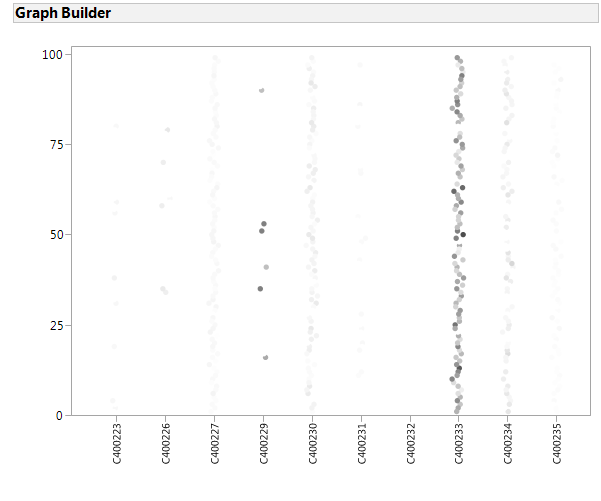
I would like to plot a scatter plot, x axis as Experiment ID, y axis as Sample ID, and the Resultwill be represented by color grade. Demo plot from other programs is given as following.
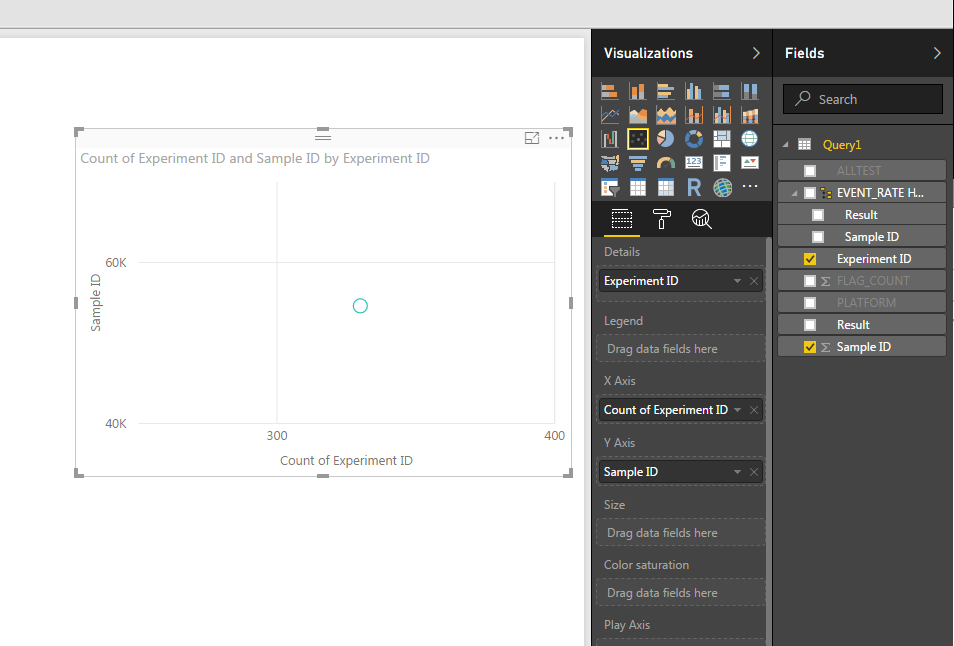
Could you please show me how to plot that in Power BI? Power BI tends to group the Sample IDand Experiment ID, and choose the details as Experiment ID seems not get what I want. Any hint or instruction will be helpful, thank you!
Solved! Go to Solution.
Hi @xzhang32,
First, ensure when connecting/importing your data that each column has the correct data type.
After adding Experiment ID as the x-axis set this attribute to "Don't summarize"
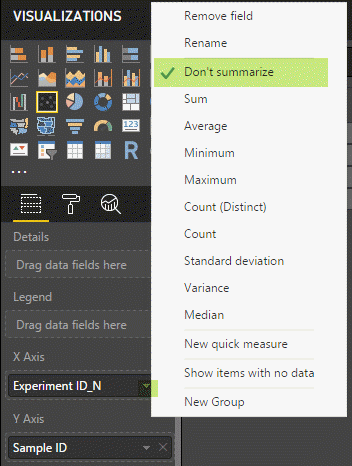
Do the same operation for the y-axis with Sample ID: Don't summarize
Add the Result column in the "Color saturation" shelf and then you can define a divering colors in the visual options to represent the Result
After applying these steps the data points in the scatter plot won't be summarized (Sum, count, etc.) and this should help you achieve your intended visual.
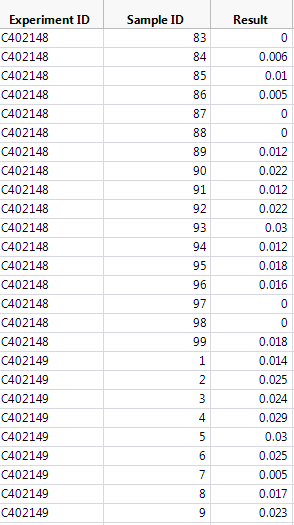
Sample data:
| Experiment ID | Experiment ID_N | Sample ID | Result |
| C402148 | 402148 | 83 | 0.000 |
| C402148 | 402148 | 84 | 0.006 |
| C402148 | 402148 | 85 | 0.010 |
| C402148 | 402148 | 86 | 0.005 |
| C402148 | 402148 | 87 | 0.000 |
| C402148 | 402148 | 88 | 0.000 |
| C402148 | 402148 | 89 | 0.012 |
| C402148 | 402148 | 90 | 0.022 |
| C402148 | 402148 | 91 | 0.012 |
| C402148 | 402148 | 92 | 0.022 |
| C402148 | 402148 | 93 | 0.030 |
| C402148 | 402148 | 94 | 0.012 |
| C402148 | 402148 | 95 | 0.018 |
| C402148 | 402148 | 96 | 0.016 |
| C402148 | 402148 | 97 | 0.000 |
| C402148 | 402148 | 98 | 0.000 |
| C402148 | 402148 | 99 | 0.018 |
| C402149 | 402149 | 1 | 0.014 |
| C402149 | 402149 | 2 | 0.025 |
| C402149 | 402149 | 3 | 0.024 |
| C402149 | 402149 | 4 | 0.029 |
| C402149 | 402149 | 5 | 0.030 |
| C402149 | 402149 | 6 | 0.025 |
| C402149 | 402149 | 7 | 0.005 |
| C402149 | 402149 | 8 | 0.017 |
| C402149 | 402149 | 9 | 0.023 |
Visual:
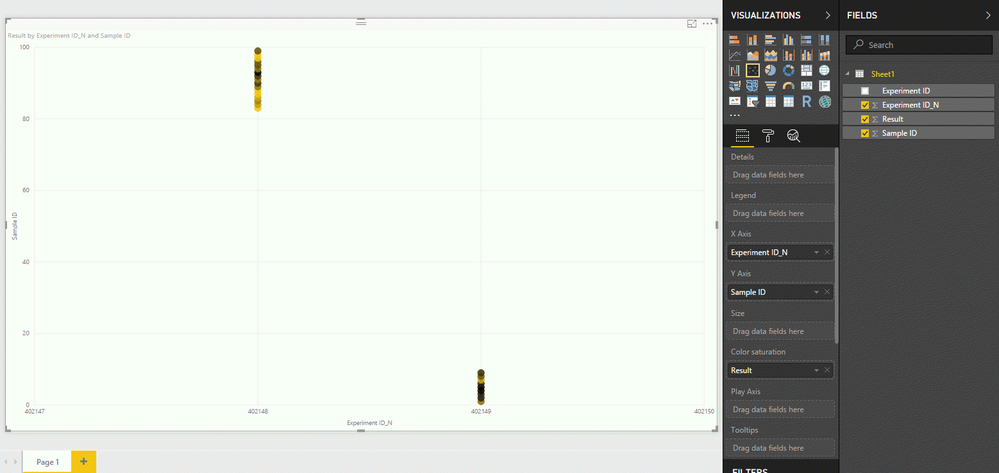
Let me know if this is helpful or if you have any questions.
Thanks
Kevin
Hi @xzhang32,
First, ensure when connecting/importing your data that each column has the correct data type.
After adding Experiment ID as the x-axis set this attribute to "Don't summarize"
Do the same operation for the y-axis with Sample ID: Don't summarize
Add the Result column in the "Color saturation" shelf and then you can define a divering colors in the visual options to represent the Result
After applying these steps the data points in the scatter plot won't be summarized (Sum, count, etc.) and this should help you achieve your intended visual.
Sample data:
| Experiment ID | Experiment ID_N | Sample ID | Result |
| C402148 | 402148 | 83 | 0.000 |
| C402148 | 402148 | 84 | 0.006 |
| C402148 | 402148 | 85 | 0.010 |
| C402148 | 402148 | 86 | 0.005 |
| C402148 | 402148 | 87 | 0.000 |
| C402148 | 402148 | 88 | 0.000 |
| C402148 | 402148 | 89 | 0.012 |
| C402148 | 402148 | 90 | 0.022 |
| C402148 | 402148 | 91 | 0.012 |
| C402148 | 402148 | 92 | 0.022 |
| C402148 | 402148 | 93 | 0.030 |
| C402148 | 402148 | 94 | 0.012 |
| C402148 | 402148 | 95 | 0.018 |
| C402148 | 402148 | 96 | 0.016 |
| C402148 | 402148 | 97 | 0.000 |
| C402148 | 402148 | 98 | 0.000 |
| C402148 | 402148 | 99 | 0.018 |
| C402149 | 402149 | 1 | 0.014 |
| C402149 | 402149 | 2 | 0.025 |
| C402149 | 402149 | 3 | 0.024 |
| C402149 | 402149 | 4 | 0.029 |
| C402149 | 402149 | 5 | 0.030 |
| C402149 | 402149 | 6 | 0.025 |
| C402149 | 402149 | 7 | 0.005 |
| C402149 | 402149 | 8 | 0.017 |
| C402149 | 402149 | 9 | 0.023 |
Visual:
Let me know if this is helpful or if you have any questions.
Thanks
Kevin
Check out the May 2026 Power BI update to learn about new features.
Sign up to receive a private message when registration opens and key events begin.
If you have recently started exploring Fabric, we'd love to hear how it's going. Your feedback can help with product improvements.
| User | Count |
|---|---|
| 27 | |
| 26 | |
| 22 | |
| 19 | |
| 17 |
| User | Count |
|---|---|
| 47 | |
| 44 | |
| 41 | |
| 21 | |
| 18 |