This time we’re going bigger than ever. Fabric, Power BI, SQL, AI and more. We're covering it all. You won't want to miss it.
Learn moreLevel up your Power BI skills this month - build one visual each week and tell better stories with data! Get started
Hey everybody,
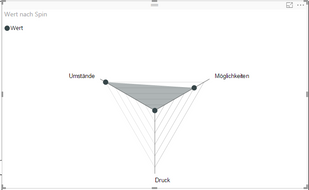
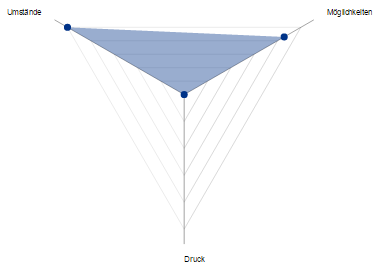
I try to create a radar chart with Power BI. It should look like this:
However, the scale is so small that the point of the category "Druck" is in the middle of the chart. How can I change that?
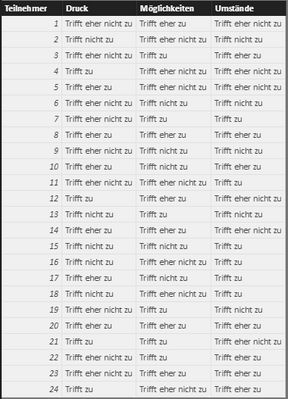
Moreover, the origin data table looks like this:
I try to visualize this table with a radar chart. In my imagination the middle point of the radar chart should represent "Trifft nich zu" = 0 and the outward line should represent "Trifft zu" = 3. And then I will illustrate the average decision of the responders to the points "Umstände", "Möglichkeiten" and "Druck". Anybody an idea, how I can implement that?
Best,
Tobias
Hi @tdanzeisen,
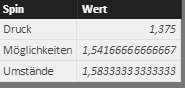
If seems you place the Spin in Category and Wert in Y Axis of the Radar chart, the result what you get is expected. It has nothing to do with the original data table. You can take a look at the sample of that Radar chart.
Best Regards,
Qiuyun Yu
Hi @v-qiuyu-msft, thank you for your response.
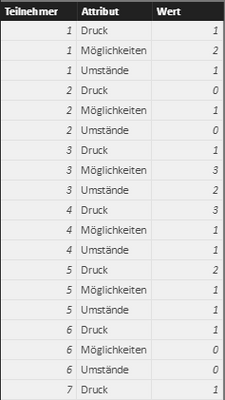
I transformed the data of the original table into integers: 0 = "Trifft nicht zu", 1 = "Trifft eher nicht zu", 2 = "Triffer eher zu" and 3 = "Trifft zu". Then I unpivot these columns and I got this:
So I could create this Radar Chart with the average values:
So far, all is right. But I want to change the scale of this chart. The middle point should be 0. The first line should be 1, the second 2 and the third 3. But I can't find any options to change this scale. The scale is always automatic and changes if I made a selection. Can anybody help me with this issue?
Check out the April 2026 Power BI update to learn about new features.
Sign up to receive a private message when registration opens and key events begin.
If you have recently started exploring Fabric, we'd love to hear how it's going. Your feedback can help with product improvements.
| User | Count |
|---|---|
| 36 | |
| 33 | |
| 31 | |
| 24 | |
| 18 |
| User | Count |
|---|---|
| 68 | |
| 50 | |
| 33 | |
| 24 | |
| 24 |