Get Fabric or SQL Certified for Free.
Get certified for free when you join Fabric Data Days 2026 and dive into Fabric, Power BI, SQL, AI, and other essential data skills.
Join now- Power BI forums
- Get Help with Power BI
- Desktop
- Service
- Report Server
- Power Query
- Mobile Apps
- Developer
- DAX Commands and Tips
- Custom Visuals Development Discussion
- Health and Life Sciences
- Power BI Spanish forums
- Translated Spanish Desktop
- Training and Consulting
- Instructor Led Training
- Dashboard in a Day for Women, by Women
- Galleries
- Data Stories Gallery
- Themes Gallery
- Contests Gallery
- QuickViz Gallery
- Quick Measures Gallery
- Visual Calculations Gallery
- Fabric Apps Gallery
- Notebook Gallery
- Translytical Task Flow Gallery
- TMDL Gallery
- R Script Showcase
- Webinars and Video Gallery
- Ideas
- Custom Visuals Ideas (read-only)
- Issues
- Issues
- Events
- Upcoming Events
July 7 - July 17 | Round 2 of the Power BI Dataviz World Championships. Don't miss your chance! Learn more
- Power BI forums
- Forums
- Get Help with Power BI
- Desktop
- Re: Query Editor If Statement
- Subscribe to RSS Feed
- Mark Topic as New
- Mark Topic as Read
- Float this Topic for Current User
- Bookmark
- Subscribe
- Printer Friendly Page

- Mark as New
- Bookmark
- Subscribe
- Mute
- Subscribe to RSS Feed
- Permalink
- Report Inappropriate Content
Query Editor If Statement
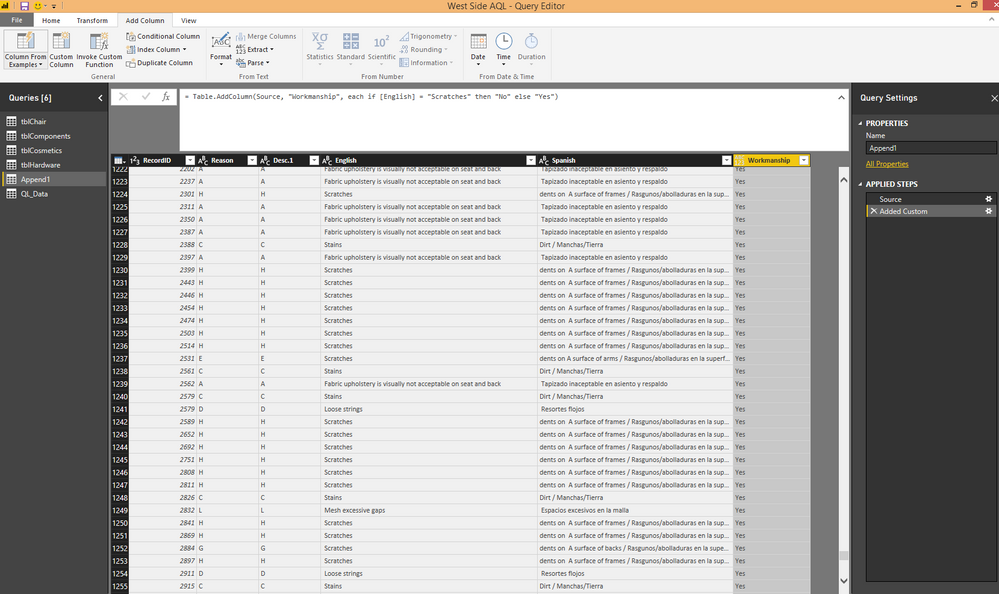
I have tried both the Conditional Column and the Custom column but have not been able to get this to work.
I need a field called Workmanship, IF the value in the column English is Scratches, I want Workmanship to = No. For all other values, I want it to = Yes.
Please help.
Solved! Go to Solution.


- Mark as New
- Bookmark
- Subscribe
- Mute
- Subscribe to RSS Feed
- Permalink
- Report Inappropriate Content
You don't have to write the code. In Query Editor, right-click the column in question and then go to Transform | Trim. Then repeat for Transform | Clean. These two steps should be BEFORE your conditional column.
Follow on LinkedIn
@ me in replies or I'll lose your thread!!!
Instead of a Kudo, please vote for this idea
Become an expert!: Enterprise DNA
External Tools: MSHGQM
YouTube Channel!: Microsoft Hates Greg
Latest book!: DAX For Humans
DAX is easy, CALCULATE makes DAX hard...


- Mark as New
- Bookmark
- Subscribe
- Mute
- Subscribe to RSS Feed
- Permalink
- Report Inappropriate Content
Hi @Anonymous,
The expression you wrote for custom column works fine in my test. There might existing some non-printable characters in [English] field. Please try smoupre's suggestion to remove those non-printable characters and try again.
Regards,
Yuliana Gu
If this post helps, then please consider Accept it as the solution to help the other members find it more quickly.


- Mark as New
- Bookmark
- Subscribe
- Mute
- Subscribe to RSS Feed
- Permalink
- Report Inappropriate Content
You could also create a custom column using a search function within IF to get what you want
Workmanship = If(SEARCH("Scratches",Table1[English],1,0)>0,"No","Yes")
But this will include all the rows where ever the word Scratches available to No
Hope this helps
- Mark as New
- Bookmark
- Subscribe
- Mute
- Subscribe to RSS Feed
- Permalink
- Report Inappropriate Content
I suspect that you need to add a Trim step and maybe a clean step for your English column, See my example here:
let
    Source = Table.FromRows(Json.Document(Binary.Decompress(Binary.FromText("bYuxDsIwDAV/5Skz38EEE2PUwTFWYxE5UexW9O9B6gjj3elyTlcqUxnbqL15yDygjl19o9YOWA8Qs4yg0gTd4EJfZU8U4ldaLjk9eFJwFT8pSM3/hFvvLvCYautp7uIV8mZx112w0vj5lg8=", BinaryEncoding.Base64), Compression.Deflate)), let _t = ((type text) meta [Serialized.Text = true]) in type table [Engrish = _t]),
    #"Changed Type" = Table.TransformColumnTypes(Source,{{"Engrish", type text}}),
    #"Trimmed Text" = Table.TransformColumns(#"Changed Type",{{"Engrish", Text.Trim, type text}}),
    #"Cleaned Text" = Table.TransformColumns(#"Trimmed Text",{{"Engrish", Text.Clean, type text}}),
    #"Added Conditional Column" = Table.AddColumn(#"Cleaned Text", "Custom", each if [Engrish] = "Scratches" then "No" else "Yes")
in
    #"Added Conditional Column"
Follow on LinkedIn
@ me in replies or I'll lose your thread!!!
Instead of a Kudo, please vote for this idea
Become an expert!: Enterprise DNA
External Tools: MSHGQM
YouTube Channel!: Microsoft Hates Greg
Latest book!: DAX For Humans
DAX is easy, CALCULATE makes DAX hard...
- Mark as New
- Bookmark
- Subscribe
- Mute
- Subscribe to RSS Feed
- Permalink
- Report Inappropriate Content
Thank you for the response. This looks a little scary to me. 🙂
Would I add this in the actual formula of the added column?
- Mark as New
- Bookmark
- Subscribe
- Mute
- Subscribe to RSS Feed
- Permalink
- Report Inappropriate Content
You don't have to write the code. In Query Editor, right-click the column in question and then go to Transform | Trim. Then repeat for Transform | Clean. These two steps should be BEFORE your conditional column.
Follow on LinkedIn
@ me in replies or I'll lose your thread!!!
Instead of a Kudo, please vote for this idea
Become an expert!: Enterprise DNA
External Tools: MSHGQM
YouTube Channel!: Microsoft Hates Greg
Latest book!: DAX For Humans
DAX is easy, CALCULATE makes DAX hard...
- Mark as New
- Bookmark
- Subscribe
- Mute
- Subscribe to RSS Feed
- Permalink
- Report Inappropriate Content
Thank you so much! This worked perfectly!
Helpful resources

FabCon & SQLCon – Barcelona 2026
Join us in Barcelona for FabCon and SQLCon, the Fabric, Power BI, SQL, and AI community event. Save €200 with code FABCMTY200.

Data Days 2026
Join Data Days 2026: 60 days of free live/on-demand sessions, challenges, study groups, and certification opportunities.

Power BI DataViz World Championships - June 2026
A new Power BI DataViz World Championship is coming this June! Don't miss out on submitting your entry.

| User | Count |
|---|---|
| 30 | |
| 28 | |
| 26 | |
| 23 | |
| 17 |


| User | Count |
|---|---|
| 57 | |
| 43 | |
| 33 | |
| 24 | |
| 20 |


