cancel
Showing results for 
Search instead for 
Did you mean: 

Learn from the best! Meet the four finalists headed to the FINALS of the Power BI Dataviz World Championships! Register now

Reply
sm_accordion
Frequent Visitor

Python visual in Power BI

I have simple Python code that I run in the Jupyter editor:


import matplotlib.pyplot as plt
import seaborn as sns

data = [["a", 4], ["a", 5], ["b", 8], ["b", 9]]

df = pd.DataFrame(data, columns = ["x", "y"])

sns.violinplot(x = df["x"], y = df["y"])


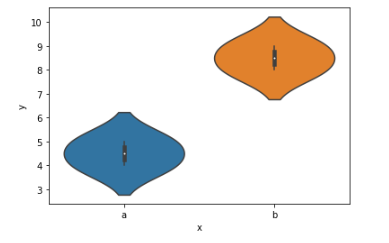
which correctly produces the following visual:

test1.png

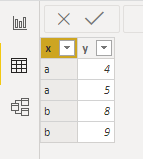
In Power BI, I create the same table:

test2.PNG

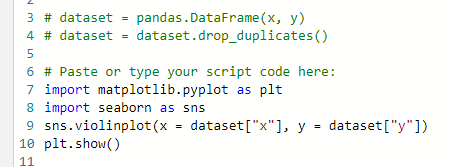
Insert a Python visual with the code:

test3.PNG


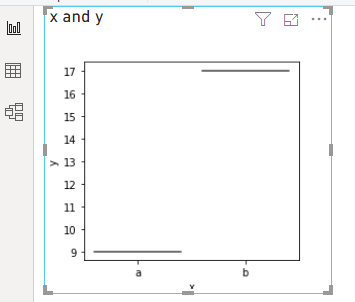
but the result is not the same:


test4.PNG


Anyone know what I am doing wrong here?  Why is it not the same graph as in the Jupyter notebook?  This graphs seems to be summing the data and not showing the distribution.

1 ACCEPTED SOLUTION
dm-p
Super User
Super User

Hi @sm_accordion,

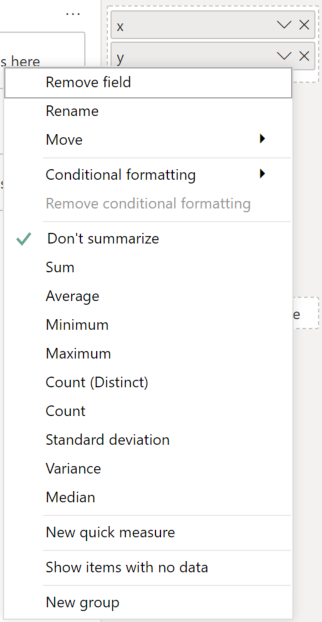
Power BI will typically group data by unique values. This can be mitigated by specifying Don't Summarize for your fields in the visual, e.g.:

image.png

This will produce a dataset like the following:

image.png

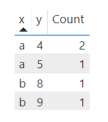
But, even this will consolidate rows if you have the same value repeated multiple times, e.g. x=a, y=4, and this will mess with your distribution. I've added a duplicate row to the above dataset and added a count to the table to show what happens:

image.png

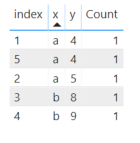
If you truly want to have individual rows passed into your visual, you'll need to add unique value to each row of your dataset (such as an auto-incrementing int) to prevent grouping, so it looks something like this:

indexxy
1a4
2a5
3b8
4b9
.........

Here's the table representation now (note that count = 1):

image.png

If you want further details, I've produced a violin plot custom visual, and have written an article on how grouping/sampling needs to work in these situations. Hopefully this will be useful for you.

Good luck!

Daniel


If my post helps, then please consider accepting as a solution to help other forum members find the answer more quickly 🙂


Did I answer your question? Mark my post as a solution!

Proud to be a Super User!


On how to ask a technical question, if you really want an answer (courtesy of SQLBI)


View solution in original post

2 REPLIES 2
dm-p
Super User
Super User

Hi @sm_accordion,

Power BI will typically group data by unique values. This can be mitigated by specifying Don't Summarize for your fields in the visual, e.g.:

image.png

This will produce a dataset like the following:

image.png

But, even this will consolidate rows if you have the same value repeated multiple times, e.g. x=a, y=4, and this will mess with your distribution. I've added a duplicate row to the above dataset and added a count to the table to show what happens:

image.png

If you truly want to have individual rows passed into your visual, you'll need to add unique value to each row of your dataset (such as an auto-incrementing int) to prevent grouping, so it looks something like this:

indexxy
1a4
2a5
3b8
4b9
.........

Here's the table representation now (note that count = 1):

image.png

If you want further details, I've produced a violin plot custom visual, and have written an article on how grouping/sampling needs to work in these situations. Hopefully this will be useful for you.

Good luck!

Daniel


If my post helps, then please consider accepting as a solution to help other forum members find the answer more quickly 🙂


Did I answer your question? Mark my post as a solution!

Proud to be a Super User!


On how to ask a technical question, if you really want an answer (courtesy of SQLBI)


Thanks a ton.  This solved the problem.  I appreciate the detailed response and for taking the time to read through the post.  

Helpful resources

Announcements
Power BI DataViz World Championships carousel

Power BI DataViz World Championships - June 2026

A new Power BI DataViz World Championship is coming this June! Don't miss out on submitting your entry.

Join our Fabric User Panel

Join our Fabric User Panel

Share feedback directly with Fabric product managers, participate in targeted research studies and influence the Fabric roadmap.

March Power BI Update Carousel

Power BI Community Update - March 2026

Check out the March 2026 Power BI update to learn about new features.