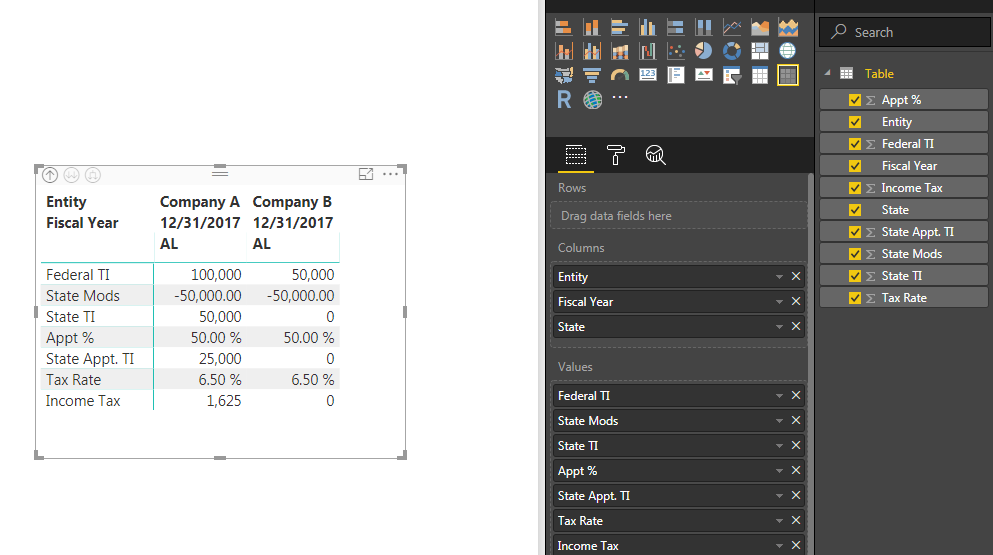
Hi All,
I have a question on using a Power BI Matrix. I pasted a simplified example of my dataset below, and I basically want to lay it out in a matrix in a tax return-like format. The issue I'm running into is that there are percentages mixed with whole numbers in a single column, is there a way to show certain lines as percentages and others as whole numbers? I figured out the custom sorting so that's not an issue.
I've tried taking the unique names (Federal TI, State Mods, etc.) and making separate columns for each of them but that format doesn't work with a matrix because the values create individual column headers in the matrix. In Tableau, I would be able to drop the "measure names" (calculated column names) into the rows, and have their values show up in a single column (maintaining their datatypes), but I can't figure out how to do that in Power BI.
Any help would be appreciated.
Thanks!
Data Table:
| Entity | Fiscal Year | State | Name | Value |
| Company A | 12/31/2017 | AL | Federal TI | 100000 |
| Company A | 12/31/2017 | AL | State Mods | -50000 |
| Company A | 12/31/2017 | AL | State TI | 50000 |
| Company A | 12/31/2017 | AL | Appt % | 0.5 |
| Company A | 12/31/2017 | AL | State Appt. TI | 25000 |
| Company A | 12/31/2017 | AL | Tax Rate | 0.065 |
| Company A | 12/31/2017 | AL | Income Tax | 1625 |
| Company B | 12/31/2017 | AL | Federal TI | 50000 |
| Company B | 12/31/2017 | AL | State Mods | -50000 |
| Company B | 12/31/2017 | AL | State TI | 0 |
| Company B | 12/31/2017 | AL | Appt % | 0.5 |
| Company B | 12/31/2017 | AL | State Appt. TI | 0 |
| Company B | 12/31/2017 | AL | Tax Rate | 0.065 |
| Company B | 12/31/2017 | AL | Income Tax | 0 |
Desired Matrix:
| Entity | Company A | Company B |
| Fiscal Year | 12/31/2017 | 12/31/2017 |
| Name | AL | AL |
| Federal TI | 100,000 | 50,000 |
| State Mods | (50,000) | (50,000) |
| State TI | 50,000 | - |
| Appt % | 50.00% | 50.00% |
| State Appt. TI | 25,000 | - |
| Tax Rate | 6.50% | 6.50% |
| Income Tax | 1,625 | - |