cancel
Showing results for 
Search instead for 
Did you mean: 

The Power BI Data Visualization World Championships is back! Get ahead of the game and start preparing now! Learn more

Reply
Anonymous
Not applicable

PowerBI MAP - display name label instead of address

Hello,


From the map visual, does anyone know how to display another column than just the address?

I have a column "Address" and "Name". On the map I want to display the name and not the entire address.


Thanks

1 ACCEPTED SOLUTION

Other than listing the name inside a tooltip there isn't a way.


Did my answer(s) help you? Give it a kudos by clicking the Thumbs Up!
Did my post answer your question(s)? Mark my post as a solution. This will help others find the solution.

Proud to be a Super User!

View solution in original post

4 REPLIES 4
Anonymous
Not applicable

Thanks for the tips! 

But do you know if there is a tips for PowerBI Map ? and not ArcGis

Other than listing the name inside a tooltip there isn't a way.


Did my answer(s) help you? Give it a kudos by clicking the Thumbs Up!
Did my post answer your question(s)? Mark my post as a solution. This will help others find the solution.

Proud to be a Super User!

Watsky
Solution Sage
Solution Sage

Hi @Anonymous, 

I assume what you are referring to is the Category Labels. If that is the case then there really isn't a way to do that using Addresses there are some other threads that talk about what can be done if you were using geo coordinates (lat / long) Solved: Maps: Change the Category Label to another data p... - Microsoft Power BI Community

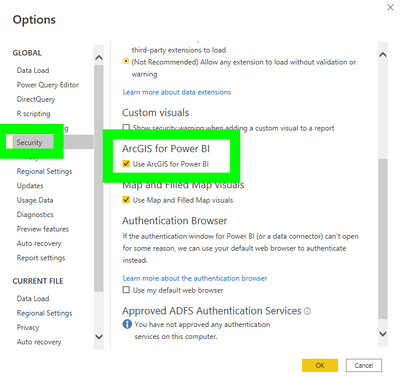
As an alternate solution you could use ArcMaps to display a name field instead. Even though ArcMaps asks you to sign in you don't have to.  If you don't have the visual enabled you can enable it by:

1. Click File

2. Click Options and Settings

3. Click Options.

4. Click Security

5. Check the box for ArcGIS for Power BI.
Watsky_0-1663076864410.png

Once you have it enabled you will see the visual icon 

Watsky_1-1663076907580.png


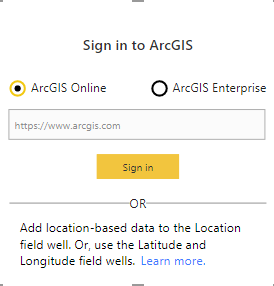
1. Click the ArcMaps visual. It'll ask you to login but just ignore this.
Watsky_2-1663076993617.png

2. Add your address field to Location and add name to one of the fields such as Color or Tooltips.

Watsky_3-1663077126458.png

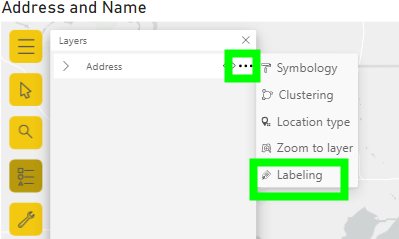
3. Inside the visual you will see a toolbar on the left side. Click the Layers button

Watsky_4-1663077173865.png

4. Click the Layers option button (three dot button) then click Labeling.
Watsky_5-1663077277477.png

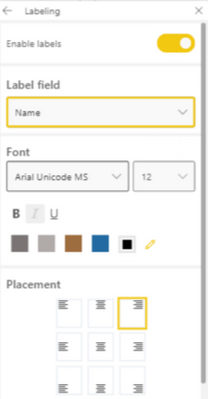
5. Click Enable labels and click the drop-down for Label field and change it to name.
Watsky_6-1663077334105.png


That's it. Now you will have the names on the map.
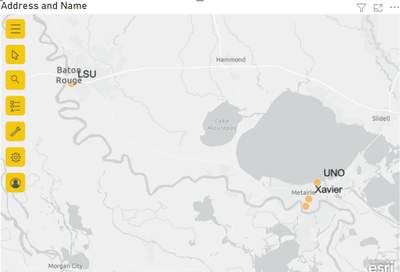
Watsky_7-1663077379289.png

Hope this helps!


Did my answer(s) help you? Give it a kudos by clicking the Thumbs Up!
Did my post answer your question(s)? Mark my post as a solution. This will help others find the solution.

Proud to be a Super User!

Fabulous, thank you very much !! 😂

Helpful resources

Announcements
Power BI DataViz World Championships

Power BI Dataviz World Championships

The Power BI Data Visualization World Championships is back! Get ahead of the game and start preparing now!

December 2025 Power BI Update Carousel

Power BI Monthly Update - December 2025

Check out the December 2025 Power BI Holiday Recap!

FabCon Atlanta 2026 carousel

FabCon Atlanta 2026

Join us at FabCon Atlanta, March 16-20, for the ultimate Fabric, Power BI, AI and SQL community-led event. Save $200 with code FABCOMM.