Join us at FabCon Atlanta from March 16 - 20, 2026, for the ultimate Fabric, Power BI, AI and SQL community-led event. Save $200 with code FABCOMM.
Register now!The Power BI Data Visualization World Championships is back! Get ahead of the game and start preparing now! Learn more
Hi community,
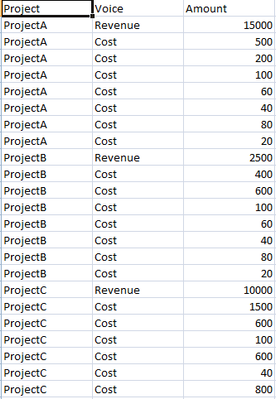
I'm a new PowerBi user and I'm trying to create two Pareto graphs starting from this dataset:
I would like to create one graph for the revenue "voice" and another one for "cost". On the x-axis i would like to put the different projects whilst on y-axis I would like to put the amount.
Is it possible to do that?
I thank you in advance for your help.
Best Regards,
Andrea
Solved! Go to Solution.
Without table names, I will have to do my best.
First you want to create a measure for Cost and Revenue.
Cost = Calculate(Sum('TableName'[Amount]), [Voice]="Cost")
Revenue = Calculate(Sum('TableName'[Amount]), [Voice]="Revenue")
Then create a cost and Revenue measure for All projects. From here forward, I will just do Cost and you can replicate for Revenue.
Cost All Projects = Calculate([Cost], ALL('TableName'[Project]))
Next, create a project Rank measure: (look out for the comma space comma in this one)
Project Cost Rank = RANKKX( ALL('TableName'[Project]), [Cost], , DESC)
Next, create a Project Cost Pareto Value:
Project Cost Pareto Value = SUMX( TOPN( [Project Cost Rank], ALL ('TableName'[Project]), [Project Cost Rank], ASC ), [Cost] )
Finally, create a Cost Pareto %:
Cost Pareto % = DIVIDE( [Project Cost Pareto Value], [Cost All Projects])
Use your combo graph and use the Cost Pareto % for the line, put your Projects on the X axis and the [Cost] on the Y Axis. You can also use these measure in a table with your Project on the row and the amount and pareto % in the values.
If this does not work, please provide additional details on table names, column names, and your model snapshot. This was a stab in the dark with limited information.
Proud to be a Super User!
Hello Kcantor,
Thank you very much for your help.
I was able to create the Pareto chart following your instructions. ![]()
Best Regards,
Andrea
Without table names, I will have to do my best.
First you want to create a measure for Cost and Revenue.
Cost = Calculate(Sum('TableName'[Amount]), [Voice]="Cost")
Revenue = Calculate(Sum('TableName'[Amount]), [Voice]="Revenue")
Then create a cost and Revenue measure for All projects. From here forward, I will just do Cost and you can replicate for Revenue.
Cost All Projects = Calculate([Cost], ALL('TableName'[Project]))
Next, create a project Rank measure: (look out for the comma space comma in this one)
Project Cost Rank = RANKKX( ALL('TableName'[Project]), [Cost], , DESC)
Next, create a Project Cost Pareto Value:
Project Cost Pareto Value = SUMX( TOPN( [Project Cost Rank], ALL ('TableName'[Project]), [Project Cost Rank], ASC ), [Cost] )
Finally, create a Cost Pareto %:
Cost Pareto % = DIVIDE( [Project Cost Pareto Value], [Cost All Projects])
Use your combo graph and use the Cost Pareto % for the line, put your Projects on the X axis and the [Cost] on the Y Axis. You can also use these measure in a table with your Project on the row and the amount and pareto % in the values.
If this does not work, please provide additional details on table names, column names, and your model snapshot. This was a stab in the dark with limited information.
Proud to be a Super User!
Hello Kcantor,
Thank you very much for your help.
I was able to create the Pareto chart following your instructions. ![]()
Best Regards,
Andrea
Happy to know that worked off the cuff.
Proud to be a Super User!
The Power BI Data Visualization World Championships is back! Get ahead of the game and start preparing now!
| User | Count |
|---|---|
| 37 | |
| 37 | |
| 33 | |
| 32 | |
| 29 |
| User | Count |
|---|---|
| 130 | |
| 88 | |
| 82 | |
| 68 | |
| 64 |