Join us at FabCon Atlanta from March 16 - 20, 2026, for the ultimate Fabric, Power BI, AI and SQL community-led event. Save $200 with code FABCOMM.
Register now!The Power BI Data Visualization World Championships is back! Get ahead of the game and start preparing now! Learn more
Hello,
I have a questionnaire with some multiple choice questions (i.e., subjects can choose more than one option). I want to create a chart (probably line chart, as there are several dates in which this survey was taken) or a table showing the percentage of subjects who chose each of the avilable options (so the percentages may add up to be above 100%).
Example:
| User | Brand1 | Brand2 | Brand3 | Brand4 | Brand5 | Brand6 | Brand7 | Brand8 |
| 1 | 1 | 0 | 0 | 1 | 0 | 1 | 1 | 1 |
| 2 | 1 | 0 | 0 | 0 | 0 | 0 | 1 | 0 |
| 3 | 0 | 0 | 1 | 0 | 0 | 0 | 0 | 0 |
| 4 | 0 | 1 | 1 | 1 | 0 | 1 | 1 | 0 |
| 5 | 0 | 1 | 0 | 0 | 0 | 0 | 0 | 0 |
| 6 | 1 | 0 | 0 | 1 | 0 | 0 | 0 | 0 |
| 7 | 1 | 0 | 0 | 0 | 1 | 0 | 0 | 0 |
| 8 | 1 | 0 | 1 | 1 | 1 | 0 | 1 | 1 |
| 9 | 0 | 0 | 1 | 0 | 1 | 0 | 1 | 1 |
Do anyone have an idea how this can be done?
Thanks!
Solved! Go to Solution.
Hi @idlinzen ,
I have created a sample for your reference, please check the following steps as below.
1. Unpivot the table as below in power query.
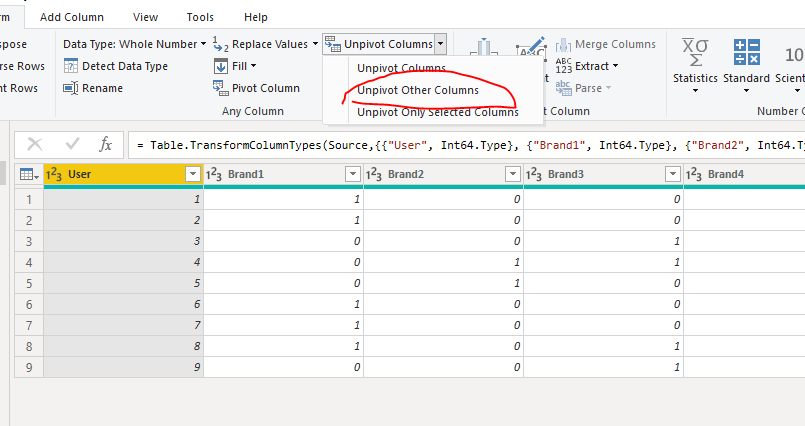
M code for your reference.
let
Source = Table.FromRows(Json.Document(Binary.Decompress(Binary.FromText("i45WMlTSAWMDKDZEoiE4VidayQhNlQGGDpAqYyzmoGKQKhMMG1D5EFWmeM2BqTLD4XpUVeZYZAwxVFlg9T0yH6TKEkdYIamKBQA=", BinaryEncoding.Base64), Compression.Deflate)), let _t = ((type text) meta [Serialized.Text = true]) in type table [User = _t, Brand1 = _t, Brand2 = _t, Brand3 = _t, Brand4 = _t, Brand5 = _t, Brand6 = _t, Brand7 = _t, Brand8 = _t]),
#"Changed Type" = Table.TransformColumnTypes(Source,{{"User", Int64.Type}, {"Brand1", Int64.Type}, {"Brand2", Int64.Type}, {"Brand3", Int64.Type}, {"Brand4", Int64.Type}, {"Brand5", Int64.Type}, {"Brand6", Int64.Type}, {"Brand7", Int64.Type}, {"Brand8", Int64.Type}}),
#"Unpivoted Other Columns" = Table.UnpivotOtherColumns(#"Changed Type", {"User"}, "Attribute", "Value")
in
#"Unpivoted Other Columns"
2. Then we can get excepted result we need.
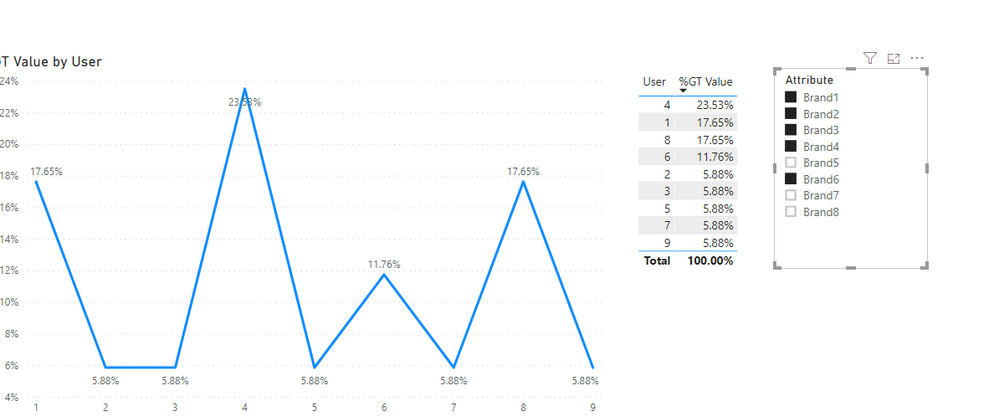
For more details, please check the pbix as attached.
Hi @idlinzen ,
I have created a sample for your reference, please check the following steps as below.
1. Unpivot the table as below in power query.
M code for your reference.
let
Source = Table.FromRows(Json.Document(Binary.Decompress(Binary.FromText("i45WMlTSAWMDKDZEoiE4VidayQhNlQGGDpAqYyzmoGKQKhMMG1D5EFWmeM2BqTLD4XpUVeZYZAwxVFlg9T0yH6TKEkdYIamKBQA=", BinaryEncoding.Base64), Compression.Deflate)), let _t = ((type text) meta [Serialized.Text = true]) in type table [User = _t, Brand1 = _t, Brand2 = _t, Brand3 = _t, Brand4 = _t, Brand5 = _t, Brand6 = _t, Brand7 = _t, Brand8 = _t]),
#"Changed Type" = Table.TransformColumnTypes(Source,{{"User", Int64.Type}, {"Brand1", Int64.Type}, {"Brand2", Int64.Type}, {"Brand3", Int64.Type}, {"Brand4", Int64.Type}, {"Brand5", Int64.Type}, {"Brand6", Int64.Type}, {"Brand7", Int64.Type}, {"Brand8", Int64.Type}}),
#"Unpivoted Other Columns" = Table.UnpivotOtherColumns(#"Changed Type", {"User"}, "Attribute", "Value")
in
#"Unpivoted Other Columns"
2. Then we can get excepted result we need.
For more details, please check the pbix as attached.
The Power BI Data Visualization World Championships is back! Get ahead of the game and start preparing now!
| User | Count |
|---|---|
| 40 | |
| 38 | |
| 33 | |
| 29 | |
| 26 |
| User | Count |
|---|---|
| 131 | |
| 104 | |
| 61 | |
| 57 | |
| 55 |