A new Data Days event is coming soon!
This time we’re going bigger than ever. Fabric, Power BI, SQL, AI and more. We're covering it all. You won't want to miss it.
Learn more- Power BI forums
- Get Help with Power BI
- Desktop
- Service
- Report Server
- Power Query
- Mobile Apps
- Developer
- DAX Commands and Tips
- Custom Visuals Development Discussion
- Health and Life Sciences
- Power BI Spanish forums
- Translated Spanish Desktop
- Training and Consulting
- Instructor Led Training
- Dashboard in a Day for Women, by Women
- Galleries
- Data Stories Gallery
- Themes Gallery
- Contests Gallery
- QuickViz Gallery
- Quick Measures Gallery
- Visual Calculations Gallery
- Notebook Gallery
- Translytical Task Flow Gallery
- TMDL Gallery
- R Script Showcase
- Webinars and Video Gallery
- Ideas
- Custom Visuals Ideas (read-only)
- Issues
- Issues
- Events
- Upcoming Events
Did you hear? There's a new SQL AI Developer certification (DP-800). Start preparing now and be one of the first to get certified. Register now
- Power BI forums
- Forums
- Get Help with Power BI
- Desktop
- Re: Modelling Custom Geographical Regions for Map ...
- Subscribe to RSS Feed
- Mark Topic as New
- Mark Topic as Read
- Float this Topic for Current User
- Bookmark
- Subscribe
- Printer Friendly Page

- Mark as New
- Bookmark
- Subscribe
- Mute
- Subscribe to RSS Feed
- Permalink
- Report Inappropriate Content
Modelling Custom Geographical Regions for Map Visual
Hi,
New to PowerBi and need help understanding how to model regions.
I'm working on creating a report that deals with multiple projects spread over several regions. Our company has custom geographical 'regions'. Some regions correspond to continents, while others are countries.
Dim Regions Table
| Region | Area Covered |
| EU | Europe |
| US | United States |
| JP | Japan |
| AS | Asia |
| AZ | Australia |
The data looks like this:
Fact Projects Table
| ProjectID | Project Title | Region | Department |
| 1 | Frodo | AZ, JP, EU | IT |
| 2 | Bilbo | JP, AS | Finance |
| 3 | Gandalf | EU, US, JP, AS, AZ | IT |
| 4 | Merry | US, EU, AZ | Operations |
So far, I've been able to split the region column in FactProjects table as follows:
| ProjectID | Project Title | Region1 | Region2 | Region3 | Region4 | Region5 | Department |
| 1 | Frodo | AZ | JP | EU | null | null | IT |
| 2 | Bilbo | JP | AS | null | null | null | Finance |
| 3 | Gandalf | EU | US | JP | AS | AZ | IT |
| 4 | Merry | US | EU | AZ | null | null | Operations |
My main 2 issues are these:
1. How do I "count" projects towards multiple regions?
2. How do I do a map visualsation with these custom regions?
Thank you for your help.
Solved! Go to Solution.


- Mark as New
- Bookmark
- Subscribe
- Mute
- Subscribe to RSS Feed
- Permalink
- Report Inappropriate Content
Hi,
In the Query Editor (where you split the Region column into multiple colukns), then is an option under Advanced to split by rows. After splitting by rows, create a relationship from the Projects to the Regions table. You should now be able to build your desired visuals.
Regards,
Ashish Mathur
http://www.ashishmathur.com
https://www.linkedin.com/in/excelenthusiasts/
- Mark as New
- Bookmark
- Subscribe
- Mute
- Subscribe to RSS Feed
- Permalink
- Report Inappropriate Content
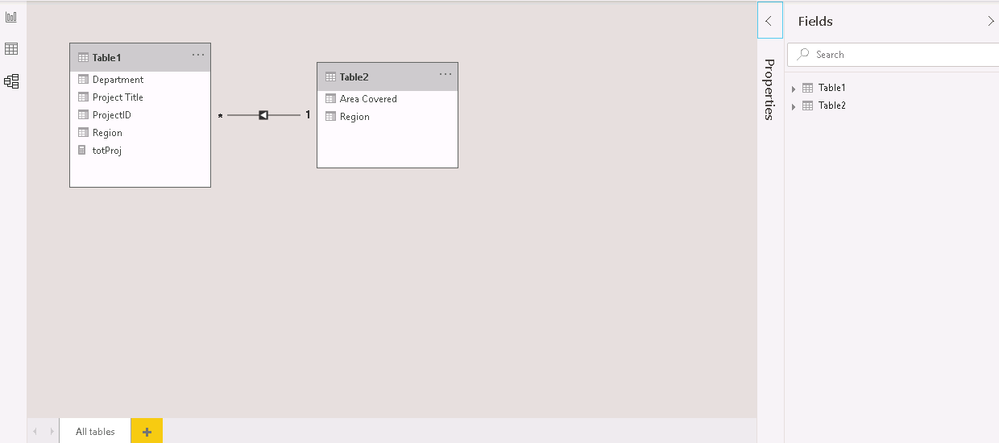
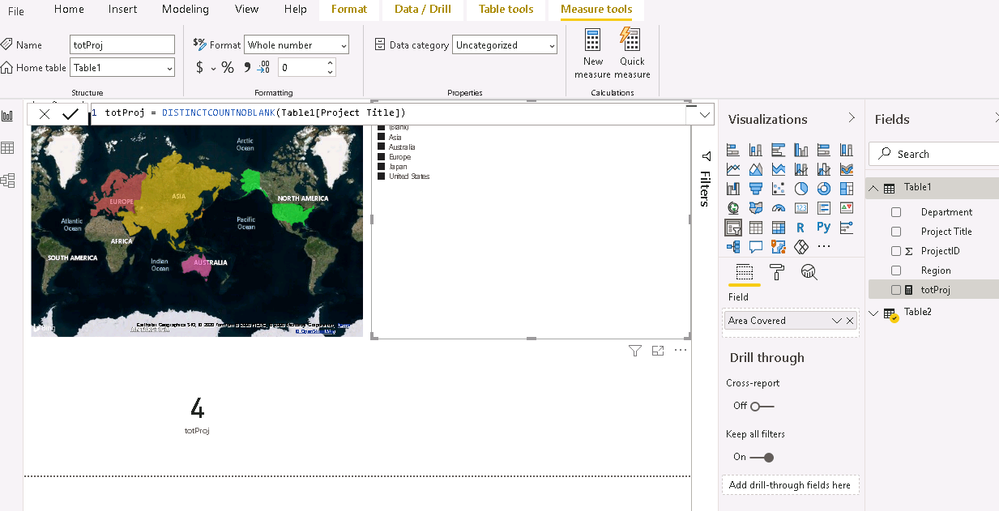
Note I've already created the realtionship, and also created a new measure for the Number of Projects card visual:
- Mark as New
- Bookmark
- Subscribe
- Mute
- Subscribe to RSS Feed
- Permalink
- Report Inappropriate Content
I would provide the pbix file but apparently new members in this forum can't upload files here.

- Mark as New
- Bookmark
- Subscribe
- Mute
- Subscribe to RSS Feed
- Permalink
- Report Inappropriate Content
@ravgh , In power Query slip column by Delimiter into columns
https://www.tutorialgateway.org/how-to-split-columns-in-power-bi/
- Mark as New
- Bookmark
- Subscribe
- Mute
- Subscribe to RSS Feed
- Permalink
- Report Inappropriate Content
Hi,
In the Query Editor (where you split the Region column into multiple colukns), then is an option under Advanced to split by rows. After splitting by rows, create a relationship from the Projects to the Regions table. You should now be able to build your desired visuals.
Regards,
Ashish Mathur
http://www.ashishmathur.com
https://www.linkedin.com/in/excelenthusiasts/
- Mark as New
- Bookmark
- Subscribe
- Mute
- Subscribe to RSS Feed
- Permalink
- Report Inappropriate Content
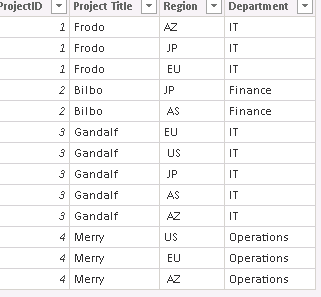
Thanks Ashish, really appreciate the help. I was able to split the data into rows, but the visuals still aren't working properly.
After splitting into rows:
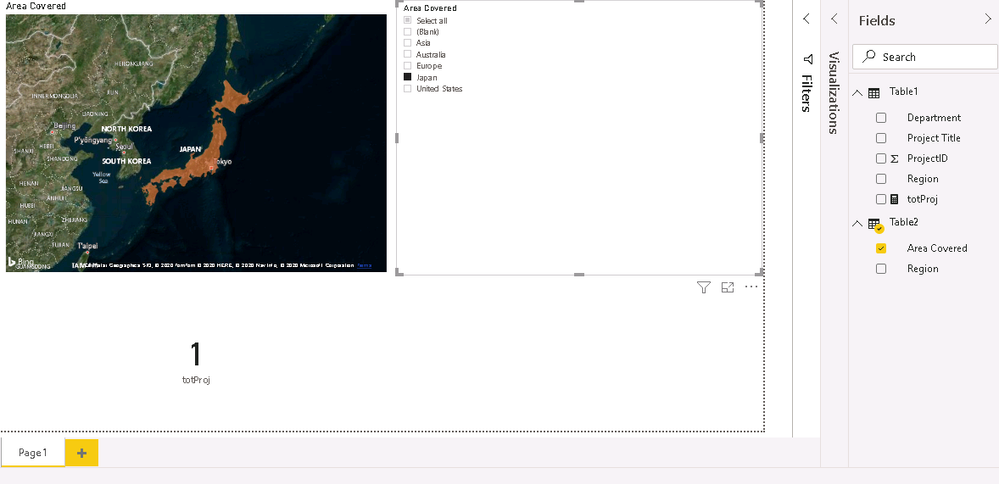
Map visual with no slicer selections:
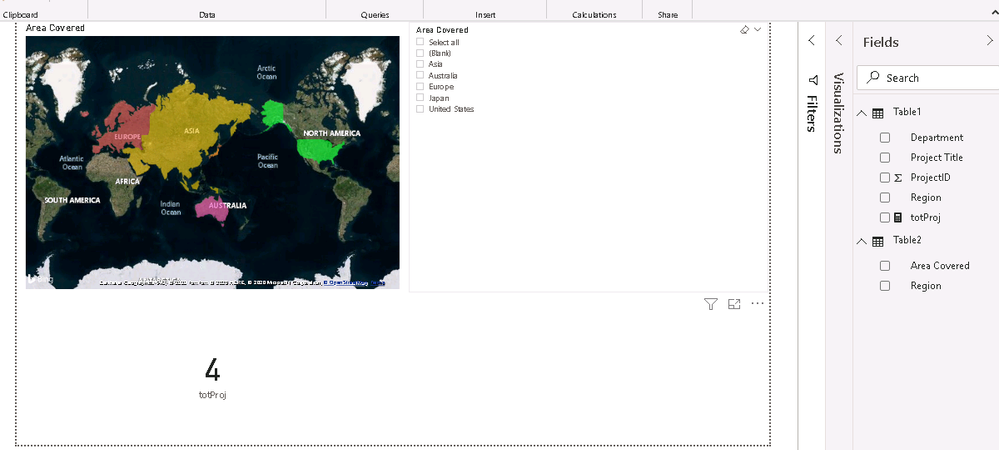
Map with Japan selected in slicer. The number of projects for Japan should be 4, not 1.
- Mark as New
- Bookmark
- Subscribe
- Mute
- Subscribe to RSS Feed
- Permalink
- Report Inappropriate Content
You are welcome. In the Query Editor column, right click on the Region column and trim the extra spaces.
Regards,
Ashish Mathur
http://www.ashishmathur.com
https://www.linkedin.com/in/excelenthusiasts/
- Mark as New
- Bookmark
- Subscribe
- Mute
- Subscribe to RSS Feed
- Permalink
- Report Inappropriate Content
This worked! The rows needed to be trimmed, as you said. Thank you
- Mark as New
- Bookmark
- Subscribe
- Mute
- Subscribe to RSS Feed
- Permalink
- Report Inappropriate Content
You are welcome.
Regards,
Ashish Mathur
http://www.ashishmathur.com
https://www.linkedin.com/in/excelenthusiasts/

Helpful resources

Power BI Monthly Update - April 2026
Check out the April 2026 Power BI update to learn about new features.

Data Days 2026 coming soon!
Sign up to receive a private message when registration opens and key events begin.

New to Fabric Survey
If you have recently started exploring Fabric, we'd love to hear how it's going. Your feedback can help with product improvements.

Power BI DataViz World Championships - June 2026
A new Power BI DataViz World Championship is coming this June! Don't miss out on submitting your entry.

| User | Count |
|---|---|
| 34 | |
| 31 | |
| 30 | |
| 21 | |
| 16 |


| User | Count |
|---|---|
| 61 | |
| 50 | |
| 30 | |
| 23 | |
| 23 |


