Get Fabric or SQL Certified for Free.
Get certified for free when you join Fabric Data Days 2026 and dive into Fabric, Power BI, SQL, AI, and other essential data skills.
Join now- Power BI forums
- Get Help with Power BI
- Desktop
- Service
- Report Server
- Power Query
- Mobile Apps
- Developer
- DAX Commands and Tips
- Custom Visuals Development Discussion
- Health and Life Sciences
- Power BI Spanish forums
- Translated Spanish Desktop
- Training and Consulting
- Instructor Led Training
- Dashboard in a Day for Women, by Women
- Galleries
- Data Stories Gallery
- Themes Gallery
- Contests Gallery
- QuickViz Gallery
- Quick Measures Gallery
- Visual Calculations Gallery
- Notebook Gallery
- Translytical Task Flow Gallery
- TMDL Gallery
- R Script Showcase
- Webinars and Video Gallery
- Ideas
- Custom Visuals Ideas (read-only)
- Issues
- Issues
- Events
- Upcoming Events
Try your skills in the Power BI Dataviz World Championship! Round one ends June 26. Join now
- Power BI forums
- Forums
- Get Help with Power BI
- Desktop
- Re: Max Frequency Consecutive Count in Power Query
- Subscribe to RSS Feed
- Mark Topic as New
- Mark Topic as Read
- Float this Topic for Current User
- Bookmark
- Subscribe
- Printer Friendly Page


- Mark as New
- Bookmark
- Subscribe
- Mute
- Subscribe to RSS Feed
- Permalink
- Report Inappropriate Content
Max Frequency Consecutive Count in Power Query
Hi all,
I'm having a slight issue with modifying a formula in power query to count the maximum number of times a number appears consecutively.
When I import the data using "From Table", the formula seems to work just fine, however, I am pointing power query to a folder, and it seems to be causing an issue.
Essentially, I am working with survey data and am tracking response frequencies. I would like to count the maximum number of times a "0", "1", "2", "3" appears in a row as well as how many times a respondent chose "99".
I have the following code:
let
    Source = Folder.Files("C:\Users\darko.giacomini\Desktop\TestQueryWorkbook\RawDataFiles(SourceFolder)"),
    ValuesToCount = {0..3, 99},
    AddedColumns =
        List.Accumulate(
            List.Positions(ValuesToCount),
            Source,
            (accum, curr) =>
            if ValuesToCount{curr} = 99 then
                Table.AddColumn(
                    accum,
                    "Skipped",
                    each List.Count(List.Select(List.Skip(Record.FieldValues(_), 4), (i) => i = ValuesToCount{curr}))
                )
            else
                Table.AddColumn(
                    accum,
                    "Max" & Text.From(ValuesToCount{curr}) & "inarow",
                    each
                        let
                           Positions = List.PositionOf(List.Skip(Record.FieldValues(_), 4), ValuesToCount{curr}, Occurrence.All),
                           Transformed = List.Transform(List.Positions(Positions), (curr1) => Positions{curr1} - Positions{0} - curr1),
                           DistinctValues = List.Distinct(Transformed),
                           MaxCount = List.Max(List.Transform(DistinctValues, (curr2) => List.Count(List.Select(Transformed, each _ = curr2))))
                        in
                           MaxCount
               )
       )
in
    AddedColumns
However, this only creates another table that I cannot expand the new variables into ("Max0inarow" - "Skipped"). Again, I think it's because I'm using a folder to pull in the data rather than from a table within the workbook.
This is the result I am getting pulling from a folder:

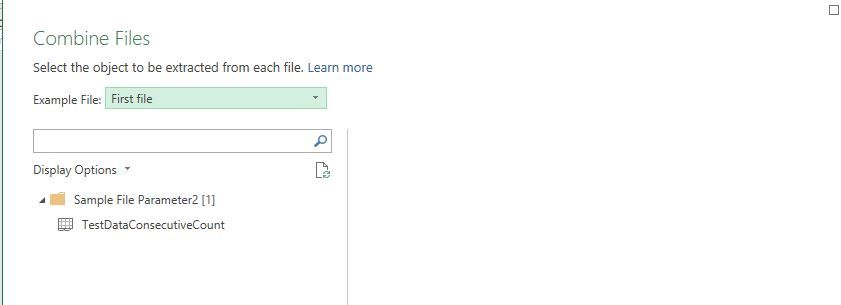
When I click the double drop-down arrows in the "Content" column to expand the table, it removes the columns I had inserted using the code, so what I end up with is this screen:
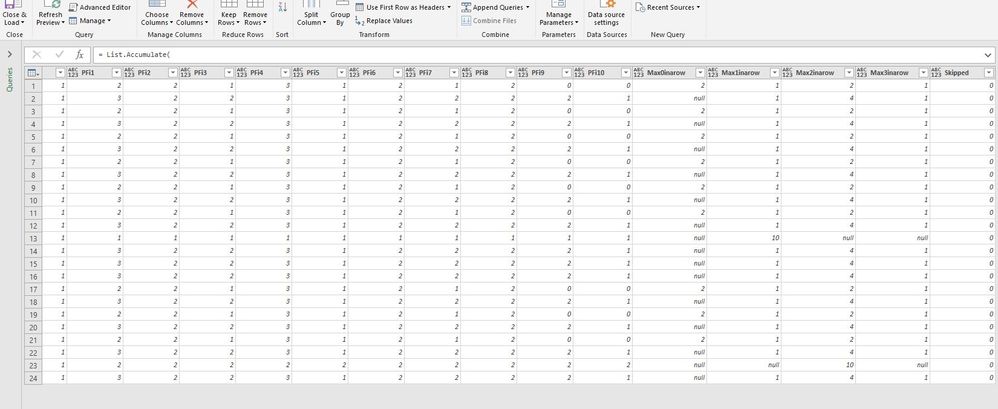
And this is the result I am looking for:
Also attached is a sample workbook I am currently using:
Solved! Go to Solution.


- Mark as New
- Bookmark
- Subscribe
- Mute
- Subscribe to RSS Feed
- Permalink
- Report Inappropriate Content
Hi @Darko_Giac,
Please download the demo from the attachment. I'm afraid you put the code in the wrong order. Firstly, we need to import data to Power BI or Excel with either Folder or File. Then we can add more customized columns. It could be like below.
let
    Source = Folder.Files("D:\Downloads\TestQueryWorkbook\RawDataFiles(SourceFolder)"),
    ValuesToCount = {0..3, 99},

    #"Expanded Attributes" = Table.ExpandRecordColumn(Source, "Attributes", {"Content Type", "Kind", "Size", "ReadOnly", "Hidden", "System", "Directory", "Archive", "Device", "Normal", "Temporary", "SparseFile", "ReparsePoint", "Compressed", "Offline", "NotContentIndexed", "Encrypted"}, {"Attributes.Content Type", "Attributes.Kind", "Attributes.Size", "Attributes.ReadOnly", "Attributes.Hidden", "Attributes.System", "Attributes.Directory", "Attributes.Archive", "Attributes.Device", "Attributes.Normal", "Attributes.Temporary", "Attributes.SparseFile", "Attributes.ReparsePoint", "Attributes.Compressed", "Attributes.Offline", "Attributes.NotContentIndexed", "Attributes.Encrypted"}),
    #"Filtered Hidden Files1" = Table.SelectRows(#"Expanded Attributes", each [Attributes]?[Hidden]? <> true),
    #"Filtered Hidden Files2" = Table.SelectRows(#"Filtered Hidden Files1", each [Attributes]?[Hidden]? <> true),
    #"Invoke Custom Function1" = Table.AddColumn(#"Filtered Hidden Files2", "Transform File from Query1", each #"Transform File from Query1"([Content])),
    #"Removed Other Columns1" = Table.SelectColumns(#"Invoke Custom Function1", {"Transform File from Query1"}),
    #"Expanded Table Column1" = Table.ExpandTableColumn(#"Removed Other Columns1", "Transform File from Query1", Table.ColumnNames(#"Transform File from Query1"(#"Sample File"))),
    #"Changed Type" = Table.TransformColumnTypes(#"Expanded Table Column1",{{"Response ID", Int64.Type}, {"Country", type text}, {"Gender", Int64.Type}, {"Race", Int64.Type}, {"PFi1", Int64.Type}, {"PFi2", Int64.Type}, {"PFi3", Int64.Type}, {"PFi4", Int64.Type}, {"PFi5", Int64.Type}, {"PFi6", Int64.Type}, {"PFi7", Int64.Type}, {"PFi8", Int64.Type}, {"PFi9", Int64.Type}, {"PFi10", Int64.Type}}),
    AddedColumns =
        List.Accumulate(
            List.Positions(ValuesToCount),
            #"Changed Type",
            (accum, curr) =>
            if ValuesToCount{curr} = 99 then
                Table.AddColumn(
                    accum,
                    "Skipped",
                    each List.Count(List.Select(List.Skip(Record.FieldValues(_), 4), (i) => i = ValuesToCount{curr}))
                )
            else
                Table.AddColumn(
                    accum,
                    "Max" & Text.From(ValuesToCount{curr}) & "inarow",
                    each
                        let
                           Positions = List.PositionOf(List.Skip(Record.FieldValues(_), 4), ValuesToCount{curr}, Occurrence.All),
                           Transformed = List.Transform(List.Positions(Positions), (curr1) => Positions{curr1} - Positions{0} - curr1),
                           DistinctValues = List.Distinct(Transformed),
                           MaxCount = List.Max(List.Transform(DistinctValues, (curr2) => List.Count(List.Select(Transformed, each _ = curr2))))
                        in
                           MaxCount
               )
       )
in
    AddedColumns
Best Regards,
If this post helps, then please consider Accept it as the solution to help the other members find it more quickly.
- Mark as New
- Bookmark
- Subscribe
- Mute
- Subscribe to RSS Feed
- Permalink
- Report Inappropriate Content
Hi @Darko_Giac,
Please download the demo from the attachment. I'm afraid you put the code in the wrong order. Firstly, we need to import data to Power BI or Excel with either Folder or File. Then we can add more customized columns. It could be like below.
let
    Source = Folder.Files("D:\Downloads\TestQueryWorkbook\RawDataFiles(SourceFolder)"),
    ValuesToCount = {0..3, 99},

    #"Expanded Attributes" = Table.ExpandRecordColumn(Source, "Attributes", {"Content Type", "Kind", "Size", "ReadOnly", "Hidden", "System", "Directory", "Archive", "Device", "Normal", "Temporary", "SparseFile", "ReparsePoint", "Compressed", "Offline", "NotContentIndexed", "Encrypted"}, {"Attributes.Content Type", "Attributes.Kind", "Attributes.Size", "Attributes.ReadOnly", "Attributes.Hidden", "Attributes.System", "Attributes.Directory", "Attributes.Archive", "Attributes.Device", "Attributes.Normal", "Attributes.Temporary", "Attributes.SparseFile", "Attributes.ReparsePoint", "Attributes.Compressed", "Attributes.Offline", "Attributes.NotContentIndexed", "Attributes.Encrypted"}),
    #"Filtered Hidden Files1" = Table.SelectRows(#"Expanded Attributes", each [Attributes]?[Hidden]? <> true),
    #"Filtered Hidden Files2" = Table.SelectRows(#"Filtered Hidden Files1", each [Attributes]?[Hidden]? <> true),
    #"Invoke Custom Function1" = Table.AddColumn(#"Filtered Hidden Files2", "Transform File from Query1", each #"Transform File from Query1"([Content])),
    #"Removed Other Columns1" = Table.SelectColumns(#"Invoke Custom Function1", {"Transform File from Query1"}),
    #"Expanded Table Column1" = Table.ExpandTableColumn(#"Removed Other Columns1", "Transform File from Query1", Table.ColumnNames(#"Transform File from Query1"(#"Sample File"))),
    #"Changed Type" = Table.TransformColumnTypes(#"Expanded Table Column1",{{"Response ID", Int64.Type}, {"Country", type text}, {"Gender", Int64.Type}, {"Race", Int64.Type}, {"PFi1", Int64.Type}, {"PFi2", Int64.Type}, {"PFi3", Int64.Type}, {"PFi4", Int64.Type}, {"PFi5", Int64.Type}, {"PFi6", Int64.Type}, {"PFi7", Int64.Type}, {"PFi8", Int64.Type}, {"PFi9", Int64.Type}, {"PFi10", Int64.Type}}),
    AddedColumns =
        List.Accumulate(
            List.Positions(ValuesToCount),
            #"Changed Type",
            (accum, curr) =>
            if ValuesToCount{curr} = 99 then
                Table.AddColumn(
                    accum,
                    "Skipped",
                    each List.Count(List.Select(List.Skip(Record.FieldValues(_), 4), (i) => i = ValuesToCount{curr}))
                )
            else
                Table.AddColumn(
                    accum,
                    "Max" & Text.From(ValuesToCount{curr}) & "inarow",
                    each
                        let
                           Positions = List.PositionOf(List.Skip(Record.FieldValues(_), 4), ValuesToCount{curr}, Occurrence.All),
                           Transformed = List.Transform(List.Positions(Positions), (curr1) => Positions{curr1} - Positions{0} - curr1),
                           DistinctValues = List.Distinct(Transformed),
                           MaxCount = List.Max(List.Transform(DistinctValues, (curr2) => List.Count(List.Select(Transformed, each _ = curr2))))
                        in
                           MaxCount
               )
       )
in
    AddedColumns
Best Regards,
If this post helps, then please consider Accept it as the solution to help the other members find it more quickly.
- Mark as New
- Bookmark
- Subscribe
- Mute
- Subscribe to RSS Feed
- Permalink
- Report Inappropriate Content

Helpful resources

Data Days 2026
Don't miss out on Data Days, June 15 through August 7. Learn Fabric, Power BI, SQL, AI and more.

Power BI DataViz World Championships - June 2026
A new Power BI DataViz World Championship is coming this June! Don't miss out on submitting your entry.

| User | Count |
|---|---|
| 22 | |
| 22 | |
| 20 | |
| 19 | |
| 11 |


| User | Count |
|---|---|
| 65 | |
| 54 | |
| 46 | |
| 44 | |
| 31 |


