This time we’re going bigger than ever. Fabric, Power BI, SQL, AI and more. We're covering it all. You won't want to miss it.
Learn moreLevel up your Power BI skills this month - build one visual each week and tell better stories with data! Get started
Hi, I have two tables, a site specific sales table, Table1, with date, product ID and QtySold (product quantity). The other table, Table2, is an overall sales record table of TotQty (total quanity) per month and year. Here is a snapshot of the data in excel files below
Table1
Date ProdID QtySold Year
| 1/4/2018 | 3 | 8 | 2018 |
| 1/10/2018 | 1 | 17 | 2018 |
..
| 2/5/2018 | 3 | 4 | 2018 |
| 2/9/2018 | 2 | 16 | 2018 |
...
| 3/1/2019 | 4 | 9 | 2019 |
| 3/1/2019 | 3 | 4 | 2019 |
and the second table, Table2
YearMonthTotQty
| 2018 | January | 5000 |
| 2018 | February | 4000 |
| 2018 | March | 7000 |
| 2019 | January | 900 |
| 2019 | February | 800 |
| 2019 | March | 700 |
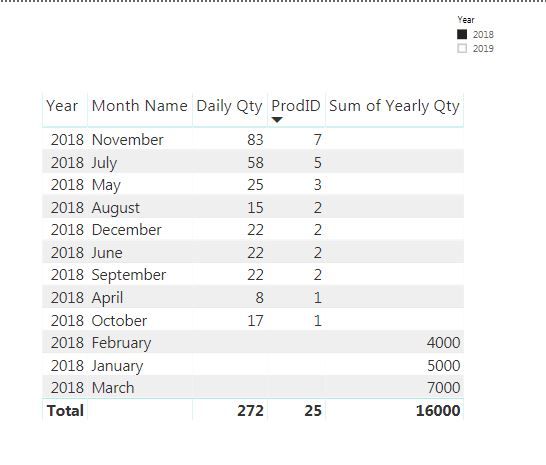
Due to the nature of the table, when I connect Year to Year, it's a many to many connection. What I would like to draw is the site specific sales quantity divided by total quantity vs the three months. I am able to view year specific data using a year slicer. Independently the bar charts for site specifc QtySold and total sales quantity TotQty were easily drawn. But how can I use RELATED function to plot the quantity sold to total quantity ratio ( i.e. the site specific QtySold in Table1 divided by total sales quantity in Table2) vs the three months for that year ?
Solved! Go to Solution.
You can achive your requirement like this.
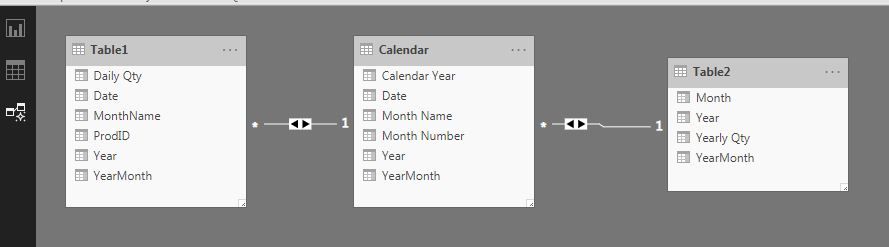
Create a Calendar and design the data model as shown.
Download the file from here: https://drive.google.com/open?id=15DYzOIHn0-uTjCjFKSHGcSVoIUgayAEn
Calendar =
VAR MinYear = YEAR ( MIN ( Table1[Date] ) )
VAR MaxYear = YEAR ( MAX ( Table1[Date] ) )
RETURN
ADDCOLUMNS (
FILTER (
CALENDARAUTO( ),
AND ( YEAR ( [Date] ) >= MinYear, YEAR ( [Date] ) <= MaxYear )
),
"Calendar Year", "CY " & YEAR ( [Date] ),
"Year", YEAR ( [Date] ),
"Month Name", FORMAT ( [Date], "mmmm" ),
"Month Number", MONTH ( [Date] )
)
You can achive your requirement like this.
Create a Calendar and design the data model as shown.
Download the file from here: https://drive.google.com/open?id=15DYzOIHn0-uTjCjFKSHGcSVoIUgayAEn
Calendar =
VAR MinYear = YEAR ( MIN ( Table1[Date] ) )
VAR MaxYear = YEAR ( MAX ( Table1[Date] ) )
RETURN
ADDCOLUMNS (
FILTER (
CALENDARAUTO( ),
AND ( YEAR ( [Date] ) >= MinYear, YEAR ( [Date] ) <= MaxYear )
),
"Calendar Year", "CY " & YEAR ( [Date] ),
"Year", YEAR ( [Date] ),
"Month Name", FORMAT ( [Date], "mmmm" ),
"Month Number", MONTH ( [Date] )
)
Hi,
What you should be ideally be doing is this:
Hope this helps.
Check out the April 2026 Power BI update to learn about new features.
Sign up to receive a private message when registration opens and key events begin.
If you have recently started exploring Fabric, we'd love to hear how it's going. Your feedback can help with product improvements.
| User | Count |
|---|---|
| 36 | |
| 33 | |
| 31 | |
| 24 | |
| 18 |
| User | Count |
|---|---|
| 70 | |
| 50 | |
| 33 | |
| 24 | |
| 24 |