Hi,
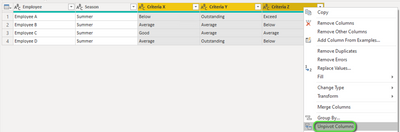
I would like to report the performance of employees against a number of criteria. The data source is Excel table called Performance, example below:
| | Season | Criteria X | Criteria Y | Criteria Z |
| Employee A | Summer | Below | Outstanding | Exceed |
| Employee B | Summer | Average | Average | Below |
| Employee C | Summer | Good | Average | Average |
| Employee D | Summer | Average | Outstanding | Below |
I would like to be able to show:
- Visuals showing percentage of all employees at each rating (Below, Average etc) for each criteria. I hope to slice by 'Criteria'.
- For each employee, a visual of their performance across all the criteria
The assessment is not numeric however I know that to generate visuals that have the categories in order bad>good I will need to assign each rating a corresponding numeric index value.
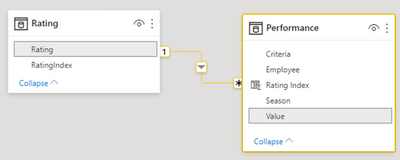
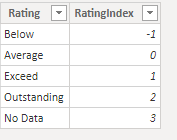
I have added a table called Rating which I would like to link to, to assign the value to each rating. (I've chosen -1 to 3 but I suppose that could be just 1-5?)
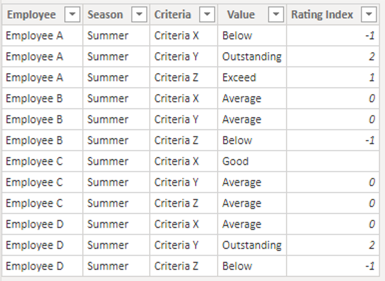
But I cannot work out how to link the value in RatingIndex to each entry in the performance table. I have looked at the RELATED function and LOOKUPVALUE but both need the tables to be related (I think) and there is no relationship between my tables.
It feels like I should be able to do this in PBI without adding new columns into the source excel sheet to add a number next to each text rating.
When I report my Performance table I want the tool to 'see' and use the RatingIndex value rather than the text 'Below, Average etc'.
I hope that makes sense!!