cancel
Showing results for 
Search instead for 
Did you mean: 

We've captured the moments from FabCon & SQLCon that everyone is talking about, and we are bringing them to the community, live and on-demand. Starts on April 14th. Register now

Reply
moragbeedie78
Regular Visitor

Linking Table

Struggling to figure this one out, but im sure there is a simple way im not seeing!

Im trying to link a large data set from a survey of various things.


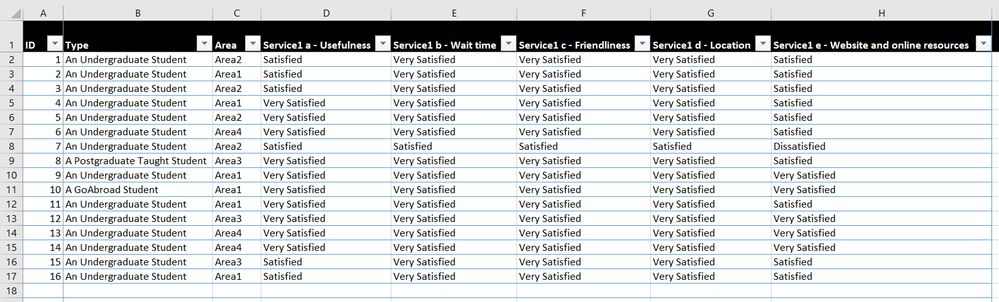
On one part of the dataset im asking to rate satisfaction of 3 services. The columns are headered up as "Service 1" "Service 2" "Service 3" "Service 4". All these columns have "Very Satisfied" "satisfied" "Dissatisfied" "Very Dissatisfied" depending on what the user inserted. 

Untitled-1.jpg


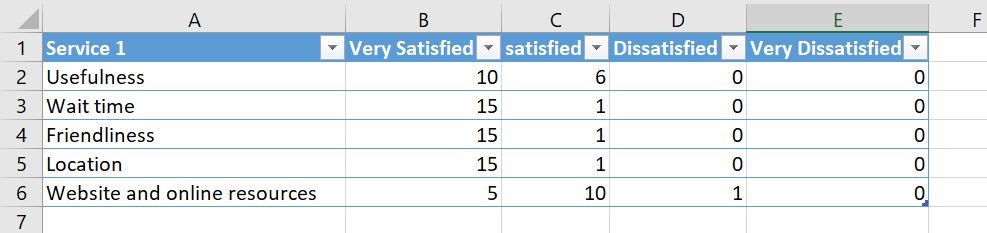
I created a seperate sheet within same excel dataset, and created a table which I used the Countif function to count how many of each rating was in the columns (see table)


Untitled-1.png

I have taken this into Power Bi and it works great in clustered graph, however I want to use a slicer to filter the results to show how many of these people using each service are from "area 1", "area 2" or "area 3" (column "Area" in main dataset). There is also an ID column which has unique numbers in each row to use as an identification.


I can't get the slicer to work as Power Bi doesnt recognise there is a relationship between the two tables. 


Can someone explain to a newbie how to go about this? I cant figure out how to get a relationship to enable the 

thank you 🙂

1 ACCEPTED SOLUTION
v-juanli-msft
Community Support
Community Support

Hi @moragbeedie78

I make a test with your example dataset.

1. in Edit Queries

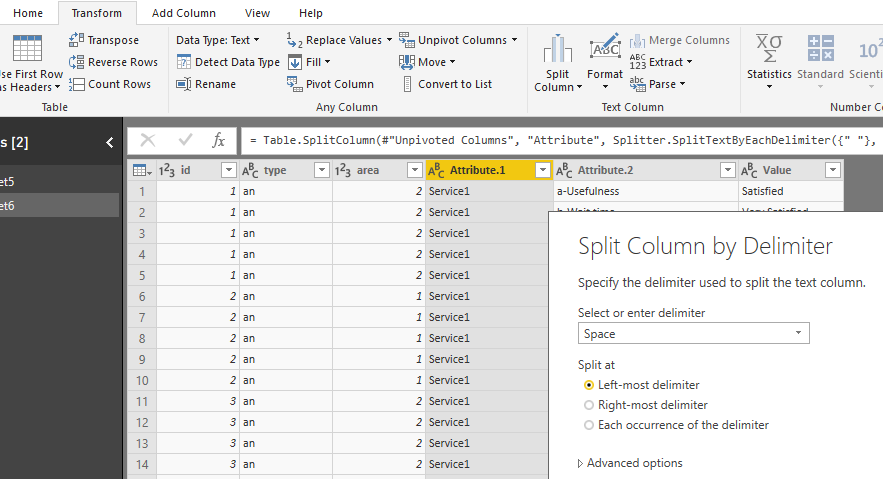
(1)select "Service1 a-Usefulness " to "Service1 e-Website and online resources" five columns, then select "Unpivot columns" (under "Transform" tab)

17.png


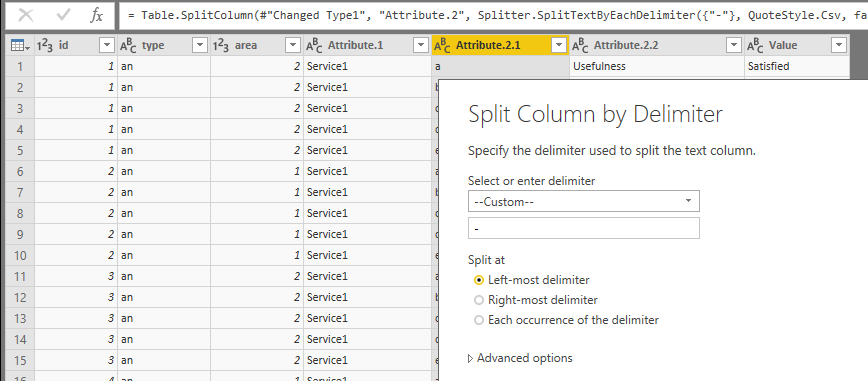
(2) split columns 

click on column [Attribute], select split columns by delimeter

18.png


click on column [Attribute.2], select split columns by delimeter

19.png


then rename columns

[Attribute.1]->[service]

[Attribute.2.2]->[service-sub]


close&apply


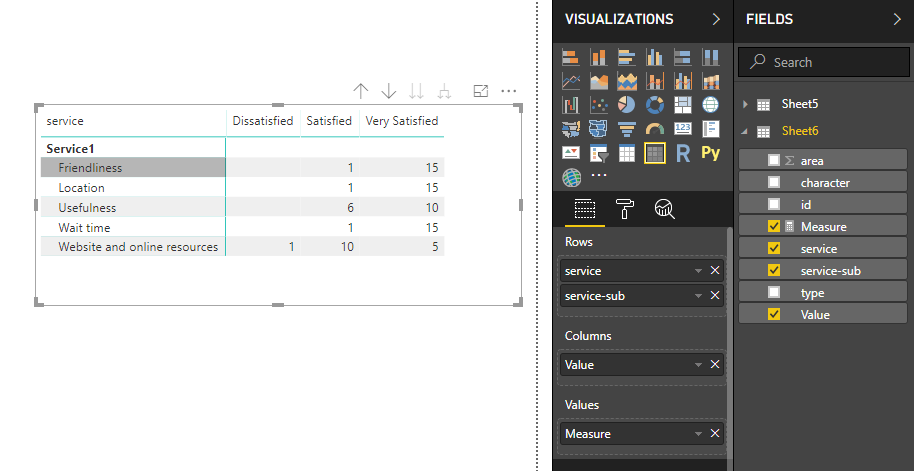
2. create a measure

Measure = COUNT(Sheet6[Value])

add columns and measure in a matrix visual

15.png

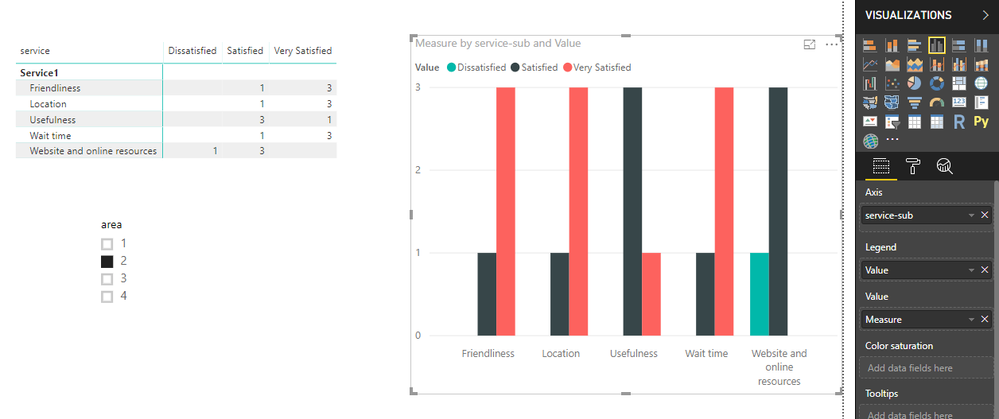
3. add columns and measures in the column chart as below, you will see

16.png


Best Regards

Maggie

View solution in original post

5 REPLIES 5
v-juanli-msft
Community Support
Community Support

Hi @moragbeedie78

I make a test with your example dataset.

1. in Edit Queries

(1)select "Service1 a-Usefulness " to "Service1 e-Website and online resources" five columns, then select "Unpivot columns" (under "Transform" tab)

17.png


(2) split columns 

click on column [Attribute], select split columns by delimeter

18.png


click on column [Attribute.2], select split columns by delimeter

19.png


then rename columns

[Attribute.1]->[service]

[Attribute.2.2]->[service-sub]


close&apply


2. create a measure

Measure = COUNT(Sheet6[Value])

add columns and measure in a matrix visual

15.png

3. add columns and measures in the column chart as below, you will see

16.png


Best Regards

Maggie

Thank you VERY much  🙂

This is amazing and would never be able to figure that out by myself.

Ashish_Mathur
Super User
Super User

Hi,


I cannot visualise your entire table.  Show the entire/all Tables and show the expected result.


Regards,
Ashish Mathur
http://www.ashishmathur.com
https://www.linkedin.com/in/excelenthusiasts/

Large dataset (a section of it)

Untitled-11.jpg


Countif Table in another tab of excel (Just an example - i know the amounts dont equate to the table above!):

Untitled-1.jpg


And the result I want in Power Bi is:

Untitled-2.png


The dataset is absolutlely massive as this was a large survey - this section is only one small part of it. If i can filter by area (Campus type on this visual) then i'll be able to pull this into the rest of the service results/graphs (100+ of them). 


Any guidance would be greatly appreciated!


Hi,


In the Query Editor, select the first 3 columns and select "Unpivot other columns".  Now build your visual.


Regards,
Ashish Mathur
http://www.ashishmathur.com
https://www.linkedin.com/in/excelenthusiasts/

Helpful resources

Announcements
New to Fabric survey Carousel

New to Fabric Survey

If you have recently started exploring Fabric, we'd love to hear how it's going. Your feedback can help with product improvements.

Power BI DataViz World Championships carousel

Power BI DataViz World Championships - June 2026

A new Power BI DataViz World Championship is coming this June! Don't miss out on submitting your entry.

Join our Fabric User Panel

Join our Fabric User Panel

Share feedback directly with Fabric product managers, participate in targeted research studies and influence the Fabric roadmap.

March Power BI Update Carousel

Power BI Community Update - March 2026

Check out the March 2026 Power BI update to learn about new features.