cancel
Showing results for 
Search instead for 
Did you mean: 

The Power BI Data Visualization World Championships is back! Get ahead of the game and start preparing now! Learn more

Reply
Anonymous
Not applicable

Keep spaces in column fields when using table/matrix

Hi,


I'm struggling to create my own indentation in a table visualisation.

I have a 'Description' Column with all my P&L Lines and an Indent column with numbers. I created a new column using Text.repeat(" ",[Indent]) function so as to indent each line using the number in Indent column.

This works well and each line appears with spaces before the name in the DATA tab of PowerBI Desktop.


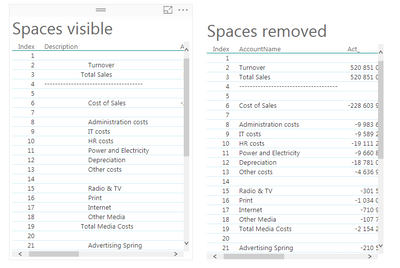
However, whenever I use the new column in a table or matrix, powerbi automatically remove all spaces before the name. Therefore the indentation is not visible.


How to keep spaces before the name of the field ?


EDIT

From the example of thebiccountant


What I want is the left tab but I always get the right one :


Spaces_PBI.PNG


1 ACCEPTED SOLUTION
v-yulgu-msft
Microsoft Employee
Microsoft Employee

Hi @Anonymous,


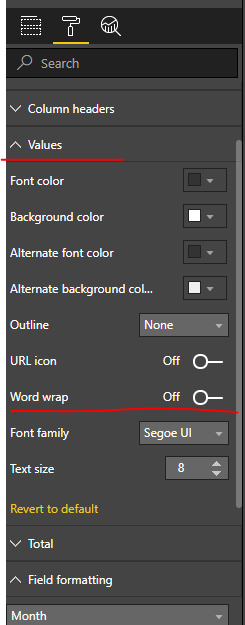
Please turn off the "Word Wrap" option under Format pane.

1.PNG


Best regards,

Yuliana Gu

Community Support Team _ Yuliana Gu
If this post helps, then please consider Accept it as the solution to help the other members find it more quickly.

View solution in original post

5 REPLIES 5
spryger
Frequent Visitor

This only works for a Table, not a Matrix.


For a Matrix, you need to go to Format > Row Headers > Text wrap

Anonymous
Not applicable

Thank you for this simple solution to this problem.  Saved me a lot of time.

v-yulgu-msft
Microsoft Employee
Microsoft Employee

Hi @Anonymous,


Please turn off the "Word Wrap" option under Format pane.

1.PNG


Best regards,

Yuliana Gu

Community Support Team _ Yuliana Gu
If this post helps, then please consider Accept it as the solution to help the other members find it more quickly.

CHAMPION!!


Thanks for this response.

Anonymous
Not applicable

Thanks for your reply. It works well.


I was also able to bypass this behaviour by inserting a different kind of spaces (full width) : [ ]


Lichar

Helpful resources

Announcements
Power BI DataViz World Championships

Power BI Dataviz World Championships

The Power BI Data Visualization World Championships is back! Get ahead of the game and start preparing now!

December 2025 Power BI Update Carousel

Power BI Monthly Update - December 2025

Check out the December 2025 Power BI Holiday Recap!

FabCon Atlanta 2026 carousel

FabCon Atlanta 2026

Join us at FabCon Atlanta, March 16-20, for the ultimate Fabric, Power BI, AI and SQL community-led event. Save $200 with code FABCOMM.