
cancel
Showing results for 
Search instead for 
Did you mean: 

We've captured the moments from FabCon & SQLCon that everyone is talking about, and we are bringing them to the community, live and on-demand. Starts on April 14th. Register now

Reply
Casingena
Frequent Visitor

Issue with missing complex columns based on data source

Hi everyone,


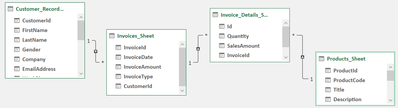
I have been struggling with an issue regarding a data source. I have 4 tables that are spread across 4 sheets in an Excel workbook. There are relationships between the tables as shown below:

Casingena_1-1609237194639.png

While using Power Query Editor in Microsoft Excel I can see the complex columns that allow me to expand to columns from other related tables and copy them into the current table. The complex column can be seen below with the row values Table.


Casingena_0-1609236998639.png

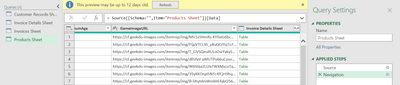
My issue is that when I import the tables from Excel into Power BI Desktop, then access Power Query Editor in Power BI Desktop, these complex columns are absent as shown below:

Casingena_2-1609237575101.png

I did some testing and converted the tables into an Access database and performed the same steps. When the tables are in an Access data source, the Power Query Editor does show the complex columns. Is there something that I have missed when setting up my tables in Microsoft Excel? I am finding it difficult to research this specific problem and I am wondering if anyone knows why Excel shows complex columns in its own Power Query Editor, but not Power BI Desktop's Power Query Editor?

1 ACCEPTED SOLUTION

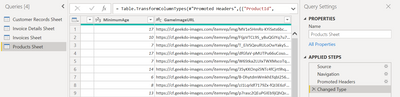
@amitchandak, thanks for your quick response. With the navigation step selected I am still unable to see the complex columns:

Casingena_0-1609240061421.png

I have just discovered that I have been importing the tables using Get Data > Excel. If I go to the File menu and choose Import > Power Query, the complex columns do appear, however I receive other issues. I think I can work on these seperately, but I think I understand that Get Data > File simply grabs the tables and Import > Power Query adopts the data model from Excel.

View solution in original post

3 REPLIES 3
amitchandak
Super User
Super User

@Casingena , In the second(screenshot), click on the navigation step and check.(The last step change type is clicked)


In power Query in import mode, You should be able to same operation on any source. It is like power BI Data after import.

Share with Power BI Enthusiasts: Full Power BI Video (20 Hours) YouTube
Microsoft Fabric Series 60+ Videos YouTube
Microsoft Fabric Hindi End to End YouTube

@amitchandak, thanks for your quick response. With the navigation step selected I am still unable to see the complex columns:

Casingena_0-1609240061421.png

I have just discovered that I have been importing the tables using Get Data > Excel. If I go to the File menu and choose Import > Power Query, the complex columns do appear, however I receive other issues. I think I can work on these seperately, but I think I understand that Get Data > File simply grabs the tables and Import > Power Query adopts the data model from Excel.

@Casingena , Power Query can get an excel table. How is access column is created

Share with Power BI Enthusiasts: Full Power BI Video (20 Hours) YouTube
Microsoft Fabric Series 60+ Videos YouTube
Microsoft Fabric Hindi End to End YouTube

Helpful resources

Announcements
New to Fabric survey Carousel

New to Fabric Survey

If you have recently started exploring Fabric, we'd love to hear how it's going. Your feedback can help with product improvements.

Power BI DataViz World Championships carousel

Power BI DataViz World Championships - June 2026

A new Power BI DataViz World Championship is coming this June! Don't miss out on submitting your entry.

Join our Fabric User Panel

Join our Fabric User Panel

Share feedback directly with Fabric product managers, participate in targeted research studies and influence the Fabric roadmap.

March Power BI Update Carousel

Power BI Community Update - March 2026

Check out the March 2026 Power BI update to learn about new features.