

cancel
Showing results for 
Search instead for 
Did you mean: 

The Power BI Data Visualization World Championships is back! Get ahead of the game and start preparing now! Learn more

Reply

I want to create a measure in the dashboard with "Manage Roles"

Hello everbody,

I need to create an automatic measure with informatics of the "Manage Roles"

The idea is that when the user reads his document on the dashboard, he shows the name through the measure linked to the managed view.

Thanks in advance,
Jesiel
1 ACCEPTED SOLUTION
v-yanjiang-msft
Community Support
Community Support

Hi @jesielcarrascos ,

If it has many users in the report and you want each user see different content, you should create dynamic Row Level Security, which use the DAX function USERNAME. Here're the steps:

1.Take a simple example, you want Tom see A in Column1 and Jack see B, create a table like below.

vkalyjmsft_4-1652161839988.png

2.In Manage roles, add filter on the User Name column.

vkalyjmsft_0-1652161627078.png

Create DAX formula


[User Name]=USERNAME()


vkalyjmsft_1-1652161642639.png

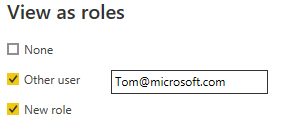
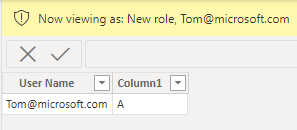
3.In Desktop, if you want to view roles, select both New role and Other user, then enter the user accout.

vkalyjmsft_3-1652161792291.png

It works fine

vkalyjmsft_2-1652161753702.png

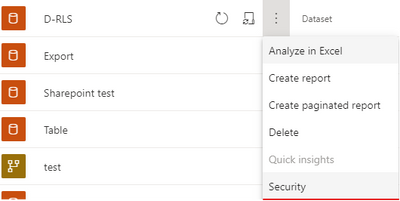
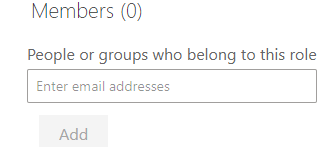
4.In Service, in the dataset Security tab, add all users to the role.

vkalyjmsft_5-1652163045943.png

vkalyjmsft_6-1652163119345.png

When Tom@microsoft.com  loged in Service, he will only see A in Column1, when Jack@microsoft.com  loged in Service, he will only see B.


Best Regards,
Community Support Team _ kalyj

If this post helps, then please consider Accept it as the solution to help the other members find it more quickly.


View solution in original post

3 REPLIES 3
v-yanjiang-msft
Community Support
Community Support

Hi @jesielcarrascos ,

If it has many users in the report and you want each user see different content, you should create dynamic Row Level Security, which use the DAX function USERNAME. Here're the steps:

1.Take a simple example, you want Tom see A in Column1 and Jack see B, create a table like below.

vkalyjmsft_4-1652161839988.png

2.In Manage roles, add filter on the User Name column.

vkalyjmsft_0-1652161627078.png

Create DAX formula


[User Name]=USERNAME()


vkalyjmsft_1-1652161642639.png

3.In Desktop, if you want to view roles, select both New role and Other user, then enter the user accout.

vkalyjmsft_3-1652161792291.png

It works fine

vkalyjmsft_2-1652161753702.png

4.In Service, in the dataset Security tab, add all users to the role.

vkalyjmsft_5-1652163045943.png

vkalyjmsft_6-1652163119345.png

When Tom@microsoft.com  loged in Service, he will only see A in Column1, when Jack@microsoft.com  loged in Service, he will only see B.


Best Regards,
Community Support Team _ kalyj

If this post helps, then please consider Accept it as the solution to help the other members find it more quickly.


jsaunders_zero9
Responsive Resident
Responsive Resident

Hi @jesielcarrascos

I am afraid this will require a better explanation, maybe some images would help too.

James

Of course @jsaunders_zero9 ,

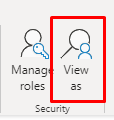
When selecting the view:

jesielcarrascos_0-1651661217853.png
jesielcarrascos_1-1651661524665.png
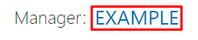
The text change will be according to the view selection

jesielcarrascos_2-1651661685179.png

Helpful resources

Announcements
November Power BI Update Carousel

Power BI Monthly Update - November 2025

Check out the November 2025 Power BI update to learn about new features.

Fabric Data Days Carousel

Fabric Data Days

Advance your Data & AI career with 50 days of live learning, contests, hands-on challenges, study groups & certifications and more!

FabCon Atlanta 2026 carousel

FabCon Atlanta 2026

Join us at FabCon Atlanta, March 16-20, for the ultimate Fabric, Power BI, AI and SQL community-led event. Save $200 with code FABCOMM.

Top Kudoed Authors