FabCon is coming to Atlanta
Join us at FabCon Atlanta from March 16 - 20, 2026, for the ultimate Fabric, Power BI, AI and SQL community-led event. Save $200 with code FABCOMM.
Register now!- Power BI forums
- Get Help with Power BI
- Desktop
- Service
- Report Server
- Power Query
- Mobile Apps
- Developer
- DAX Commands and Tips
- Custom Visuals Development Discussion
- Health and Life Sciences
- Power BI Spanish forums
- Translated Spanish Desktop
- Training and Consulting
- Instructor Led Training
- Dashboard in a Day for Women, by Women
- Galleries
- Data Stories Gallery
- Themes Gallery
- Contests Gallery
- QuickViz Gallery
- Quick Measures Gallery
- Visual Calculations Gallery
- Notebook Gallery
- Translytical Task Flow Gallery
- TMDL Gallery
- R Script Showcase
- Webinars and Video Gallery
- Ideas
- Custom Visuals Ideas (read-only)
- Issues
- Issues
- Events
- Upcoming Events
The Power BI Data Visualization World Championships is back! Get ahead of the game and start preparing now! Learn more
- Power BI forums
- Forums
- Get Help with Power BI
- Desktop
- Re: How to re-order x-axis by year/month
- Subscribe to RSS Feed
- Mark Topic as New
- Mark Topic as Read
- Float this Topic for Current User
- Bookmark
- Subscribe
- Printer Friendly Page

- Mark as New
- Bookmark
- Subscribe
- Mute
- Subscribe to RSS Feed
- Permalink
- Report Inappropriate Content
How to re-order x-axis by year/month
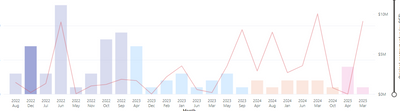
I have managed to re-order my visual by ascending year. However the months are still out of order. I would like to order the x-axis by year and then month-so 2022 june, 2022, july etc. Is there any way to do this?
Please see screenshot below.
Solved! Go to Solution.


- Mark as New
- Bookmark
- Subscribe
- Mute
- Subscribe to RSS Feed
- Permalink
- Report Inappropriate Content
Hi @Anonymous ,
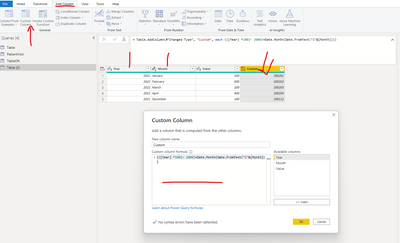
The best way to do this is in Power Query. As you did not provide the data, I built a table with a month and a year column, the created a column to sort by. Please see my code below, and the pictures.
Let me know if you have any questions.
If this solves your issues, please mark it as the solution, so that others can find it easily. Kudos 👍are nice too.
Nathaniel
(([Year] *100)- 2000)+Date.Month(Date.FromText("1"&[Month]))
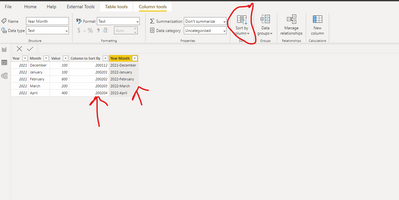
Highlight the column you wish to sort, click Sort by Column and select your custom column.
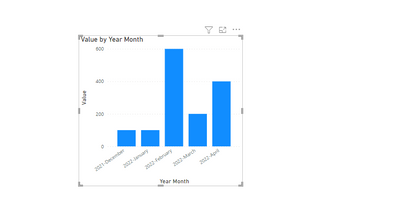
Done
Did I answer your question? Mark my post as a solution!
Proud to be a Super User!
- Mark as New
- Bookmark
- Subscribe
- Mute
- Subscribe to RSS Feed
- Permalink
- Report Inappropriate Content
Hi @Anonymous ,
Here is my pbix, maybe this will help, if not you can send me your pbix. Make sure that you first select the year month column click on Sort by Column, and then select our custom column with the numbers.
https://1drv.ms/u/s!AgCd7AyfqZtE4RNGA_gwDitxYnwG?e=CKuYby
Nathaniel
Did I answer your question? Mark my post as a solution!
Proud to be a Super User!
- Mark as New
- Bookmark
- Subscribe
- Mute
- Subscribe to RSS Feed
- Permalink
- Report Inappropriate Content
Hi @Anonymous ,
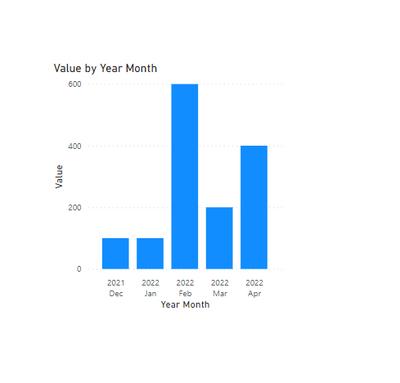
To get this, I went back and replaced the "-" with a space " " so that the label would word wrap. Then, as the original had full month names with varying lengths, I replace them with the three letter month. Then finally I adjust the width of the visual, until all columns wrapped accordingly. If you need a wider or narrower visual, play with the font size of the labels, or the width of the columns.
Let me know if you have any questions.
If this solves your issues, please mark it as the solution, so that others can find it easily. Kudos 👍are nice too.
Nathaniel
Did I answer your question? Mark my post as a solution!
Proud to be a Super User!
- Mark as New
- Bookmark
- Subscribe
- Mute
- Subscribe to RSS Feed
- Permalink
- Report Inappropriate Content
Hi @Anonymous , This has some other solves in it, but you are looking for Table (2).
https://1drv.ms/u/s!AgCd7AyfqZtE4RH2uqWLSidKIXhP?e=ERa7df
Let me know if you have any questions.
If this solves your issues, please mark it as the solution, so that others can find it easily. Kudos 👍are nice too.
Nathaniel
Did I answer your question? Mark my post as a solution!
Proud to be a Super User!
- Mark as New
- Bookmark
- Subscribe
- Mute
- Subscribe to RSS Feed
- Permalink
- Report Inappropriate Content
Hi @Anonymous , This has some other solves in it, but you are looking for Table (2).
https://1drv.ms/u/s!AgCd7AyfqZtE4RH2uqWLSidKIXhP?e=ERa7df
Let me know if you have any questions.
If this solves your issues, please mark it as the solution, so that others can find it easily. Kudos 👍are nice too.
Nathaniel
Did I answer your question? Mark my post as a solution!
Proud to be a Super User!
- Mark as New
- Bookmark
- Subscribe
- Mute
- Subscribe to RSS Feed
- Permalink
- Report Inappropriate Content
Hi Nathaniel,
Thank you. This is very helpful. I think I am nearly there. How did you replace the original full month names with the three letter month names?
- Mark as New
- Bookmark
- Subscribe
- Mute
- Subscribe to RSS Feed
- Permalink
- Report Inappropriate Content
I have figured it out. Thank you very much. All issues solved 🙂
- Mark as New
- Bookmark
- Subscribe
- Mute
- Subscribe to RSS Feed
- Permalink
- Report Inappropriate Content
@Anonymous ,
Good Job! If you wish to do it in Power Query, you can use this:
Text.Start(Date.MonthName([Column2]),3) //replace [Column 2] with the date column.
Let me know if you have any questions.
If this solves your issues, please mark it as the solution, so that others can find it easily. Kudos 👍are nice too.
Nathaniel
Did I answer your question? Mark my post as a solution!
Proud to be a Super User!
- Mark as New
- Bookmark
- Subscribe
- Mute
- Subscribe to RSS Feed
- Permalink
- Report Inappropriate Content
Hi @Anonymous
Good job!
Create another custom column. See my picture and code. Either type the column names inside[] or click where it says Insert. I used a dash "-", but looking at your original picture you could use a space " ". And of course if you wish you may put the month first and the year second. Anyway, now you will have a column to use for the axis...the important point year is to develop a column that sorts by integer value.
I also noticed that you had some zeros at the top row in your picture, you can take those out if you wish in Power Query by using the Remove Rows in the Home tab.
Let me highly recommend this book. Amazon under 30.00

Let me know if you have any questions.
If this solves your issues, please mark it as the solution, so that others can find it easily. Kudos 👍are nice too.
Nathaniel
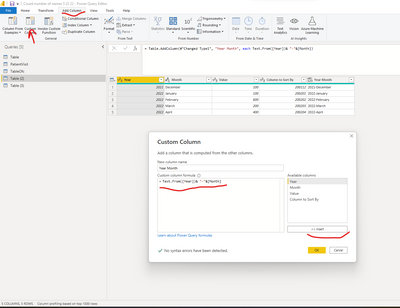
Text.From([Year]) &"-"& [Month]
Did I answer your question? Mark my post as a solution!
Proud to be a Super User!
- Mark as New
- Bookmark
- Subscribe
- Mute
- Subscribe to RSS Feed
- Permalink
- Report Inappropriate Content
Hi Nathaniel,
Thank you very much. Thank you for the book suggestion - I will look into it.
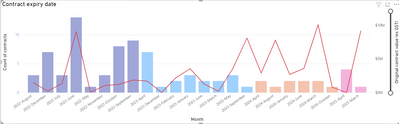
I have applied what you suggested. I don't know why my graph is still sorted by year and not year-month. I have sorted the column in my data section and it looks like that is in the correct order. Why is not displaying in the visual?
Please see below screenshots.

- Mark as New
- Bookmark
- Subscribe
- Mute
- Subscribe to RSS Feed
- Permalink
- Report Inappropriate Content
Hi @Anonymous ,
Here is my pbix, maybe this will help, if not you can send me your pbix. Make sure that you first select the year month column click on Sort by Column, and then select our custom column with the numbers.
https://1drv.ms/u/s!AgCd7AyfqZtE4RNGA_gwDitxYnwG?e=CKuYby
Nathaniel
Did I answer your question? Mark my post as a solution!
Proud to be a Super User!
- Mark as New
- Bookmark
- Subscribe
- Mute
- Subscribe to RSS Feed
- Permalink
- Report Inappropriate Content
Hi Nathaniel,
Thank you very much. This worked - so helpful.
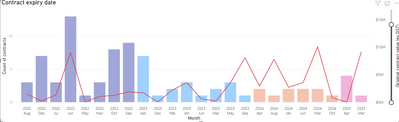
Do you know if there is any way to make the text of the x-axis horizontal like it was in my original graph?
New graph:
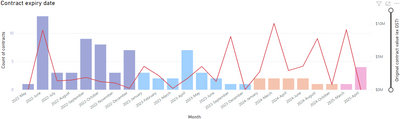
Original graph:
- Mark as New
- Bookmark
- Subscribe
- Mute
- Subscribe to RSS Feed
- Permalink
- Report Inappropriate Content
Hi @Anonymous ,
To get this, I went back and replaced the "-" with a space " " so that the label would word wrap. Then, as the original had full month names with varying lengths, I replace them with the three letter month. Then finally I adjust the width of the visual, until all columns wrapped accordingly. If you need a wider or narrower visual, play with the font size of the labels, or the width of the columns.
Let me know if you have any questions.
If this solves your issues, please mark it as the solution, so that others can find it easily. Kudos 👍are nice too.
Nathaniel
Did I answer your question? Mark my post as a solution!
Proud to be a Super User!
- Mark as New
- Bookmark
- Subscribe
- Mute
- Subscribe to RSS Feed
- Permalink
- Report Inappropriate Content
Hi Nathaniel,
Thank you. This looks exactly like what I want to achieve.
Do you mind providing the adjusted pbix for me to have a look at and imitate?
- Mark as New
- Bookmark
- Subscribe
- Mute
- Subscribe to RSS Feed
- Permalink
- Report Inappropriate Content
Hi @Anonymous ,
The best way to do this is in Power Query. As you did not provide the data, I built a table with a month and a year column, the created a column to sort by. Please see my code below, and the pictures.
Let me know if you have any questions.
If this solves your issues, please mark it as the solution, so that others can find it easily. Kudos 👍are nice too.
Nathaniel
(([Year] *100)- 2000)+Date.Month(Date.FromText("1"&[Month]))
Highlight the column you wish to sort, click Sort by Column and select your custom column.
Done
Did I answer your question? Mark my post as a solution!
Proud to be a Super User!
- Mark as New
- Bookmark
- Subscribe
- Mute
- Subscribe to RSS Feed
- Permalink
- Report Inappropriate Content
Thank you for your time and suggestion.
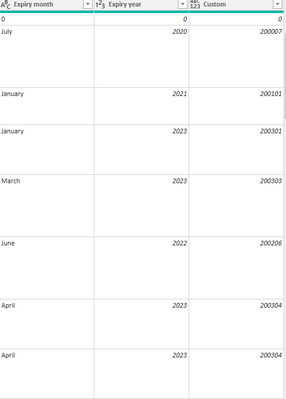
I have created the column successfully. A few issues:
How do I create the column that displays Year-month? Using the formula you provided - it only creates a column with numbers. How do get to the next step to sue in my visual? Please see below screenshot.


- Mark as New
- Bookmark
- Subscribe
- Mute
- Subscribe to RSS Feed
- Permalink
- Report Inappropriate Content
Hi, @Anonymous ,
You can easily do that using the 'Sort By' column in the data panel of your report.
Now if you have a calendar table housing your Month or Year or datetime fields, you should automatically have the Month Of Year field,
If you don't have a Month of Year field in your table you can create one :
Month Of Year Calculcated Column = MONTH(YourTableName[DateField])
Now that you have created the MonthOfYear column, this will serve as your sorting field for the Month Name field.
Using the Column tools you can find the Sort By Column section. Use the Month of year field we just created above to create a sort on the Month Name field. It will automatically arrange your Chart's Months to be arranged by the order of their Month Number in the year: Jan feb Mar and so on.
When you don't have The Month Of Year sorting column, power bi sorting works to sort the textual field Month by the alphabetical sorting order. Hence you will see April August December [A-> Z] order.
I tested this out below:
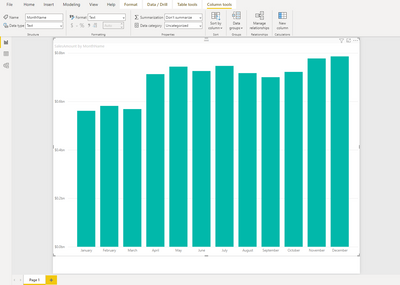
Hope this helps, please give thumbs up 🙂
- Mark as New
- Bookmark
- Subscribe
- Mute
- Subscribe to RSS Feed
- Permalink
- Report Inappropriate Content
Thank you for your time and suggestion.
I applied your suggestion and it did not return what I am looking for. It has now grouped my data in months only with years in different coloumns. Instead I would like to see my original graph with all years and months visible.
Applying Month Of Year Calculcated Column = MONTH(YourTableName[DateField])
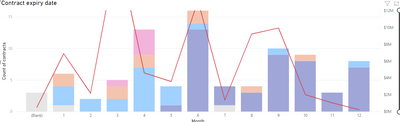
What I would like to achieve:
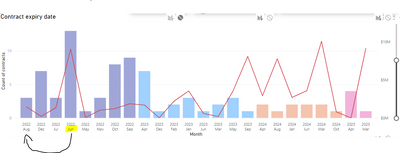
- Mark as New
- Bookmark
- Subscribe
- Mute
- Subscribe to RSS Feed
- Permalink
- Report Inappropriate Content
Hi @Anonymous ,
1. Click the Month Name field.
2. On the top bar / ribbon find a section called "Column tools"
3. Select the 'Sort By Field'. (Refer my screenshot in the reply above).
4. Sort the Month Name field by the Month Number calculated field you just created.
5. Now your chart that uses the Month Name field, should automatically be sorted to show the Months by their Jan, Feb, Mar, Apri etc order that you want.
This is the easiest solution for your requirement.


- Mark as New
- Bookmark
- Subscribe
- Mute
- Subscribe to RSS Feed
- Permalink
- Report Inappropriate Content
Hi @Anonymous ,
It appears that your month column is a text type and thus is being sorted alphabetically. It needs to be sorted by a different column to achieve what you want. If you have a date column in your table, you can use MONTH ( Table[Date] ) which will return the month number from 1 to 12 where January is 1, etc. You can then use this column to sort your month column by. For your reference: https://docs.microsoft.com/en-us/power-bi/create-reports/desktop-sort-by-column?tabs=powerbi-desktop
Dane Belarmino | Microsoft MVP | Proud to be a Super User!
Did I answer your question? Mark my post as a solution!
"Tell me and I’ll forget; show me and I may remember; involve me and I’ll understand."
Need Power BI consultation, get in touch with me on LinkedIn or hire me on UpWork.
Learn with me on YouTube @DAXJutsu or follow my page on Facebook @DAXJutsuPBI.
- Mark as New
- Bookmark
- Subscribe
- Mute
- Subscribe to RSS Feed
- Permalink
- Report Inappropriate Content
Thank you for your suggestion.
I have already tried applying MONTH and it only returns month. I would like to display MONTH & YEAR as shown below. This was the same as the suggestion that followed yours.
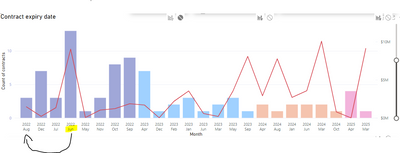
Helpful resources

Power BI Dataviz World Championships
The Power BI Data Visualization World Championships is back! Get ahead of the game and start preparing now!

Power BI Monthly Update - November 2025
Check out the November 2025 Power BI update to learn about new features.

FabCon Atlanta 2026
Join us at FabCon Atlanta, March 16-20, for the ultimate Fabric, Power BI, AI and SQL community-led event. Save $200 with code FABCOMM.

| User | Count |
|---|---|
| 59 | |
| 45 | |
| 42 | |
| 23 | |
| 17 |


| User | Count |
|---|---|
| 190 | |
| 122 | |
| 96 | |
| 66 | |
| 47 |


