Join us at FabCon Atlanta from March 16 - 20, 2026, for the ultimate Fabric, Power BI, AI and SQL community-led event. Save $200 with code FABCOMM.
Register now!The Power BI Data Visualization World Championships is back! Get ahead of the game and start preparing now! Learn more
Say i have a table that looks like this
Column Alphabet |
| A |
| A |
| A |
| B |
| B |
B |
C |
C |
D |
I would like to create a table that looks like this
Column Alphabet | Observation |
| A | 1 |
| A | 2 |
| A | 3 |
| B | 1 |
| B | 2 |
B | 3 |
C | 1 |
C | 2 |
D | 1 |
Solved! Go to Solution.
If you can calculate the column in the source, that would be the best. For example, if the source is SQL Server you could use ROW_NUMBER() OVER (partition by [Column Alphabet] order by (select null)). See Roche’s Maxim of Data Transformation for why this is important.
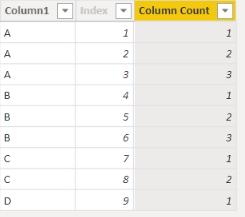
Here is a method for doing this with a calculated column, which way downstream. First add an index column to your table in Power Query. You can hide this col in the model. So you now have a table that looks like:
| A | 1 |
| A | 2 |
| A | 3 |
| B | 4 |
| B | 5 |
| B | 6 |
| C | 7 |
| C | 8 |
| D | 9 |
Then add a calculated column with this DAX:
Column Count =
VAR _c1value = CALCULATE( SELECTEDVALUE( 'Table'[Column1] ) )
VAR _Ind = CALCULATE( SELECTEDVALUE( 'Table'[Index] ) )
VAR Result =
COUNTROWS(
CALCULATETABLE(
'Table',
REMOVEFILTERS( ),
'Table'[Column1] = _c1value,
'Table'[Index] <= _Ind
)
)
RETURN
Result
If this post helps, then please consider Accept it as the solution to help the other members find it more quickly. If I misunderstand your needs or you still have problems on it, please feel free to let me know. Thanks a lot!
Hi,
This M code works
let
Source = Excel.CurrentWorkbook(){[Name="Data"]}[Content],
Partition = Table.Group(Source, {"Column Alphabet"}, {{"Partition", each Table.AddIndexColumn(_, "Index",1,1), type table}}),
#"Expanded Partition" = Table.ExpandTableColumn(Partition, "Partition", {"Index"}, {"Index"})
in
#"Expanded Partition"
Hope this helps.
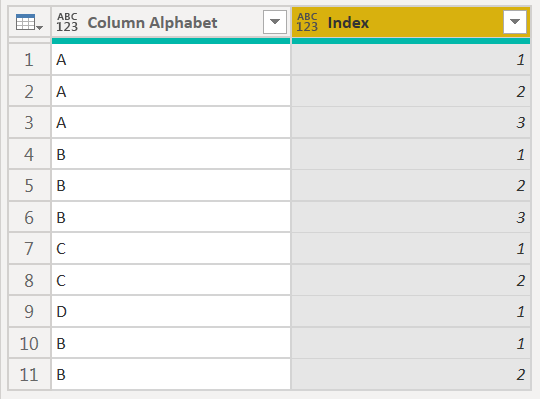
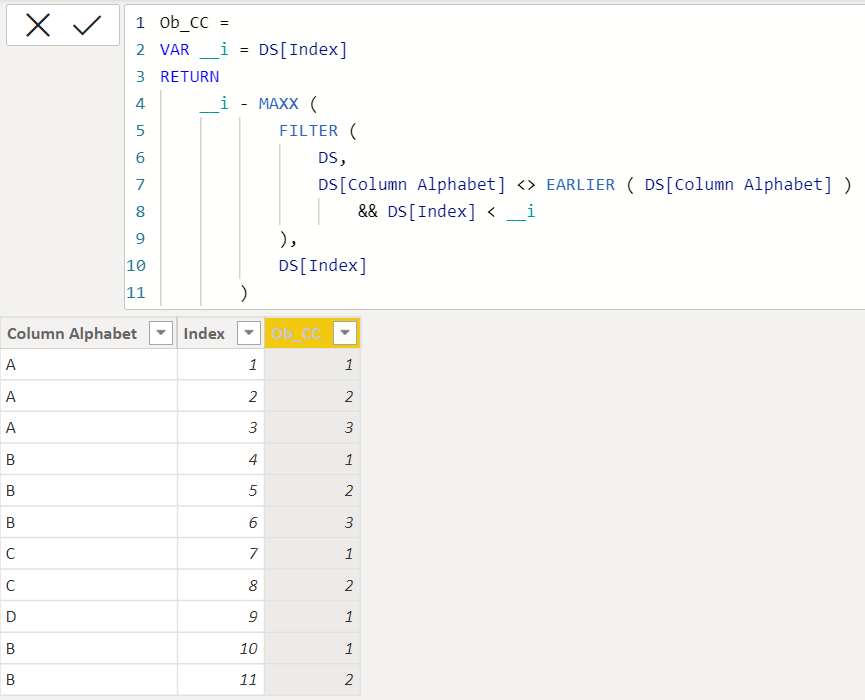
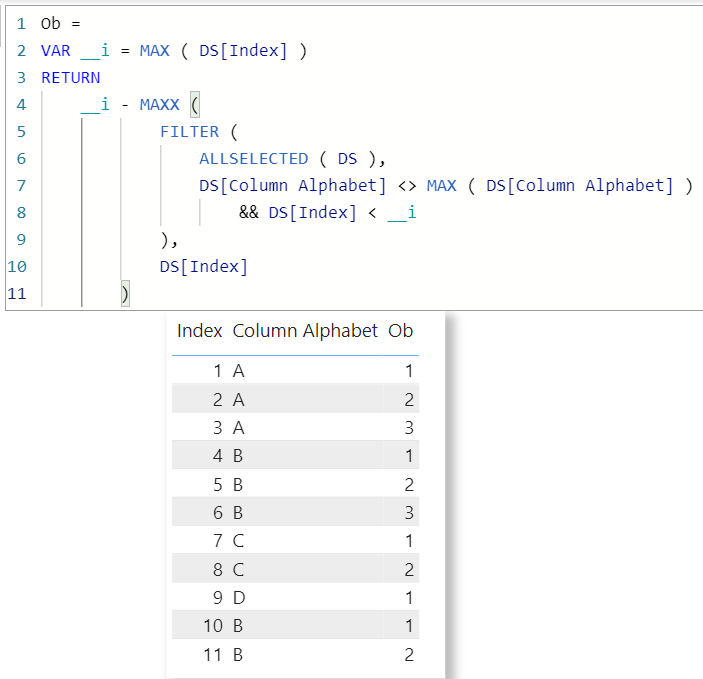
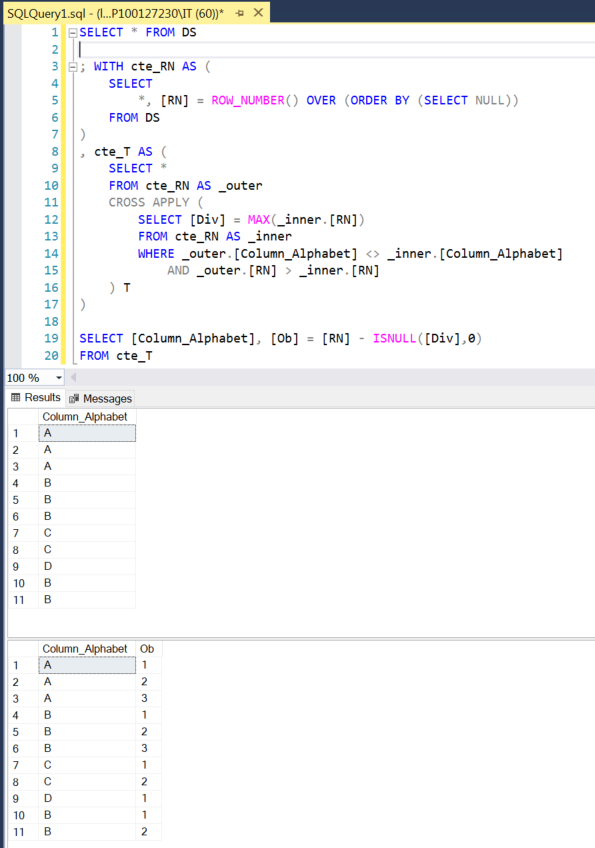
For fun only,
PQ solution,
Calculated column solution,
Measure solution,
SQL solution,
| Thanks to the great efforts by MS engineers to simplify syntax of DAX! Most beginners are SUCCESSFULLY MISLED to think that they could easily master DAX; but it turns out that the intricacy of the most frequently used RANKX() is still way beyond their comprehension! |
DAX is simple, but NOT EASY! |
If you can calculate the column in the source, that would be the best. For example, if the source is SQL Server you could use ROW_NUMBER() OVER (partition by [Column Alphabet] order by (select null)). See Roche’s Maxim of Data Transformation for why this is important.
Here is a method for doing this with a calculated column, which way downstream. First add an index column to your table in Power Query. You can hide this col in the model. So you now have a table that looks like:
| A | 1 |
| A | 2 |
| A | 3 |
| B | 4 |
| B | 5 |
| B | 6 |
| C | 7 |
| C | 8 |
| D | 9 |
Then add a calculated column with this DAX:
Column Count =
VAR _c1value = CALCULATE( SELECTEDVALUE( 'Table'[Column1] ) )
VAR _Ind = CALCULATE( SELECTEDVALUE( 'Table'[Index] ) )
VAR Result =
COUNTROWS(
CALCULATETABLE(
'Table',
REMOVEFILTERS( ),
'Table'[Column1] = _c1value,
'Table'[Index] <= _Ind
)
)
RETURN
Result
If this post helps, then please consider Accept it as the solution to help the other members find it more quickly. If I misunderstand your needs or you still have problems on it, please feel free to let me know. Thanks a lot!
The Power BI Data Visualization World Championships is back! Get ahead of the game and start preparing now!
| User | Count |
|---|---|
| 61 | |
| 44 | |
| 41 | |
| 36 | |
| 21 |
| User | Count |
|---|---|
| 175 | |
| 119 | |
| 106 | |
| 77 | |
| 50 |