cancel
Showing results for 
Search instead for 
Did you mean: 

The Power BI Data Visualization World Championships is back! Get ahead of the game and start preparing now! Learn more

Reply
laurelning
Helper I
Helper I

How to create % restricted to a certain group?

Hello all,


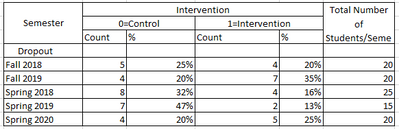
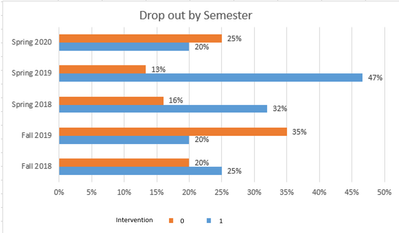
        I am trying to tap into the community of experts in Power BI to see if I can get some help create  a bar chart comparing the percentages of drop-out between the intervention and control groups across 5 semesters. It doesn't seem very straightforward to me though it can be quicly done in Excel. Could I use your expertise for some guidance as to how to create the chart? Below the first table shows dropout rate for each semester by intervention. The second table shows the corresponding percentages only. The chart shown below is what I intend to create in Power BI but can't get it work. The following two links give access the test data and pbix file:

laurelning_1-1604076928741.pnglaurelning_2-1604076949459.png

laurelning_3-1604077246615.png


Excel:

https://drive.google.com/file/d/11nVwTr1vdXFtfyJvN6F2J3CVV6-A03vg/view?usp=sharing

Pbix:

https://drive.google.com/file/d/1uJEaxVITndYhDtt8_37YwWuKAH6yLvLc/view?usp=sharing


Thank you very much!


Laurel


1 ACCEPTED SOLUTION
v-janeyg-msft
Community Support
Community Support

Hi, @laurelning 


It’s my pleasure to answer for you.

According to your description,I think you can create some measures to display the cluster bar chart.

Like this:

Measure0 =
VAR a =
    COUNTROWS ( ALL ( 'Raw Data' ) )
VAR b =
    COUNTROWS (
        FILTER (
            ALL ( 'Raw Data' ),
            [Semester] = SELECTEDVALUE ( 'Raw Data'[Semester] )
        )
    )
VAR c =
    DIVIDE ( b, a )
VAR d =
    COUNTROWS (
        FILTER (
            ALL ( 'Raw Data' ),
            [Semester] = SELECTEDVALUE ( 'Raw Data'[Semester] )
                && [Dropout] = 0
                && [Intervention] = 0
        )
    )
RETURN
    DIVIDE ( d, c ) / 100

4.png

Here is my sample .pbix file.Hope it helps.

If it doesn’t solve your problem, please feel free to ask me.


Best Regards

Janey Guo


If this post helps, then please consider Accept it as the solution to help the other members find it more quickly.

View solution in original post

1 REPLY 1
v-janeyg-msft
Community Support
Community Support

Hi, @laurelning 


It’s my pleasure to answer for you.

According to your description,I think you can create some measures to display the cluster bar chart.

Like this:

Measure0 =
VAR a =
    COUNTROWS ( ALL ( 'Raw Data' ) )
VAR b =
    COUNTROWS (
        FILTER (
            ALL ( 'Raw Data' ),
            [Semester] = SELECTEDVALUE ( 'Raw Data'[Semester] )
        )
    )
VAR c =
    DIVIDE ( b, a )
VAR d =
    COUNTROWS (
        FILTER (
            ALL ( 'Raw Data' ),
            [Semester] = SELECTEDVALUE ( 'Raw Data'[Semester] )
                && [Dropout] = 0
                && [Intervention] = 0
        )
    )
RETURN
    DIVIDE ( d, c ) / 100

4.png

Here is my sample .pbix file.Hope it helps.

If it doesn’t solve your problem, please feel free to ask me.


Best Regards

Janey Guo


If this post helps, then please consider Accept it as the solution to help the other members find it more quickly.

Helpful resources

Announcements
November Power BI Update Carousel

Power BI Monthly Update - November 2025

Check out the November 2025 Power BI update to learn about new features.

Fabric Data Days Carousel

Fabric Data Days

Advance your Data & AI career with 50 days of live learning, contests, hands-on challenges, study groups & certifications and more!

FabCon Atlanta 2026 carousel

FabCon Atlanta 2026

Join us at FabCon Atlanta, March 16-20, for the ultimate Fabric, Power BI, AI and SQL community-led event. Save $200 with code FABCOMM.

Top Solution Authors
Top Kudoed Authors