Hi @wuxxx711 ,
Try the following steps:
1,create a new date table :
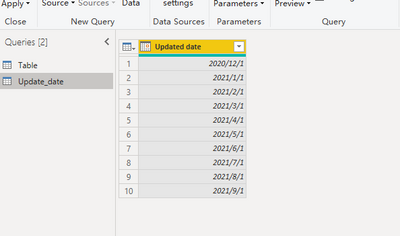
2.create new column on the new table :
Item# = MAX('Table'[Item#])
3. use the following measure:
Status2 =
VAR test1 =
    CALCULATE (
        MAX ( 'Table'[Status] ),
        FILTER (
            ALL ( 'Table' ),
            'Table'[Updated date] = MAX ( Update_date[Updated date] )
        )
    )
VAR n = 1
VAR test2 =
    IF (
        CALCULATE (
            MAX ( 'Table'[Status] ),
            FILTER (
                ALL ( 'Table' ),
                DATE ( YEAR ( 'Table'[Updated date] ), MONTH ( 'Table'[Updated date] ) + n, DAY ( 'Table'[Updated date] ) )
                    = MAX ( Update_date[Updated date] )
            )
        )
            > BLANK (),
        CALCULATE (
            MAX ( 'Table'[Status] ),
            FILTER (
                ALL ( 'Table' ),
                DATE ( YEAR ( 'Table'[Updated date] ), MONTH ( 'Table'[Updated date] ) + N, DAY ( 'Table'[Updated date] ) )
                    = MAX ( Update_date[Updated date] )
            )
        ),
        CALCULATE (
            MAX ( 'Table'[Status] ),
            FILTER (
                ALL ( 'Table' ),
                DATE ( YEAR ( 'Table'[Updated date] ), MONTH ( 'Table'[Updated date] ) + N + 1, DAY ( 'Table'[Updated date] ) )
                    = MAX ( Update_date[Updated date] )
            )
        )
    )


VAR m=3
VAR test5 =
    IF (
        CALCULATE (
            MAX ( 'Table'[Status] ),
            FILTER (
                ALL ( 'Table' ),
                DATE ( YEAR ( 'Table'[Updated date] ), MONTH ( 'Table'[Updated date] ) + m, DAY ( 'Table'[Updated date] ) )
                    = MAX ( Update_date[Updated date] )
            )
        )
            > BLANK (),
        CALCULATE (
            MAX ( 'Table'[Status] ),
            FILTER (
                ALL ( 'Table' ),
                DATE ( YEAR ( 'Table'[Updated date] ), MONTH ( 'Table'[Updated date] ) + m, DAY ( 'Table'[Updated date] ) )
                    = MAX ( Update_date[Updated date] )
            )
        ),
        CALCULATE (
            MAX ( 'Table'[Status] ),
            FILTER (
                ALL ( 'Table' ),
                DATE ( YEAR ( 'Table'[Updated date] ), MONTH ( 'Table'[Updated date] ) + m + 1, DAY ( 'Table'[Updated date] ) )
                    = MAX ( Update_date[Updated date] )
            )
        )
    )


VAR test4 =
    IF ( test1 <> BLANK (), test1, if(test2<>blank(),test2,test5) )
RETURN
    test4
If there are still blank values returned, you can add the loop section a few more times:
VAR m=3
VAR test5 =
    IF (
        CALCULATE (
            MAX ( 'Table'[Status] ),
            FILTER (
                ALL ( 'Table' ),
                DATE ( YEAR ( 'Table'[Updated date] ), MONTH ( 'Table'[Updated date] ) + m, DAY ( 'Table'[Updated date] ) )
                    = MAX ( Update_date[Updated date] )
            )
        )
            > BLANK (),
        CALCULATE (
            MAX ( 'Table'[Status] ),
            FILTER (
                ALL ( 'Table' ),
                DATE ( YEAR ( 'Table'[Updated date] ), MONTH ( 'Table'[Updated date] ) + m, DAY ( 'Table'[Updated date] ) )
                    = MAX ( Update_date[Updated date] )
            )
        ),
        CALCULATE (
            MAX ( 'Table'[Status] ),
            FILTER (
                ALL ( 'Table' ),
                DATE ( YEAR ( 'Table'[Updated date] ), MONTH ( 'Table'[Updated date] ) + m + 1, DAY ( 'Table'[Updated date] ) )
                    = MAX ( Update_date[Updated date] )
            )
        )
    )
Then base on status ,new column:
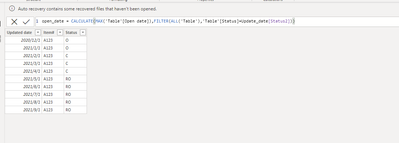
and final :
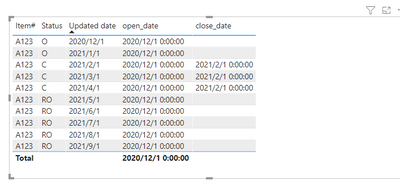
You could download my pbix file if you need.
Wish it is helpful for you !
Best Regards
Lucien


