We've captured the moments from FabCon & SQLCon that everyone is talking about, and we are bringing them to the community, live and on-demand. Starts on April 14th. Register now
Hi,
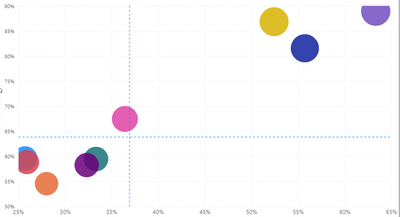
I have created the below matrix chart where bubbles represent regions. Y-axis is percentage that changes based on selected slicer for "category" (example, category1, category2, category3) and X-axis is percentage for category "ABC" which doesn't change. We are trying to compare "ABC" vs category selected in the slicer.
I do need to include these blue dashed lines for x and y-axis which should change based on selected category in the slicer. These dashed lines represent weighted average for "ABC" and selected category from slicer respectively. I am not sure how to bring these dashed lines that can change based on slicer selection dynamically. In this example, the weighted average for "ABC" is 36.9% and the weighted average for "category1" from the slicer is 63.9%. So, for now, I manually entered the values using Y-Axis Constant Line and X-axis Constant Line as shown below. However, I would like these dashed lines to change automatically or dynamically based on different category selected in the slicer.
Any help would be much appreciated.
Thank you!
Solved! Go to Solution.
Hi @Anonymous ,
For lines for x, you can create a new line chart and add measure for line for x. Then hide the legend,X-axis and Y-axis title, etc on line chart. Place the two visuals overlapping. Please refer to https://stackoverflow.com/questions/53212642/add-a-dynamic-constant-line-based-on-column-in-powerbi
For lines for y, I really did not find any workaround and alternative custom visual. You may need to create R visual for it: https://docs.microsoft.com/en-us/power-bi/create-reports/desktop-r-visuals
If this post helps, then please consider Accept it as the solution to help the other members find it more quickly.
Best Regards,
Dedmon Dai
Hi @Anonymous ,
For lines for x, you can create a new line chart and add measure for line for x. Then hide the legend,X-axis and Y-axis title, etc on line chart. Place the two visuals overlapping. Please refer to https://stackoverflow.com/questions/53212642/add-a-dynamic-constant-line-based-on-column-in-powerbi
For lines for y, I really did not find any workaround and alternative custom visual. You may need to create R visual for it: https://docs.microsoft.com/en-us/power-bi/create-reports/desktop-r-visuals
If this post helps, then please consider Accept it as the solution to help the other members find it more quickly.
Best Regards,
Dedmon Dai
Hi @Anonymous ,
I'm afraid this couldn't be achieved because the value of constant line is determined by constant value, it can't be changed by slicer.
I also recommend you create an idea for it in https://ideas.powerbi.com/forums/265200-power-bi-ideas to improve the power bi.
If this post helps, then please consider Accept it as the solution to help the other members find it more quickly.
Best Regards,
Dedmon Dai
Thank you! Using a constant line was just a temporary solution. But I think I am really looking for the right way to show lines for x and y lines ie. these lines need to be dynamic. But thanks for your help. I really appreciate it.
So, can we show the simple average in these dashed line. If yes, can you please guide me on that. I might need to consider this option if nothing works, I believe.
If you have recently started exploring Fabric, we'd love to hear how it's going. Your feedback can help with product improvements.
A new Power BI DataViz World Championship is coming this June! Don't miss out on submitting your entry.
Share feedback directly with Fabric product managers, participate in targeted research studies and influence the Fabric roadmap.
| User | Count |
|---|---|
| 57 | |
| 38 | |
| 33 | |
| 19 | |
| 16 |
| User | Count |
|---|---|
| 68 | |
| 66 | |
| 41 | |
| 34 | |
| 25 |