FabCon is coming to Atlanta
Join us at FabCon Atlanta from March 16 - 20, 2026, for the ultimate Fabric, Power BI, AI and SQL community-led event. Save $200 with code FABCOMM.
Register now!- Power BI forums
- Get Help with Power BI
- Desktop
- Service
- Report Server
- Power Query
- Mobile Apps
- Developer
- DAX Commands and Tips
- Custom Visuals Development Discussion
- Health and Life Sciences
- Power BI Spanish forums
- Translated Spanish Desktop
- Training and Consulting
- Instructor Led Training
- Dashboard in a Day for Women, by Women
- Galleries
- Data Stories Gallery
- Themes Gallery
- Contests Gallery
- QuickViz Gallery
- Quick Measures Gallery
- Visual Calculations Gallery
- Notebook Gallery
- Translytical Task Flow Gallery
- TMDL Gallery
- R Script Showcase
- Webinars and Video Gallery
- Ideas
- Custom Visuals Ideas (read-only)
- Issues
- Issues
- Events
- Upcoming Events
The Power BI Data Visualization World Championships is back! Get ahead of the game and start preparing now! Learn more
- Power BI forums
- Forums
- Get Help with Power BI
- Desktop
- Help Calculating Percentage Correctly
- Subscribe to RSS Feed
- Mark Topic as New
- Mark Topic as Read
- Float this Topic for Current User
- Bookmark
- Subscribe
- Printer Friendly Page

- Mark as New
- Bookmark
- Subscribe
- Mute
- Subscribe to RSS Feed
- Permalink
- Report Inappropriate Content
Help Calculating Percentage Correctly
Hello,
I currently have a cluster column (?) chart that is exactly what I want *except* that it currently displays by count and I need it to display in percentages. I'm just not sure how to do the formula correctly.
I have things divided up by "broad group" and also "date ranges" ('09-'14; '15-'20, '21-'22)
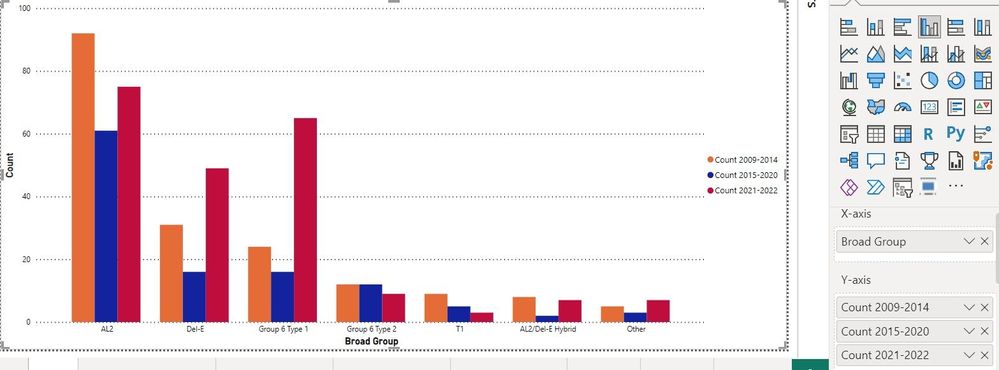
My goal is to have the graph show, for example:
the Percent of the total '09-'14 samples that are in Broad group AL2
the Percent of the total '15-'20 samples that are in Broad group AL2
the Percent of the total '21-'22 samples that are in Broad group AL2
and do this for each of the broad groups.
So the Orange bars should add up to 100%, the blue bars should add up to 100%, and the maroon bars should add up to 100%
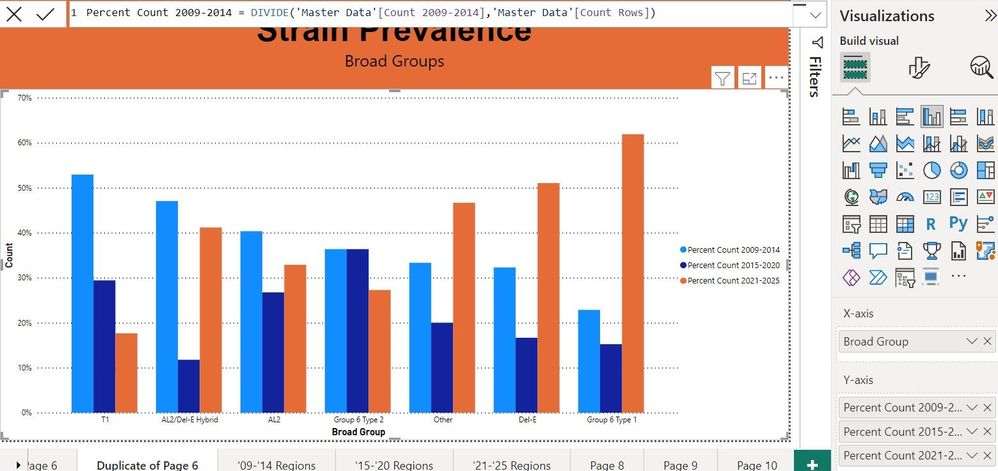
When my formulas are "Percent Count 2009-2014=Divide('Table'[Count 2009-2014],'Table'[Count Rows])" Then it appears that all my percentages add up to over 100% so I'm obviously doing something wrong.
Solved! Go to Solution.


- Mark as New
- Bookmark
- Subscribe
- Mute
- Subscribe to RSS Feed
- Permalink
- Report Inappropriate Content
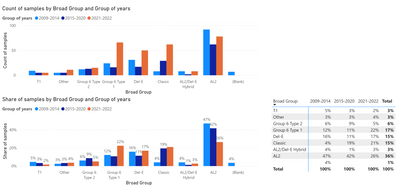
Step 1. Create a Group for years and named them.
Step 2. Define what is the unique count. In my case i used COUNTROWS, but you need to check if its correct definition.
Count of samples = COUNTROWS('Sample')
Step 3. Define share measure.
Share of samples =
var _thisSamples = [Count of samples]
var _allSamples = CALCULATE([Count of samples],ALL('Sample'[Broad Group]))
return DIVIDE(_thisSamples,_allSamples)
Check it and let me know if this is what you wanted. 🙂
Did I answer your question? Mark my post as a solution!
Proud to be a Super User!
- Mark as New
- Bookmark
- Subscribe
- Mute
- Subscribe to RSS Feed
- Permalink
- Report Inappropriate Content
Is it possible for you to share some sample data to work with? I can help you with that. 🙂
Did I answer your question? Mark my post as a solution!
Proud to be a Super User!
- Mark as New
- Bookmark
- Subscribe
- Mute
- Subscribe to RSS Feed
- Permalink
- Report Inappropriate Content
I threw together a sample excel file, but I can't find where I can upload the file. There used to be a button because I've done it before, but now I'm not seeing it?
- Mark as New
- Bookmark
- Subscribe
- Mute
- Subscribe to RSS Feed
- Permalink
- Report Inappropriate Content
Not really. You can use https://wetransfer.com/
Did I answer your question? Mark my post as a solution!
Proud to be a Super User!
- Mark as New
- Bookmark
- Subscribe
- Mute
- Subscribe to RSS Feed
- Permalink
- Report Inappropriate Content
Step 1. Create a Group for years and named them.
Step 2. Define what is the unique count. In my case i used COUNTROWS, but you need to check if its correct definition.
Count of samples = COUNTROWS('Sample')
Step 3. Define share measure.
Share of samples =
var _thisSamples = [Count of samples]
var _allSamples = CALCULATE([Count of samples],ALL('Sample'[Broad Group]))
return DIVIDE(_thisSamples,_allSamples)
Check it and let me know if this is what you wanted. 🙂
Did I answer your question? Mark my post as a solution!
Proud to be a Super User!
- Mark as New
- Bookmark
- Subscribe
- Mute
- Subscribe to RSS Feed
- Permalink
- Report Inappropriate Content
Thank you so much for this.
I'm sorry to be more of a bother but most of this I've never done before. I'm not sure how to create a group 😬
- Mark as New
- Bookmark
- Subscribe
- Mute
- Subscribe to RSS Feed
- Permalink
- Report Inappropriate Content
No problem 🙂
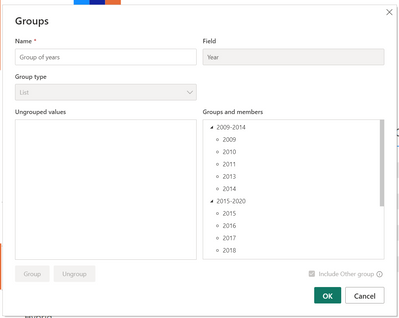
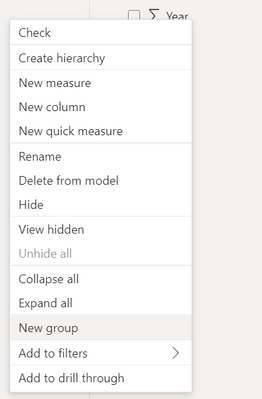
Step 1. RMB on Year column and select "New Group"
Step 2. Change Group type to list.
Step 3. Select values that you want to group up and select Group button.
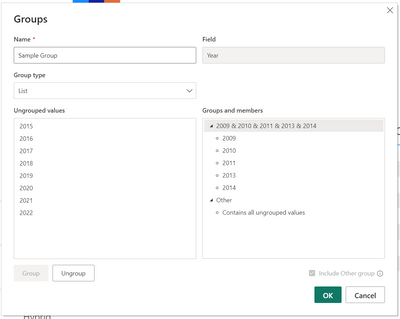
Step 4. Change the names that you want by double-clicking the auto-generated name.
Step 5. Click OK. 🙂
Step 6. Don't forget to select my answer as solution, if it works 🙂
P.S. You can also add a column to your table that will add a new year 🙂 You don't need to use grouping if you don't want to.
Did I answer your question? Mark my post as a solution!
Proud to be a Super User!
Helpful resources

Power BI Monthly Update - November 2025
Check out the November 2025 Power BI update to learn about new features.

Fabric Data Days
Advance your Data & AI career with 50 days of live learning, contests, hands-on challenges, study groups & certifications and more!

FabCon Atlanta 2026
Join us at FabCon Atlanta, March 16-20, for the ultimate Fabric, Power BI, AI and SQL community-led event. Save $200 with code FABCOMM.


