cancel
Showing results for 
Search instead for 
Did you mean: 

The Power BI Data Visualization World Championships is back! Get ahead of the game and start preparing now! Learn more

Reply
Anonymous
Not applicable

Graph with SharePoint list

Hello;


I have a PowerApps application and I would like to make a Power Bi graph in this application.

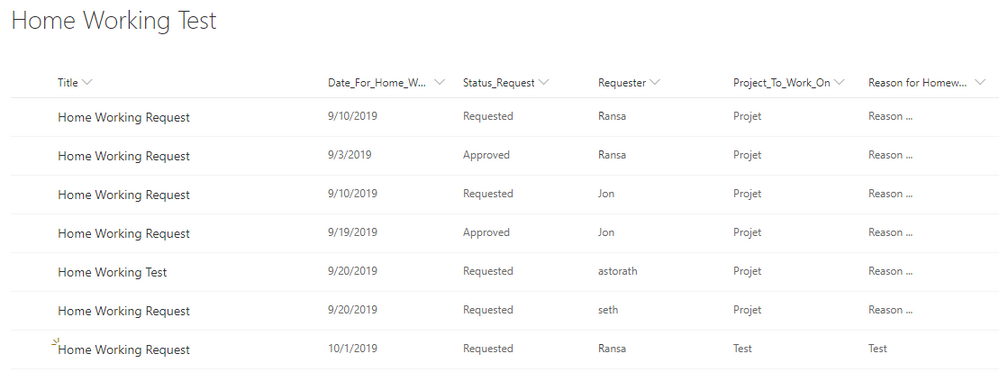
In my application I have a SharePoint list containing homeworking requests by user.

In my application, the user can only see his requests because I have a condition that test on the name of the user and the account with which he is connected. ==> Property Visible => [IF Requester.Email = User().Email;]


I would like to have graph by user that when he clicks a button he obtains this graph : 

A graph wih on one axis the number of "homeworking days"/month and on the other axis (the months of the year) ?

The Status for the request must be approved to add day on graph (chart bars)


For exemple : Result for Person "XYZ" => 4 days on April, 3 days on September,... 


1) How is it possible to make this graph ? Send list information with Power Flows to Power Bi ?

2) How with the information is it possible to realize this graph ?


The List SharePoint  : 
Capture1.PNG

Thanks for your help ! 🙂


1 ACCEPTED SOLUTION
v-eachen-msft
Community Support
Community Support

Hi @Anonymous ,


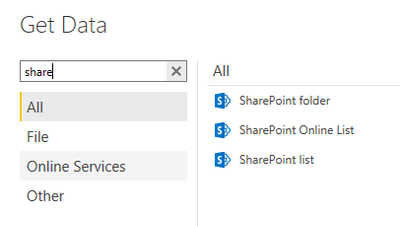
You could get data with SharePoint list from "Get Data".

3-1.PNG

Then create a new column.

Month =
MONTH ( 'Table'[Your date column] )

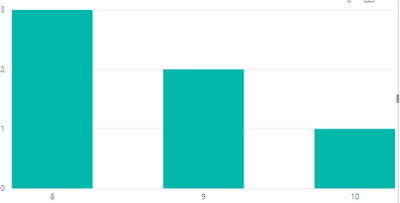
Then you can use stacked column/bar chart to get the visual. Use Month column as an x-axis and use count of Month as an y-axis.

For example:
4-1.PNG

You could add a slicer to select different peaple.


Community Support Team _ Eads
If this post helps, then please consider Accept it as the solution to help the other members find it.

View solution in original post

1 REPLY 1
v-eachen-msft
Community Support
Community Support

Hi @Anonymous ,


You could get data with SharePoint list from "Get Data".

3-1.PNG

Then create a new column.

Month =
MONTH ( 'Table'[Your date column] )

Then you can use stacked column/bar chart to get the visual. Use Month column as an x-axis and use count of Month as an y-axis.

For example:
4-1.PNG

You could add a slicer to select different peaple.


Community Support Team _ Eads
If this post helps, then please consider Accept it as the solution to help the other members find it.

Helpful resources

Announcements
Power BI DataViz World Championships

Power BI Dataviz World Championships

The Power BI Data Visualization World Championships is back! Get ahead of the game and start preparing now!

December 2025 Power BI Update Carousel

Power BI Monthly Update - December 2025

Check out the December 2025 Power BI Holiday Recap!

FabCon Atlanta 2026 carousel

FabCon Atlanta 2026

Join us at FabCon Atlanta, March 16-20, for the ultimate Fabric, Power BI, AI and SQL community-led event. Save $200 with code FABCOMM.