Join us at FabCon Atlanta from March 16 - 20, 2026, for the ultimate Fabric, Power BI, AI and SQL community-led event. Save $200 with code FABCOMM.
Register now!Vote for your favorite vizzies from the Power BI Dataviz World Championship submissions. Vote now!
I am trying use a whatif analysis parameter in my report.
I have been able to use and update the analysis as expected. My challenge is that I want to use the selected the whatif parameter value throughout the report. Every time I try to do this, it shows me the default parameter value. See example detail below:
Page 1: whatif parmeter on profit [0-20%] (Profit parameter)
Profit = Total Revenue * Profit parameter
selected value 0.1 default value 0.05
Note: Page 1 has a whatif slider that allows switching / selecting different values
Page 2: calculate profit per employee
Estimated profit / total employees
Note: I want to be able to update calculations on page 2 based on any changes to the whatif parameter on page 1.
Solved! Go to Solution.
Hi @talham
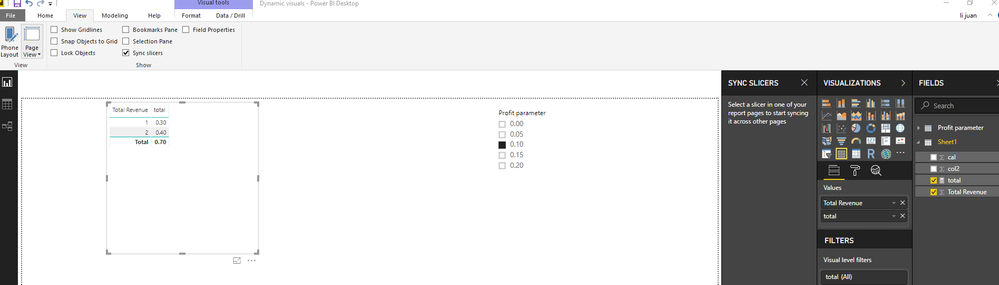
Your requirement can be achieved by sync slicers.
Here is a test with sync slicers.
Best Regards
Maggie
Hi Talham,
There's a couple of things I can think of without looking at your dataset.
how do I sync slicers between page 1 and page 2?
Ideally I don't want to show any slicers on page 2. Just want to show the one on page 1.
Hi @talham
Your requirement can be achieved by sync slicers.
Here is a test with sync slicers.
Best Regards
Maggie
Note: this update was released in Feb 2018 older versions of Powerbi don't have this functionality.
First, you copy and paste the slicer from page 1 to page 2. It will ask you if you want to keep the slicers in sync, choose yes.
Then, if you go to View --> Sync Slicers, you can choose to hide the visibility of the slicer, but to still keep it in sync.
This article should help:
Vote for your favorite vizzies from the Power BI World Championship submissions!
If you love stickers, then you will definitely want to check out our Community Sticker Challenge!
Check out the January 2026 Power BI update to learn about new features.
| User | Count |
|---|---|
| 70 | |
| 51 | |
| 42 | |
| 29 | |
| 22 |
| User | Count |
|---|---|
| 142 | |
| 119 | |
| 56 | |
| 37 | |
| 32 |