Get Fabric or SQL Certified for Free.
Get certified for free when you join Fabric Data Days 2026 and dive into Fabric, Power BI, SQL, AI, and other essential data skills.
Join now- Power BI forums
- Get Help with Power BI
- Desktop
- Service
- Report Server
- Power Query
- Mobile Apps
- Developer
- DAX Commands and Tips
- Custom Visuals Development Discussion
- Health and Life Sciences
- Power BI Spanish forums
- Translated Spanish Desktop
- Training and Consulting
- Instructor Led Training
- Dashboard in a Day for Women, by Women
- Galleries
- Data Stories Gallery
- Themes Gallery
- Contests Gallery
- QuickViz Gallery
- Quick Measures Gallery
- Visual Calculations Gallery
- Fabric Apps Gallery
- Notebook Gallery
- Translytical Task Flow Gallery
- TMDL Gallery
- R Script Showcase
- Webinars and Video Gallery
- Ideas
- Custom Visuals Ideas (read-only)
- Issues
- Issues
- Events
- Upcoming Events
July 28 - August 9 | Final Round of the Power BI Dataviz World Championships. This is your chance. Learn more
- Power BI forums
- Forums
- Get Help with Power BI
- Desktop
- Re: Dynamic Data Source based on parameter
- Subscribe to RSS Feed
- Mark Topic as New
- Mark Topic as Read
- Float this Topic for Current User
- Bookmark
- Subscribe
- Printer Friendly Page


- Mark as New
- Bookmark
- Subscribe
- Mute
- Subscribe to RSS Feed
- Permalink
- Report Inappropriate Content
Dynamic Data Source based on parameter
Hello all,
Hopefully this is easier to explain that Im finding it is to do.
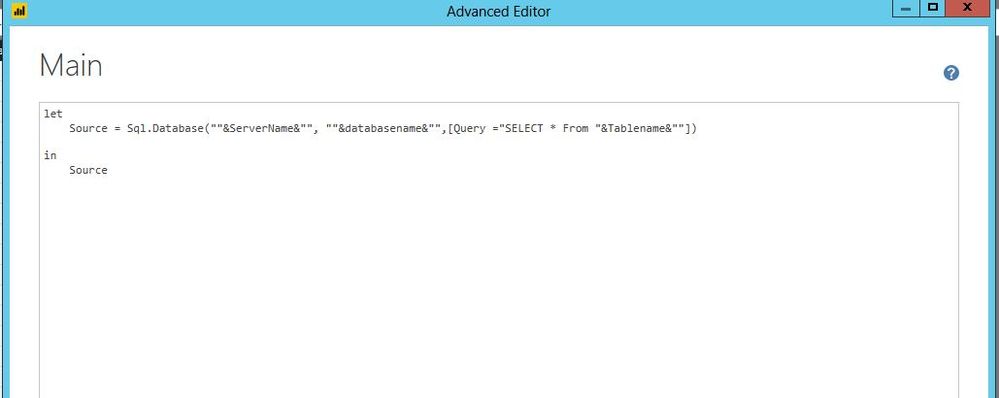
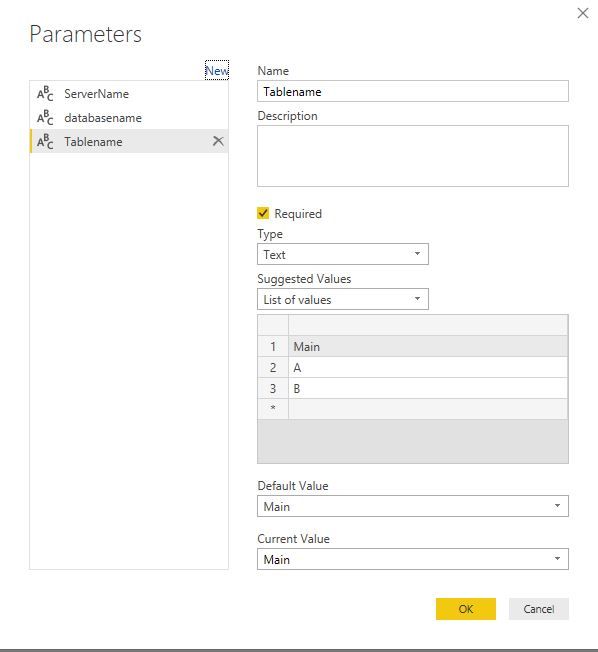
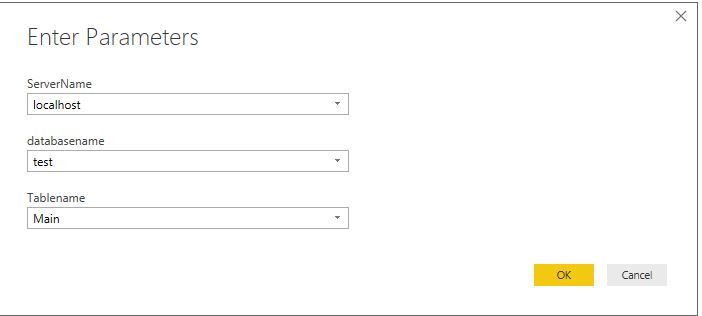
I have done work with parameters that place the SQL Server and Database names into the Source in the Advanced Editor.
Its working well and I feel comfortable in what its doing.
However I am scratching my head over syntax errors Im getting trying to do the following.
The data source for the Query may come form TableA or TableB.
A list of fields will be included that is slightly different in both tables so not as easy as passing the parameters in the Table section of the Select * From <<Table>> area.
I would like to have a parameter that is effectively a Yes/No question.
If the answer is a Yes, then I would like the "Source =" line in advanced editor to be the full source line for TableA
If the answer is a No, then I would like the "Source =" line in advanced editor to be the full source line for TableB
In concept its simply
Source = If parameter = yes then Sql.Database(.............TableA else Sql.Database(.............TableB
Im just really struggling with the syntax and the old Token Comma expect is often arising.
Thanks in advance for time taken to read or reply
Solved! Go to Solution.
- Mark as New
- Bookmark
- Subscribe
- Mute
- Subscribe to RSS Feed
- Permalink
- Report Inappropriate Content
@shaunwilks,
Here is an example for you.
let

#"Table 1" = (para as text) =>
if para = "test1"
then

let
    Source = Sql.Database("servername", "test",[Query="select * from Main"])
   in
    Source

else

let
    Source = Excel.Workbook(File.Contents("path\Book1.xlsx"), null, true),
    #"Security public - Copy_Sheet" = Source{[Item="Security public - Copy",Kind="Sheet"]}[Data]
    in
    #"Security public - Copy_Sheet"

in #"Table 1"
Regards,
Lydia


- Mark as New
- Bookmark
- Subscribe
- Mute
- Subscribe to RSS Feed
- Permalink
- Report Inappropriate Content
thanks for sharing this great idea!!! 😛

- Mark as New
- Bookmark
- Subscribe
- Mute
- Subscribe to RSS Feed
- Permalink
- Report Inappropriate Content
@shaunwilks,
I am not very clear about your logic, could you please post a screenshot about the code in your Advanced Editor? How do you create parameter in Query Editor?
In your scenario, why not create another table name parameter?
Regards,
Lydia
- Mark as New
- Bookmark
- Subscribe
- Mute
- Subscribe to RSS Feed
- Permalink
- Report Inappropriate Content
Sorry if I was not clear enough but you are on the right track in response.
The data source is not as simple as the Table name, Sql server name or database name.
It could be excel or SQL, it could be a different sheet name in different excel or different table in a different SQL database.
I wanted to present the 3 or 4 options in a plain english list of options in the "Parameter" and then handle the data source inside the M code.
So for simplicity sake the parameter would read Option 1, Option 2, Option 3,Option 4....
I wanted the M code to read something like
If Parameter = Option1 Then Source = Excel.Workbook(File.Contents("C:\Data.xlsx"), null, true) else
If Parameter = Option2 Then Source = Excel.Workbook(File.Contents("F:\Database.xlsx"), null, true) else
If Parameter = Option3 Then Source = Sql.Database(SQLServer, AdventureWorks, [Query="SELECT * FROM Data", CreateNavigationProperties=false]) else
Sql.Database(SQLServer99, AdventureWorks, [Query="SELECT * FROM DataView", CreateNavigationProperties=false])
Continually having syntax issues trying to achieve it and was hoping a sample "If" statement could be provided that changes the data source property in the Advanced Query Editor
- Mark as New
- Bookmark
- Subscribe
- Mute
- Subscribe to RSS Feed
- Permalink
- Report Inappropriate Content
@shaunwilks,
Here is an example for you.
let

#"Table 1" = (para as text) =>
if para = "test1"
then

let
    Source = Sql.Database("servername", "test",[Query="select * from Main"])
   in
    Source

else

let
    Source = Excel.Workbook(File.Contents("path\Book1.xlsx"), null, true),
    #"Security public - Copy_Sheet" = Source{[Item="Security public - Copy",Kind="Sheet"]}[Data]
    in
    #"Security public - Copy_Sheet"

in #"Table 1"
Regards,
Lydia


- Mark as New
- Bookmark
- Subscribe
- Mute
- Subscribe to RSS Feed
- Permalink
- Report Inappropriate Content
This is an amazing solution!
I am building a template for users that may decide to use SQL or Excel as their data source and this is much more elegant than maintaining 2 versions of the same file (one for each data source).
I took this solution one step further by referencing an already defined parameter to determine which data source to use. So, when the user first opens the Power BI file as a template, they are presented with a "Data Source" parameter option where they can select either "SQL" or "Excel" from the list. The table is then populated with the appropriate source based on this choice.
I'm still working out the best solution for handling connection parameters (SQL requires Server, Database and Table parameters, but Excel only requires a path parameter) but there are multiple solutions to explore there.
Here's a code example:
if #"Data Source Type" = "SQL"
then

let
    Source = Sql.Database(#"SQL Server Name", #"SQL Database Name", [Query="SELECT * FROM [dbo].[view_" & #"Table Name" & "]"]),
    #"Extracted Date" = Table.TransformColumns(Source,{{"Date", DateTime.Date, type date}})
in
    #"Extracted Date"

else

let
    Source = Excel.Workbook(File.Contents(ExcelDataFile), null, true),
    FactTable_Sheet = Source{[Item="FactTable",Kind="Sheet"]}[Data],
    #"Promoted Headers" = Table.PromoteHeaders(FactTable_Sheet, [PromoteAllScalars=true]),
    #"Changed Type" = Table.TransformColumnTypes(#"Promoted Headers",{{"Value", Int64.Type}, {"StageIndex", Int64.Type}, {"Date", type date}, {"Version", Int64.Type}, {"OsBuildRelease", type text}, {"DeviceFamily", type text}, {"FlightRing", type text}})
in
    #"Changed Type"

- Mark as New
- Bookmark
- Subscribe
- Mute
- Subscribe to RSS Feed
- Permalink
- Report Inappropriate Content
Thanks for Sharing Very Usefull Idea
- Mark as New
- Bookmark
- Subscribe
- Mute
- Subscribe to RSS Feed
- Permalink
- Report Inappropriate Content
Thanks so much Lydia.
I was tackling it a little different to that but your way is nice and clean.
Helpful resources

FabCon & SQLCon – Barcelona 2026
Join us in Barcelona for FabCon and SQLCon, the Fabric, Power BI, SQL, and AI community event. Save €200 with code FABCMTY200.

Fabric Community Sticker Challenge - Barcelona 2026
If you love stickers, then you will definitely want to check out our community sticker challenge, Barcelona edition!

Power BI Monthly Update - July 2026
Check out the July 2026 Power BI update to learn about new features.

Power BI DataViz World Championships - June 2026
A new Power BI DataViz World Championship is coming this June! Don't miss out on submitting your entry.

| User | Count |
|---|---|
| 25 | |
| 23 | |
| 22 | |
| 17 | |
| 14 |


| User | Count |
|---|---|
| 27 | |
| 24 | |
| 20 | |
| 20 | |
| 19 |


