Get Fabric or SQL Certified for Free.
Get certified for free when you join Fabric Data Days 2026 and dive into Fabric, Power BI, SQL, AI, and other essential data skills.
Join now- Power BI forums
- Get Help with Power BI
- Desktop
- Service
- Report Server
- Power Query
- Mobile Apps
- Developer
- DAX Commands and Tips
- Custom Visuals Development Discussion
- Health and Life Sciences
- Power BI Spanish forums
- Translated Spanish Desktop
- Training and Consulting
- Instructor Led Training
- Dashboard in a Day for Women, by Women
- Galleries
- Data Stories Gallery
- Themes Gallery
- Contests Gallery
- QuickViz Gallery
- Quick Measures Gallery
- Visual Calculations Gallery
- Notebook Gallery
- Translytical Task Flow Gallery
- TMDL Gallery
- R Script Showcase
- Webinars and Video Gallery
- Ideas
- Custom Visuals Ideas (read-only)
- Issues
- Issues
- Events
- Upcoming Events
July 7 - July 17 | Round 2 of the Power BI Dataviz World Championships. Don't miss your chance! Learn more
- Power BI forums
- Forums
- Get Help with Power BI
- Desktop
- Re: Duration conversion issue (CVS)
- Subscribe to RSS Feed
- Mark Topic as New
- Mark Topic as Read
- Float this Topic for Current User
- Bookmark
- Subscribe
- Printer Friendly Page

- Mark as New
- Bookmark
- Subscribe
- Mute
- Subscribe to RSS Feed
- Permalink
- Report Inappropriate Content
Duration conversion issue (CVS)
Hi all,
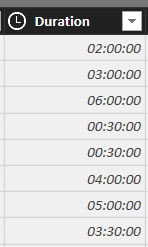
I'm struggling with what I feel should be a simple issue! I have a CSV file coming from some time tracking software I use. The format is HH: MM: SS and represents the duration of a task. When imported into Power BI, it looks like this (format of the column is 'Time'). I then parse this and convert myself into a decimal for the purposes of charting:
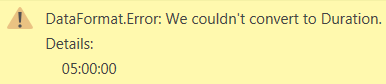
As an aside, converting to Duration doesn't work and triggers the following error:
Anyway, all is well until I have a duration >24 hours. Then it get's upset:

I've tried converting to Text but then it tries to convert it to an actual Time of Day and that's no good. Any idea how I can handle this situation?
Thanks in advance!!
Solved! Go to Solution.


- Mark as New
- Bookmark
- Subscribe
- Mute
- Subscribe to RSS Feed
- Permalink
- Report Inappropriate Content
I just made a small working sample.
First I duplicated the Duration column. Then I used the "Split Column" function. That created 3 columns containg hours, minutes and seconds.
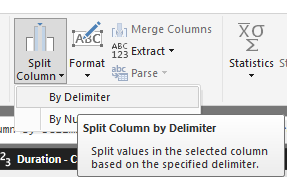
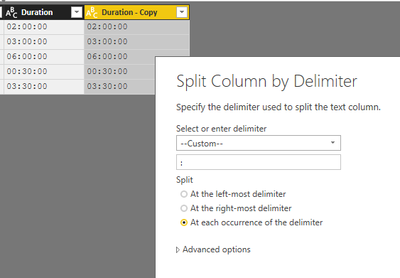

Hope this works with your data, too!
JJ
- Mark as New
- Bookmark
- Subscribe
- Mute
- Subscribe to RSS Feed
- Permalink
- Report Inappropriate Content
How about you
- convert the values to a string
- split the string value in 3 columns (hours, minutes, seconds) (split by the ":" character)
- add a calculated column that computes the duration with these 3 values?
JJ
- Mark as New
- Bookmark
- Subscribe
- Mute
- Subscribe to RSS Feed
- Permalink
- Report Inappropriate Content
Thanks for such a quick suggestion. This is actually what I tried first but unfortunately, when converting the column to 'Text' (I'm doing this within the Query Editor, it converts to the following, which I can't parse since it's no longer a duration (these are the same values as I pasted above so as an example, 00:30:00 (30 mins) is converted to 12:30 AM:
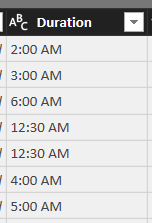
Is there a different way to convert that you had in mind? It doesn't work once the import has completed since any hours >24 error out during import.
- Mark as New
- Bookmark
- Subscribe
- Mute
- Subscribe to RSS Feed
- Permalink
- Report Inappropriate Content
I just made a small working sample.
First I duplicated the Duration column. Then I used the "Split Column" function. That created 3 columns containg hours, minutes and seconds.
Hope this works with your data, too!
JJ
- Mark as New
- Bookmark
- Subscribe
- Mute
- Subscribe to RSS Feed
- Permalink
- Report Inappropriate Content
This is perfect, thanks!! I realized that somewhere along the line I can converted the column to something else along the way and that screwed me up. This solution has me up and running - thanks!
- Mark as New
- Bookmark
- Subscribe
- Mute
- Subscribe to RSS Feed
- Permalink
- Report Inappropriate Content
you're welcome, glad I could help 🙂


- Mark as New
- Bookmark
- Subscribe
- Mute
- Subscribe to RSS Feed
- Permalink
- Report Inappropriate Content
Alternatively 
Add Column tab => select column => Time button => Hour
repeat 2 more times => select column => Time button => Minute and then again for a Second column

- Mark as New
- Bookmark
- Subscribe
- Mute
- Subscribe to RSS Feed
- Permalink
- Report Inappropriate Content
nice solution!
- Mark as New
- Bookmark
- Subscribe
- Mute
- Subscribe to RSS Feed
- Permalink
- Report Inappropriate Content
Duration Data Type
https://ideas.powerbi.com/forums/265200-power-bi-ideas/suggestions/8814178-field-of-duration-type
Please Vote!

- Mark as New
- Bookmark
- Subscribe
- Mute
- Subscribe to RSS Feed
- Permalink
- Report Inappropriate Content
When I have a csv fle containing:
Input
02:00:00
03:30:20
40:00:00
Then the following code works with me:
let
    Source = Csv.Document(File.Contents("C:\Users\Marcel\Documents\Forum bijdragen\Power BI Community\Durations from csv.csv"),[Delimiter=",", Columns=1, Encoding=1252, QuoteStyle=QuoteStyle.None]),
    #"Changed Type" = Table.TransformColumnTypes(Source,{{"Column1", type text}}),
    #"Promoted Headers" = Table.PromoteHeaders(#"Changed Type", [PromoteAllScalars=true]),
// Split text at ":" (list of 3 items) and convert to number:
    Split = Table.AddColumn(#"Promoted Headers", "d", each List.Transform(Text.Split([Input],":"), Number.From)),

// Get duration from the set 3 numbers
    Duration = Table.AddColumn(Split, "Duration", each #duration(0,[d]{0},[d]{1},[d]{2}), type duration)
in
    Duration

Helpful resources

FabCon & SQLCon – Barcelona 2026
Join us in Barcelona for FabCon and SQLCon, the Fabric, Power BI, SQL, and AI community event. Save €200 with code FABCMTY200.

Data Days 2026
Join Data Days 2026: 60 days of free live/on-demand sessions, challenges, study groups, and certification opportunities.

Power BI DataViz World Championships - June 2026
A new Power BI DataViz World Championship is coming this June! Don't miss out on submitting your entry.

| User | Count |
|---|---|
| 27 | |
| 23 | |
| 18 | |
| 18 | |
| 15 |


| User | Count |
|---|---|
| 53 | |
| 44 | |
| 42 | |
| 39 | |
| 34 |


