cancel
Showing results for 
Search instead for 
Did you mean: 

We've captured the moments from FabCon & SQLCon that everyone is talking about, and we are bringing them to the community, live and on-demand. Starts on April 14th. Register now

Reply
jpmeijinhos
New Member

Different date value counts

Hello!

I'm trying to make a report with multiple values based on a creation date and a resolution date on a ticketing system.


For example:


IssueCreatedResolvedClient
12321/07/201621/07/2016X
23423/07/201623/07/2016P
34523/07/201624/07/2016P
45624/07/201624/07/2016T


I'm trying to build a report wich looks into the number of issues created and resolved on day X, but can't seem to do it without a new table to count all issues with the same date.


I would like to achieve, with only one table, the number of issues created on day X, resolved on day X and the ones that didn't get resolved on that day counting as backlog.


I can build the basic report Created vs Resolved on the same day, but can't seem to find any way to do a "backlog through time" with only one table.


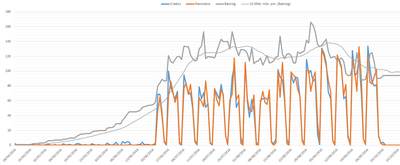
In Excel the solution I found for this was through counting created, minus resolved (on the same day) plus the non resolved cumulated before.


Giving me something like this:


example.PNG


Any suggestion for this without using a different table?

Only one table would be the best because I could filter out different clients on the report directly.


Thanks!

João


1 ACCEPTED SOLUTION
v-micsh-msft
Microsoft Employee
Microsoft Employee

Hi jpmeijinhos,


I could think out the following way to calculate the wanted value in only one table, which would need some transformation of the table you shared, please follow the steps below and see if it could help here:

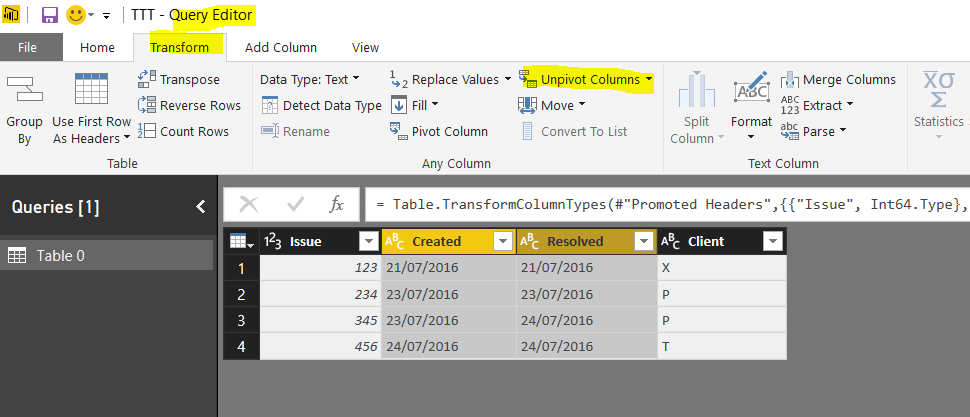
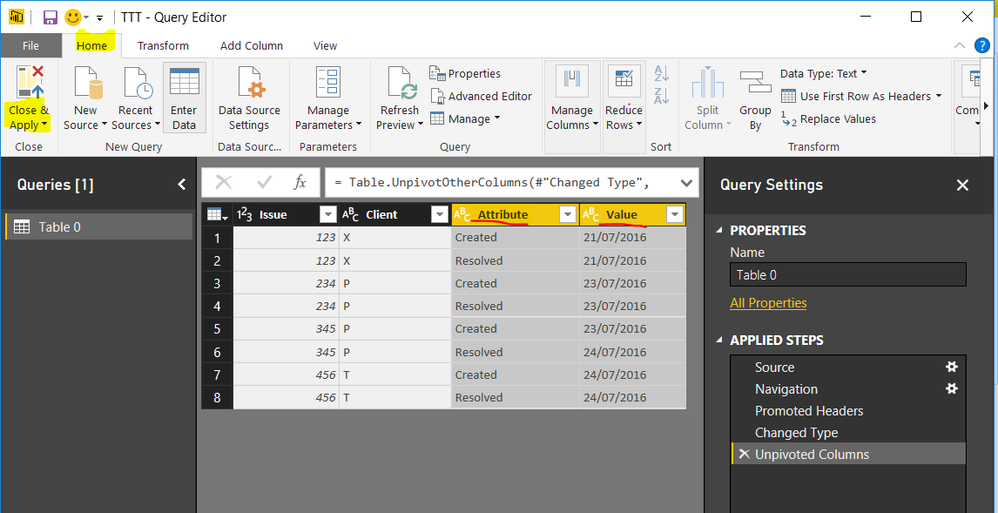
1. Open Power BI desktop, under the home tab, click Edit Queries to open Query Editor, press Ctrl and select Created and Resolved columns, under Transform tab, click Unpivot column, then under home tab of Query Editor, click Close and Apply.

2. Rename the Attribute and the value column to Status and Date, verify the Date column type is Date/time;

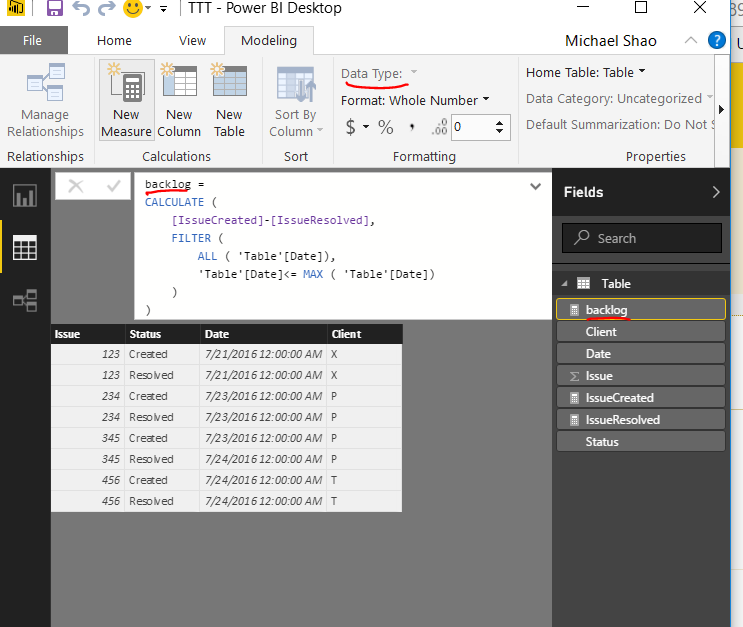
3. Create the measure below:


IssueCreated := countx(
                     filter('Table', 'Table'[Attribute]="Created"),
                     'Table'[Issue])
IssueResolved = countx(
                      filter('Table', 'Table'[Attribute]="Resolved"),
                      'Table'[Issue])
backlog = 
CALCULATE (
    [IssueCreated]-[IssueResolved],
    FILTER (
        ALL ( 'Table'[Value]),
        'Table'[Value]<= MAX ( 'Table'[Value])
    )
)

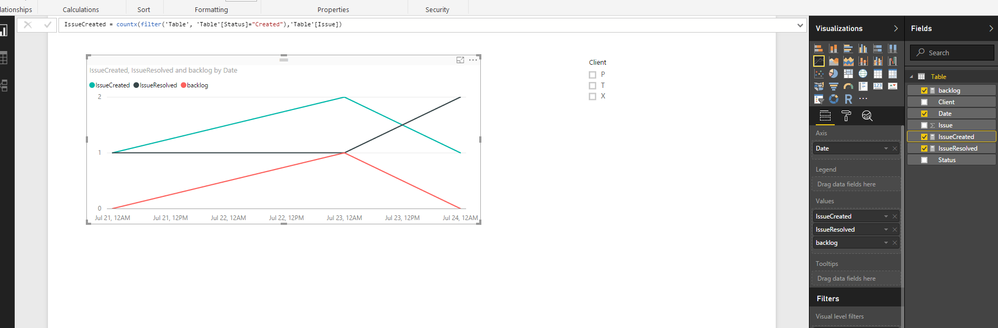
Please see the screenshots:


3.PNG

 4.PNG

5.PNG

6.PNG


If you need any further help regarding this method, please post back.

Regards


View solution in original post

5 REPLIES 5
v-micsh-msft
Microsoft Employee
Microsoft Employee

Hi jpmeijinhos,


I could think out the following way to calculate the wanted value in only one table, which would need some transformation of the table you shared, please follow the steps below and see if it could help here:

1. Open Power BI desktop, under the home tab, click Edit Queries to open Query Editor, press Ctrl and select Created and Resolved columns, under Transform tab, click Unpivot column, then under home tab of Query Editor, click Close and Apply.

2. Rename the Attribute and the value column to Status and Date, verify the Date column type is Date/time;

3. Create the measure below:


IssueCreated := countx(
                     filter('Table', 'Table'[Attribute]="Created"),
                     'Table'[Issue])
IssueResolved = countx(
                      filter('Table', 'Table'[Attribute]="Resolved"),
                      'Table'[Issue])
backlog = 
CALCULATE (
    [IssueCreated]-[IssueResolved],
    FILTER (
        ALL ( 'Table'[Value]),
        'Table'[Value]<= MAX ( 'Table'[Value])
    )
)

Please see the screenshots:


3.PNG

 4.PNG

5.PNG

6.PNG


If you need any further help regarding this method, please post back.

Regards


Hello!

Thanks a lot, created and resolved are working very well.


The problem still remains with the "backlog".


The backlog is currently showing "per day" and it would need to be the total SUM of unresolved issues on a specific day plus the remainder of the day before.


Like so:


DateCreatedResolvedBacklog
26/06/2016321
27/06/2016533
28/06/2016452
29/06/2016626


Hi jpmeijinhos,


The measure of the backlog I have shared should work in this way.

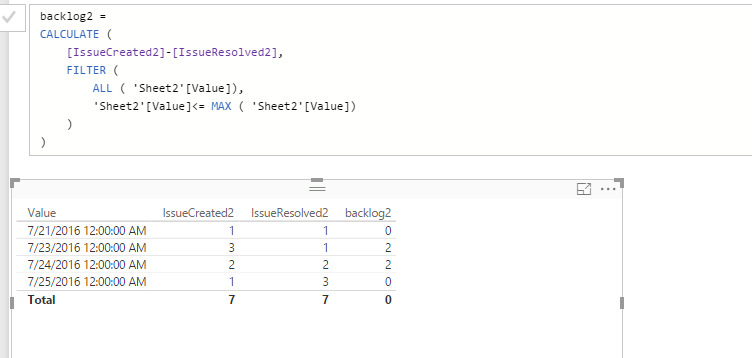
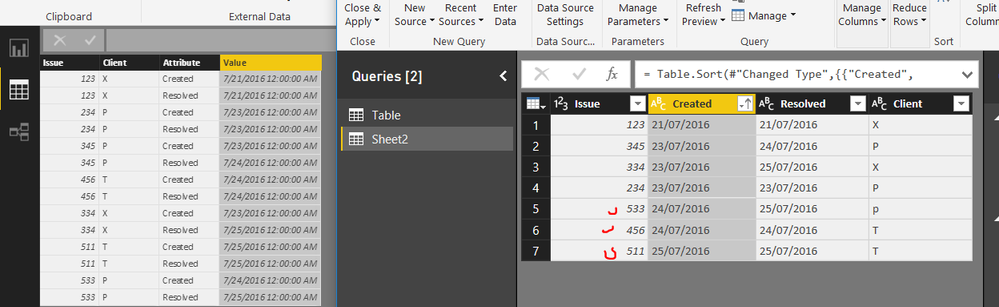
I just created some extra testing data:

9.PNG10.PNG

Could you please share the issue you encountered when using this measure, or the wrong results?

Regards

Thanks again for replying.


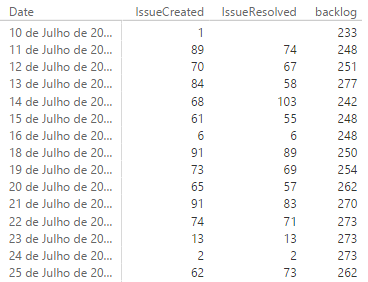
I've checked and your measure works for me when I see the data in a matrix:


(Date = Value, language is portuguese, sorry)


matrixtable.PNG


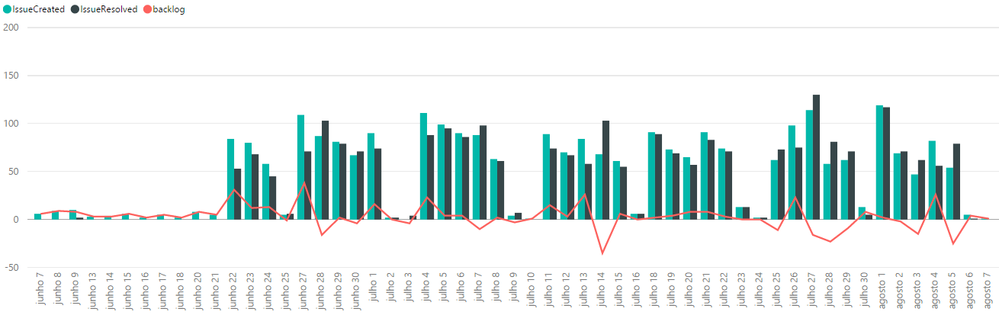
The problem happens when I apply a columns chart over it:


chart.PNG


It doesn't reflect the matrix numbers, it counts the days seperatly.

I can't seem to find a way for the data to be "cumulative" in the backlog.


Thanks for the help!


Replying again after doing another check!

I had the days separated in the shared axis of the chart...


It works like a charm now!


Thanks a lot for your help! You were great!

Helpful resources

Announcements
New to Fabric survey Carousel

New to Fabric Survey

If you have recently started exploring Fabric, we'd love to hear how it's going. Your feedback can help with product improvements.

Power BI DataViz World Championships carousel

Power BI DataViz World Championships - June 2026

A new Power BI DataViz World Championship is coming this June! Don't miss out on submitting your entry.

Join our Fabric User Panel

Join our Fabric User Panel

Share feedback directly with Fabric product managers, participate in targeted research studies and influence the Fabric roadmap.

March Power BI Update Carousel

Power BI Community Update - March 2026

Check out the March 2026 Power BI update to learn about new features.