FabCon is coming to Atlanta
Join us at FabCon Atlanta from March 16 - 20, 2026, for the ultimate Fabric, Power BI, AI and SQL community-led event. Save $200 with code FABCOMM.
Register now!- Power BI forums
- Get Help with Power BI
- Desktop
- Service
- Report Server
- Power Query
- Mobile Apps
- Developer
- DAX Commands and Tips
- Custom Visuals Development Discussion
- Health and Life Sciences
- Power BI Spanish forums
- Translated Spanish Desktop
- Training and Consulting
- Instructor Led Training
- Dashboard in a Day for Women, by Women
- Galleries
- Data Stories Gallery
- Themes Gallery
- Contests Gallery
- QuickViz Gallery
- Quick Measures Gallery
- Visual Calculations Gallery
- Notebook Gallery
- Translytical Task Flow Gallery
- TMDL Gallery
- R Script Showcase
- Webinars and Video Gallery
- Ideas
- Custom Visuals Ideas (read-only)
- Issues
- Issues
- Events
- Upcoming Events
The Power BI Data Visualization World Championships is back! Get ahead of the game and start preparing now! Learn more
- Power BI forums
- Forums
- Get Help with Power BI
- Desktop
- Develop Table for Burn Down
- Subscribe to RSS Feed
- Mark Topic as New
- Mark Topic as Read
- Float this Topic for Current User
- Bookmark
- Subscribe
- Printer Friendly Page

- Mark as New
- Bookmark
- Subscribe
- Mute
- Subscribe to RSS Feed
- Permalink
- Report Inappropriate Content
Develop Table for Burn Down
I have a Table defined as Sheet1 that comes from outside Excel Document. It includes a region slicer, location, Planned Date, and Completed Date.
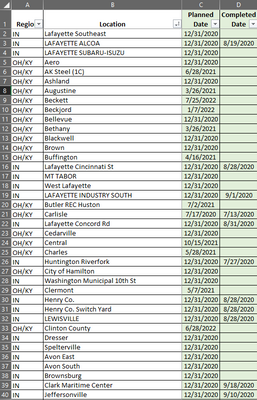
How can I create a table in Power BI to return the following?
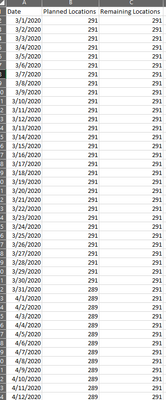
Dates in this Table (defined as Table 2) range from 3/1/2020 to 6/12/2022. Active Date Relationship Many to One for Planned Date in Sheet1 to Date in Table2. Non-active Date Relationship Many to One for Completed Date in Sheet1 to Date in Table2. Planned locations will trend from 291 down to zero based on our plan (aka Sheet 1 Planned Date). Remaining Locations will eventually trend down from 291 down to zero based on our location completed assignements (AKA Sheet 1 Completed Date).
Ultimately I want to use this Table to create a Burn Down Chart that shows our performance in completing the location assignments compared to our plan to see if we are trending ahead or behind plan. I also want to have the ability to filter by Region and was hoping I could utilize the Date relationships to accomplish this.
Anticipated final result:
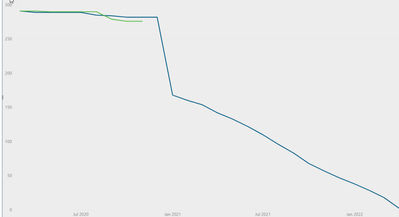
Solved! Go to Solution.
- Mark as New
- Bookmark
- Subscribe
- Mute
- Subscribe to RSS Feed
- Permalink
- Report Inappropriate Content
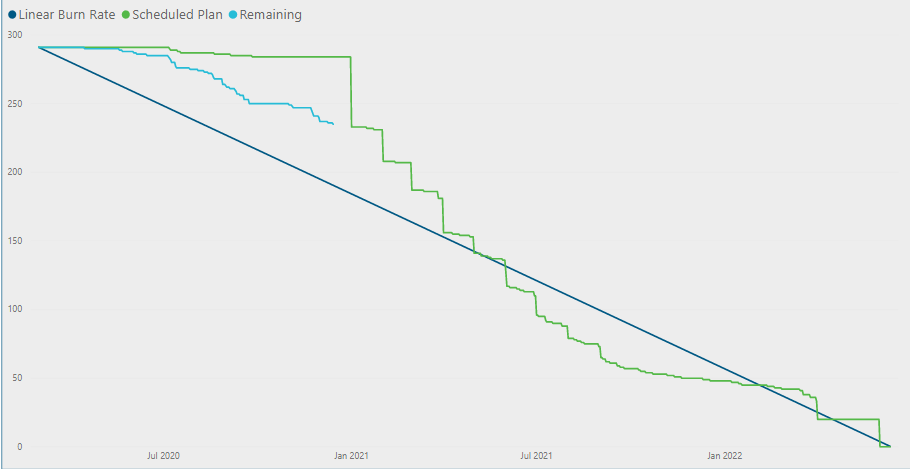
FYI, I was able to figure it out. Here is my solution.
Have two tables:
- Data table that comes from outside source and includes the following:
- List of Locations
- Planned Date – Note this is our planned dates
- Completed Date – Note this is our completed dates
- Date Table, named DimData, created within Power BI
- DimDate = Calendar(DATE(2020,3,1),DATE(2022,6,12))
Managed Relationships:
- Set Data[Planned Date] and DimData[Date] relationship
- Set Data[Completed Date] and DimData[Date] relationship
- Set both relationships as inactive
Measures:
CountPlanned =
CALCULATE (
COUNT([Planned Date]),
USERELATIONSHIP ( Data[Planned Date], 'DimDate'[Date] )
)
Note: Counts Number of Planned Completions per date and sets Planned Date to DimDate[Date] as the active relationship
CountCompleted =
CALCULATE (
COUNTROWS ( Data ),
USERELATIONSHIP ( Data[Completed Date], 'DimDate'[Date] ),
Data[Completed Date] <> BLANK ()
)
Note: Counts Number of Completed Locations per date, filters out the blanks, and sets Completed Date to DimDate[Date] as the active relationship
Scheduled Plan =
VAR CumulativeTotal =
CALCULATE (
[CountPlanned],
FILTER ( ALLSELECTED ( DimDate ), DimDate[Date] >= MIN ( DimDate[Date] ) )
)
RETURN
IF(CumulativeTotal>0,CumulativeTotal,0)
Note: If Statement - takes the chart to zero instead of quantity shown for the last date filled planned
Remaining =
VAR Last =
LASTNONBLANK ( Data[Completed Date], [Completed Date] )
/* Defines the last completed date*/
VAR BeginningStart =
COUNT ( Data[Location] )
/* Defines starting value (returns column = count of locations) */
VAR CumulativeCompleted =
CALCULATE (
[CountCompleted],
FILTER ( ALLSELECTED ( DimDate ), DimDate[Date] <= MAX ( DimDate[Date] ) )
)
/* Cumulatively adds up as locations are completed (1,2, 2, 2, 3, 4 etc.) */
VAR DateColumn =
SELECTEDVALUE(DimDate[Date])
/*Sets the column to a variable so that we can reference it to another variable */
RETURN
IF (
DateColumn <= Last,
BeginningStart - CumulativeCompleted,
BLANK ()
)
Linear Burn Rate =
VAR SprintStartDate =
CALCULATE ( FIRSTDATE ( DimDate[Date] ), ALLSELECTED ( DimDate ) )
VAR DaysSinceStart =
DATEDIFF ( SprintStartDate, MAX ( 'DimDate'[Date] ), DAY )
VAR BeginningStart =
COUNT ( Data[Location] )
VAR SprintLength = 834
RETURN
BeginningStart - DaysSinceStart * ( BeginningStart / SprintLength )
- Mark as New
- Bookmark
- Subscribe
- Mute
- Subscribe to RSS Feed
- Permalink
- Report Inappropriate Content
FYI, I was able to figure it out. Here is my solution.
Have two tables:
- Data table that comes from outside source and includes the following:
- List of Locations
- Planned Date – Note this is our planned dates
- Completed Date – Note this is our completed dates
- Date Table, named DimData, created within Power BI
- DimDate = Calendar(DATE(2020,3,1),DATE(2022,6,12))
Managed Relationships:
- Set Data[Planned Date] and DimData[Date] relationship
- Set Data[Completed Date] and DimData[Date] relationship
- Set both relationships as inactive
Measures:
CountPlanned =
CALCULATE (
COUNT([Planned Date]),
USERELATIONSHIP ( Data[Planned Date], 'DimDate'[Date] )
)
Note: Counts Number of Planned Completions per date and sets Planned Date to DimDate[Date] as the active relationship
CountCompleted =
CALCULATE (
COUNTROWS ( Data ),
USERELATIONSHIP ( Data[Completed Date], 'DimDate'[Date] ),
Data[Completed Date] <> BLANK ()
)
Note: Counts Number of Completed Locations per date, filters out the blanks, and sets Completed Date to DimDate[Date] as the active relationship
Scheduled Plan =
VAR CumulativeTotal =
CALCULATE (
[CountPlanned],
FILTER ( ALLSELECTED ( DimDate ), DimDate[Date] >= MIN ( DimDate[Date] ) )
)
RETURN
IF(CumulativeTotal>0,CumulativeTotal,0)
Note: If Statement - takes the chart to zero instead of quantity shown for the last date filled planned
Remaining =
VAR Last =
LASTNONBLANK ( Data[Completed Date], [Completed Date] )
/* Defines the last completed date*/
VAR BeginningStart =
COUNT ( Data[Location] )
/* Defines starting value (returns column = count of locations) */
VAR CumulativeCompleted =
CALCULATE (
[CountCompleted],
FILTER ( ALLSELECTED ( DimDate ), DimDate[Date] <= MAX ( DimDate[Date] ) )
)
/* Cumulatively adds up as locations are completed (1,2, 2, 2, 3, 4 etc.) */
VAR DateColumn =
SELECTEDVALUE(DimDate[Date])
/*Sets the column to a variable so that we can reference it to another variable */
RETURN
IF (
DateColumn <= Last,
BeginningStart - CumulativeCompleted,
BLANK ()
)
Linear Burn Rate =
VAR SprintStartDate =
CALCULATE ( FIRSTDATE ( DimDate[Date] ), ALLSELECTED ( DimDate ) )
VAR DaysSinceStart =
DATEDIFF ( SprintStartDate, MAX ( 'DimDate'[Date] ), DAY )
VAR BeginningStart =
COUNT ( Data[Location] )
VAR SprintLength = 834
RETURN
BeginningStart - DaysSinceStart * ( BeginningStart / SprintLength )


- Mark as New
- Bookmark
- Subscribe
- Mute
- Subscribe to RSS Feed
- Permalink
- Report Inappropriate Content
- Mark as New
- Bookmark
- Subscribe
- Mute
- Subscribe to RSS Feed
- Permalink
- Report Inappropriate Content
Thanks for the response. This helped get me in the direction, unfortunately I still have not been able to resolve the burn down chart. See below for my progress, and where I still need help:
Here is what has been accomplished and works as planned:
I followed the link you provided to establish my Date table (referenced below as dimDate) and my active and non active relationships with the Planned and Completed Dates within Sheet 1.
I used the following to establish my burn down chart data for the Planned data:
CountPlanned = COUNT([Planned Date])
Cumulative Planned =
VAR CumulativeTotal =
CALCULATE (
[CountPlanned],
FILTER ( ALLSELECTED ( DimDate), DimDate[Date] >= MIN ( DimDate[Date] ) )
)
RETURN
CumulativeTotal
Visualization:
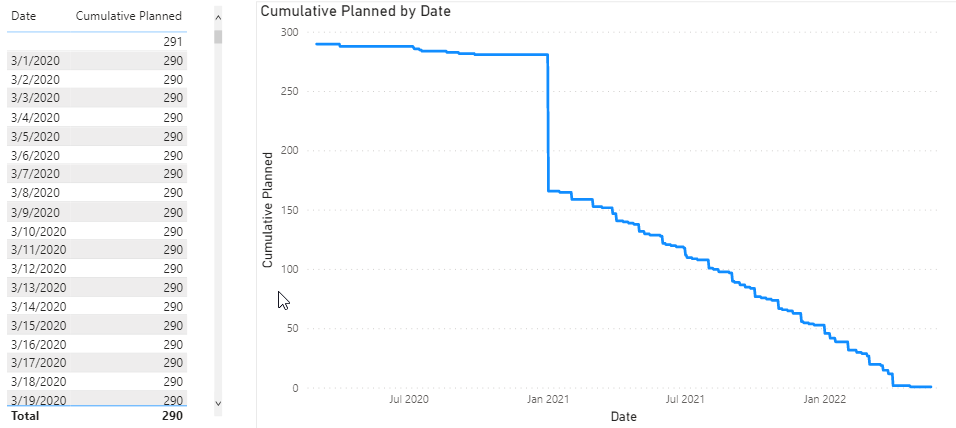
Here is what I can't figure out and still need assistance with:
I want to produce data that starts at 291 and trends down based on the Completed Date Column. I also need the data to stop at the last date entry so that it doesn't graph a straight line. Below are a few measures that I have been toying with but can't seem to figure it out.
Completed =
VAR CumulativeTotal2 =
CALCULATE (
COUNTROWS ( Sheet 1 ),
USERELATIONSHIP ( Sheet 1[Completed Date)], 'DimDate'[Date] ),
Sheet1[Completed Date] <> BLANK ()
)
RETURN
CumulativeTotal2
Cumulative Completed =
VAR CumulativeTotal3 =
CALCULATE (
[Completed],
FILTER ( ALLSELECTED ( DimDate ), DimDate[Date] >= MIN ( DimDate[Date] ) )
)
RETURN
CumulativeTotal3
Here are the results that I'm seeing:
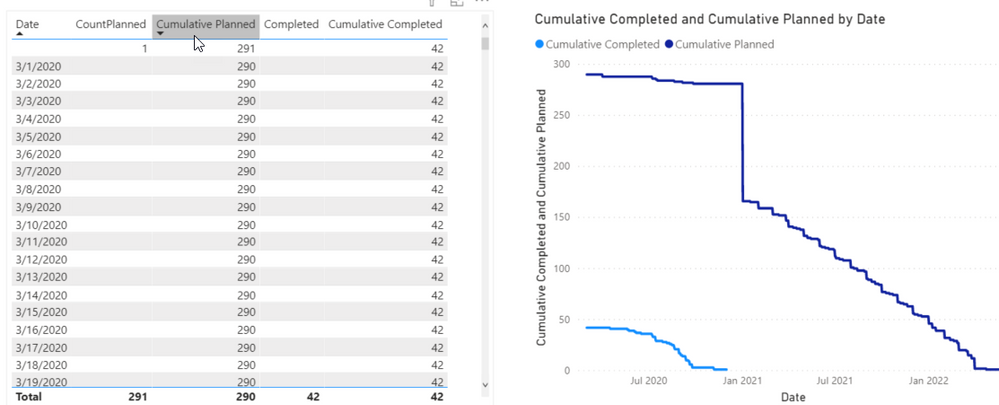
I also attempted to reverse the cumulative Competed function by using <=MAX instead of >= MIN, then I subtracted the Cumulative Plan - Cumulative Completed function. This starts my values at 291, however doesn't stop at the last Completed Date. Below is the functions and results that I'm seeing for this.
Cumulative Completed2 =
VAR CumulativeTotal =
CALCULATE (
[CountPlanned],
FILTER ( ALLSELECTED ( DimDate ), DimDate[Date] >= MIN ( DimDate[Date] ) )
)
VAR CumulativeTotal2 =
CALCULATE (
[Completed],
FILTER ( ALLSELECTED ( DimDate ), DimDate[Date] <= MAX ( DimDate[Date] ) )
)
RETURN
CumulativeTotal - CumulativeTotal2
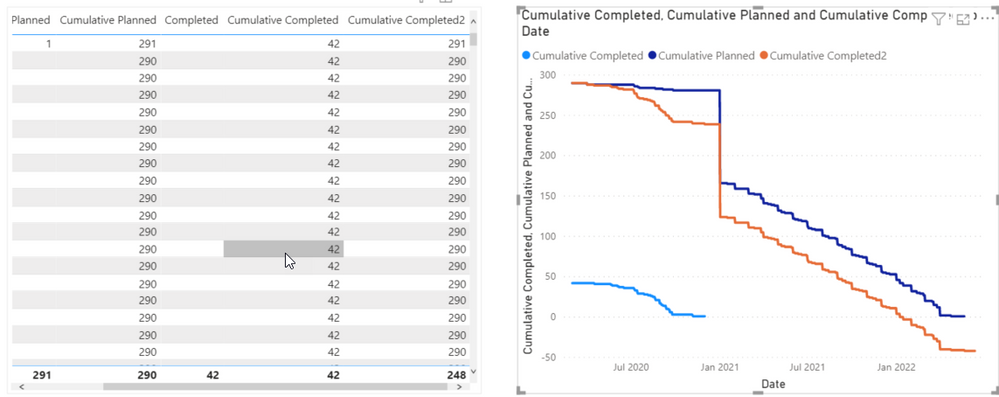
Issue with my CompletedData2 is that it's not stopping after the last completed date. In addition, since it is taking the Planned Date - the Completed Dates, I will also have a continuous line throughout the dates.... Any help here is appreciated.

Helpful resources

Power BI Dataviz World Championships
The Power BI Data Visualization World Championships is back! Get ahead of the game and start preparing now!

Power BI Monthly Update - December 2025
Check out the December 2025 Power BI Holiday Recap!

FabCon Atlanta 2026
Join us at FabCon Atlanta, March 16-20, for the ultimate Fabric, Power BI, AI and SQL community-led event. Save $200 with code FABCOMM.

| User | Count |
|---|---|
| 37 | |
| 37 | |
| 33 | |
| 32 | |
| 29 |


| User | Count |
|---|---|
| 132 | |
| 88 | |
| 82 | |
| 68 | |
| 64 |


