FabCon is coming to Atlanta
Join us at FabCon Atlanta from March 16 - 20, 2026, for the ultimate Fabric, Power BI, AI and SQL community-led event. Save $200 with code FABCOMM.
Register now!- Power BI forums
- Get Help with Power BI
- Desktop
- Service
- Report Server
- Power Query
- Mobile Apps
- Developer
- DAX Commands and Tips
- Custom Visuals Development Discussion
- Health and Life Sciences
- Power BI Spanish forums
- Translated Spanish Desktop
- Training and Consulting
- Instructor Led Training
- Dashboard in a Day for Women, by Women
- Galleries
- Data Stories Gallery
- Themes Gallery
- Contests Gallery
- QuickViz Gallery
- Quick Measures Gallery
- Visual Calculations Gallery
- Notebook Gallery
- Translytical Task Flow Gallery
- TMDL Gallery
- R Script Showcase
- Webinars and Video Gallery
- Ideas
- Custom Visuals Ideas (read-only)
- Issues
- Issues
- Events
- Upcoming Events
Get Fabric Certified for FREE during Fabric Data Days. Don't miss your chance! Request now
- Power BI forums
- Forums
- Get Help with Power BI
- Desktop
- Re: Define if a unique value in one column has mor...
- Subscribe to RSS Feed
- Mark Topic as New
- Mark Topic as Read
- Float this Topic for Current User
- Bookmark
- Subscribe
- Printer Friendly Page

- Mark as New
- Bookmark
- Subscribe
- Mute
- Subscribe to RSS Feed
- Permalink
- Report Inappropriate Content
Define if a unique value in one column has more than value attributed to them in another column
Solved! Go to Solution.


- Mark as New
- Bookmark
- Subscribe
- Mute
- Subscribe to RSS Feed
- Permalink
- Report Inappropriate Content
@Anonymous
If you add on the table the User as Dimension and the Measure (No of Teams) you will see the number of teams per user.
Make sure to click on the table and on the user field on Visualisations Panet o do right click on it and select Don't Summarise. This is actualy causing the problem.
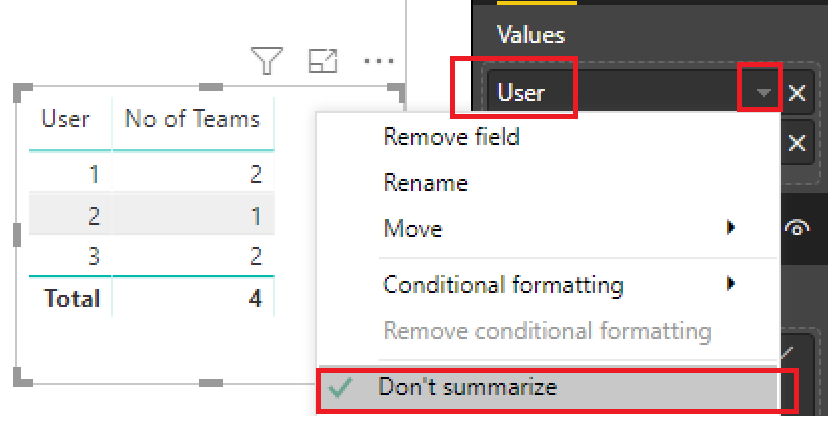
Also change the formula to this one:
No of Teams = DISTINCTCOUNT(Table[Team_Name])
Workspace on this link:


- Mark as New
- Bookmark
- Subscribe
- Mute
- Subscribe to RSS Feed
- Permalink
- Report Inappropriate Content
Hi @Anonymous
Use the Count with filter ALLEXCEPT
CALCULATE(COUNTA(Table1[username]),ALLEXCEPT(Table1,Table1[username]))
If this helped you, please mark this post as an accepted solution and like to give KUDOS .
Regards,
Affan
- Mark as New
- Bookmark
- Subscribe
- Mute
- Subscribe to RSS Feed
- Permalink
- Report Inappropriate Content
@Anonymous
First create a measure which simply counts the number of teams.
e.g. No of Teams = COUNT(Table[Team_Name])
Then create a table object with users as dimension and No of Teams as a measure.
Then on Visualisations Pane go to "Visual Level Filter" and add the Measure there.
Go to filter type --> advanced filtering --> is greater than 2
- Mark as New
- Bookmark
- Subscribe
- Mute
- Subscribe to RSS Feed
- Permalink
- Report Inappropriate Content
- Mark as New
- Bookmark
- Subscribe
- Mute
- Subscribe to RSS Feed
- Permalink
- Report Inappropriate Content
@Anonymous
If you add on the table the User as Dimension and the Measure (No of Teams) you will see the number of teams per user.
Make sure to click on the table and on the user field on Visualisations Panet o do right click on it and select Don't Summarise. This is actualy causing the problem.
Also change the formula to this one:
No of Teams = DISTINCTCOUNT(Table[Team_Name])
Workspace on this link:
- Mark as New
- Bookmark
- Subscribe
- Mute
- Subscribe to RSS Feed
- Permalink
- Report Inappropriate Content
- Mark as New
- Bookmark
- Subscribe
- Mute
- Subscribe to RSS Feed
- Permalink
- Report Inappropriate Content
@Anonymous
Just Create a new table object right next to the previous one and have User as Dimension and Team Name next to it (both as dimensions). The on Visual level filters add again the restriction greater than 2.
Then you will see the team names per user.
I hope this is what you want?
- Mark as New
- Bookmark
- Subscribe
- Mute
- Subscribe to RSS Feed
- Permalink
- Report Inappropriate Content
It wouldn't show it all as I wanted so I went with a matrix in the end, but this was great thanks so much for your help! 
Helpful resources

Power BI Monthly Update - November 2025
Check out the November 2025 Power BI update to learn about new features.

Fabric Data Days
Advance your Data & AI career with 50 days of live learning, contests, hands-on challenges, study groups & certifications and more!

FabCon Atlanta 2026
Join us at FabCon Atlanta, March 16-20, for the ultimate Fabric, Power BI, AI and SQL community-led event. Save $200 with code FABCOMM.


