cancel
Showing results for 
Search instead for 
Did you mean: 

The Power BI Data Visualization World Championships is back! Get ahead of the game and start preparing now! Learn more

Reply
Neiltc
Frequent Visitor

Data formatting with date

I am trying to create a graphic that shows data for projects where the projects and within time, almost due or overdue and then display this in a graph, pie chart etc but im struggling with the formatting. has anyoine else tried this?

1 ACCEPTED SOLUTION

OK assuming you have a table Proj like this:

ProjectDueActual
A8/1/20177/30/2017
B8/1/20178/10/2017
C8/1/20178/5/2017
D8/1/20178/10/2017


Add two calculated columns to Proj:

Diff = IF(Proj[Due] > Proj[Actual],
          -DATEDIFF(Proj[Actual], Proj[Due], DAY),
          DATEDIFF(Proj[Due], Proj[Actual], DAY))

Status = IF(Proj[Diff] > 6,
            "Overdue",
            IF(Proj[Diff] > 0,
               "Delayed",
               "On Time"))

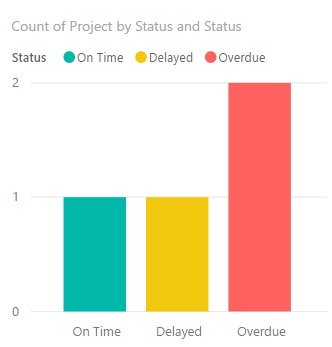
You can now easily display a simple table visual:

image.png

by placing the columns of Proj like this and chnaging the data colors appropriately:

image.png

View solution in original post

3 REPLIES 3
erik_tarnvik
Solution Specialist
Solution Specialist

Can you provide some more specifics on your data tables and what you want the graph to look like?

Hi Erik,

I have an excel sheet with about 100 rows of current projects, each has a due date.  In excel i would use conditional formatting to show green if the projects were within delivery time, yellow if they were within 6 days of the due date and red if they were over the due date. I am looking for a way to graphically represent this, even a bar chart of the three categories but I am unsure of the query that is needed...

OK assuming you have a table Proj like this:

ProjectDueActual
A8/1/20177/30/2017
B8/1/20178/10/2017
C8/1/20178/5/2017
D8/1/20178/10/2017


Add two calculated columns to Proj:

Diff = IF(Proj[Due] > Proj[Actual],
          -DATEDIFF(Proj[Actual], Proj[Due], DAY),
          DATEDIFF(Proj[Due], Proj[Actual], DAY))

Status = IF(Proj[Diff] > 6,
            "Overdue",
            IF(Proj[Diff] > 0,
               "Delayed",
               "On Time"))

You can now easily display a simple table visual:

image.png

by placing the columns of Proj like this and chnaging the data colors appropriately:

image.png

Helpful resources

Announcements
Power BI DataViz World Championships

Power BI Dataviz World Championships

The Power BI Data Visualization World Championships is back! Get ahead of the game and start preparing now!

December 2025 Power BI Update Carousel

Power BI Monthly Update - December 2025

Check out the December 2025 Power BI Holiday Recap!

FabCon Atlanta 2026 carousel

FabCon Atlanta 2026

Join us at FabCon Atlanta, March 16-20, for the ultimate Fabric, Power BI, AI and SQL community-led event. Save $200 with code FABCOMM.