Don't miss your chance to take the Fabric Data Engineer (DP-600) exam for FREE! Find out how by attending the DP-600 session on April 23rd (pacific time), live or on-demand.
Learn moreJoin the FabCon + SQLCon recap series. Up next: Power BI, Real-Time Intelligence, IQ and AI, and Data Factory take center stage. All sessions are available on-demand after the live show. Register now
Hi Everyone,
Please could someone help me.
I need to create a custom column to extract the order number from a description column.
Unfortuntatly the data I am working with is quite messy so the usual methods like split column does not work.
Below is an example of the difference in my lines within the data.
The only common denominator is a six digit number.
| Description |
| TEX - AA07ZZZ - O/N 123456 |
| TEXT ON-345123 ZZ17XXX |
| TEXT ORDER 999234 |
| TEXTZZZ-BB16AAA-987654/2 |
The result I would like to see is as below.
| Order No |
| 123456 |
| 345123 |
| 999234 |
| 987654 |
Many Thanks
Kind Regards
Wendy
Solved! Go to Solution.
Hi again Wendy,
Sure thing - yes the above is an illustration and the idea is to put the Added Custom step into your own query.
I'm assuming you are starting with a table in the Power Query editor containing a Description column.
Then you should go to the ribbon => Add Column => Custom Column
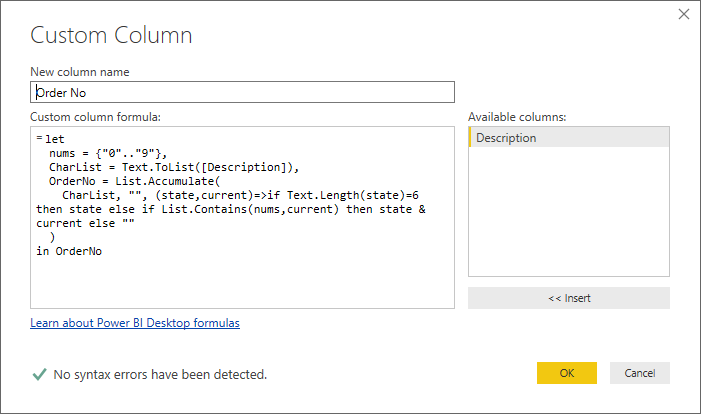
then enter this code in the dialog box
let
nums = {"0".."9"},
CharList = Text.ToList([Description]),
OrderNo = List.Accumulate(
CharList, "", (state,current)=>if Text.Length(state)=6 then state else if List.Contains(nums,current) then state & current else ""
)
in OrderNoIt should look like this:
Best regards,
Owen
Hi Wendy
Here's an example of one way you can extract a 6-digit number from a text string. It converts the Description column to a list, then uses List.Accumulate to build up the number, resetting if the sequence is broken before reaching 6 digits.
Paste this M code into a blank query and you can see how it works.
let
Source = Table.FromRows(Json.Document(Binary.Decompress(Binary.FromText("RYxLCsAgEEOvMriuWK2fuhypWwVxISPe/xodCm2zCnlJ5hQ9D5CAuAciYldVAW0O67xY24M7PKpFcsoIXhHpMMb4e7VduUGMkfdfyrcyJe0RUcYzeGeVEWvd", BinaryEncoding.Base64), Compression.Deflate)), let _t = ((type text) meta [Serialized.Text = true]) in type table [Description = _t]),
#"Changed Type" = Table.TransformColumnTypes(Source,{{"Description", type text}}),
#"Added Custom" =
Table.AddColumn(
#"Changed Type",
"Order No",
each
let
nums = {"0".."9"},
CharList = Text.ToList([Description]),
OrderNo = List.Accumulate(
CharList, "", (state,current)=>if Text.Length(state)=6 then state else if List.Contains(nums,current) then state & current else ""
)
in OrderNo,
type text
)
in
#"Added Custom"Best regards,
Owen
Hi Owen,
Thank you so much for your reply.
That works perfectly on the example I gave. However I am struggling to apply it to my live data as it is giving me the same results from the example.
I realise I probably need to change the source data but not quite sure how to approach this.
Can you help?
Many Thanks
Kind Regards
Wendy
Hi again Wendy,
Sure thing - yes the above is an illustration and the idea is to put the Added Custom step into your own query.
I'm assuming you are starting with a table in the Power Query editor containing a Description column.
Then you should go to the ribbon => Add Column => Custom Column
then enter this code in the dialog box
let
nums = {"0".."9"},
CharList = Text.ToList([Description]),
OrderNo = List.Accumulate(
CharList, "", (state,current)=>if Text.Length(state)=6 then state else if List.Contains(nums,current) then state & current else ""
)
in OrderNoIt should look like this:
Best regards,
Owen
Hi Owen,
Thanks that works perfectly.
Check out the April 2026 Power BI update to learn about new features.
If you have recently started exploring Fabric, we'd love to hear how it's going. Your feedback can help with product improvements.
A new Power BI DataViz World Championship is coming this June! Don't miss out on submitting your entry.
| User | Count |
|---|---|
| 48 | |
| 46 | |
| 41 | |
| 20 | |
| 17 |
| User | Count |
|---|---|
| 69 | |
| 67 | |
| 32 | |
| 27 | |
| 26 |