Join us at FabCon Atlanta from March 16 - 20, 2026, for the ultimate Fabric, Power BI, AI and SQL community-led event. Save $200 with code FABCOMM.
Register now!Vote for your favorite vizzies from the Power BI Dataviz World Championship submissions. Vote now!
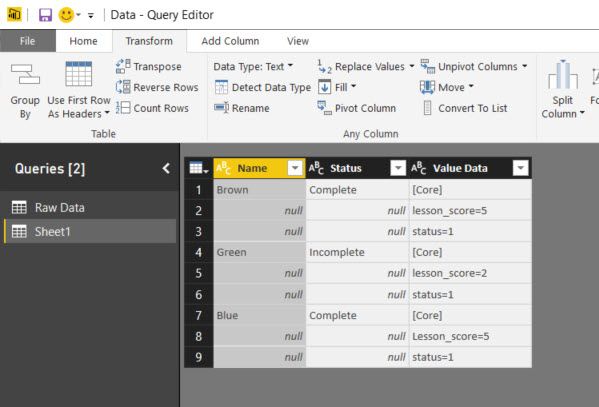
I have the following table structure:
I want to transform it into single rows with new column 'lesson_score' with the assocated value in the row, so ultimately it would look something like this:
Cannot work it out... Help!
James
Solved! Go to Solution.
If you really want single rows, the code below results in:

Edit: this won't load to the data model because of duplicate column names "Status" and "status".
I'll await further feedback first before any adjustment of the code.
Prerequisite: Names must be unique.
All steps are created using standard menu options, but I adjusted the code for the #"Filled Up" step to make it independent from the new column names.
let
Source = Excel.Workbook(File.Contents("C:\Users\Marcel\Documents\Forum bijdragen\Power BI Community\Create columns dynamically from values.xlsx"), null, true),
Table1_Table = Source{[Item="Table1",Kind="Table"]}[Data],
#"Changed Type" = Table.TransformColumnTypes(Table1_Table,{{"Name", type text}, {"Status", type text}, {"Value Data", type text}}),
#"Added Index" = Table.AddIndexColumn(#"Changed Type", "Index", 0, 1),
#"Filled Down" = Table.FillDown(#"Added Index",{"Name", "Status"}),
#"Duplicated Column" = Table.DuplicateColumn(#"Filled Down", "Value Data", "Value Data - Copy"),
#"Split Column by Delimiter" = Table.SplitColumn(#"Duplicated Column", "Value Data - Copy", Splitter.SplitTextByDelimiter("=", QuoteStyle.Csv), {"Value Data - Copy.1", "Value Data - Copy.2"}),
#"Changed Type1" = Table.TransformColumnTypes(#"Split Column by Delimiter",{{"Value Data - Copy.1", type text}, {"Value Data - Copy.2", Int64.Type}}),
#"Pivoted Column" = Table.Pivot(#"Changed Type1", List.Distinct(#"Changed Type1"[#"Value Data - Copy.1"]), "Value Data - Copy.1", "Value Data - Copy.2"),
#"Filled Up" = Table.FillUp(#"Pivoted Column",List.Skip(Table.ColumnNames(#"Pivoted Column"),Table.ColumnCount(#"Duplicated Column"))),
#"Removed Columns" = Table.RemoveColumns(#"Filled Up",{"Value Data"}),
#"Removed Duplicates" = Table.Distinct(#"Removed Columns", {"Name"}),
#"Sorted Rows" = Table.Sort(#"Removed Duplicates",{{"Index", Order.Ascending}}),
#"Removed Columns1" = Table.RemoveColumns(#"Sorted Rows",{"Index"})
in
#"Removed Columns1"
If you really want single rows, the code below results in:
Edit: this won't load to the data model because of duplicate column names "Status" and "status".
I'll await further feedback first before any adjustment of the code.
Prerequisite: Names must be unique.
All steps are created using standard menu options, but I adjusted the code for the #"Filled Up" step to make it independent from the new column names.
let
Source = Excel.Workbook(File.Contents("C:\Users\Marcel\Documents\Forum bijdragen\Power BI Community\Create columns dynamically from values.xlsx"), null, true),
Table1_Table = Source{[Item="Table1",Kind="Table"]}[Data],
#"Changed Type" = Table.TransformColumnTypes(Table1_Table,{{"Name", type text}, {"Status", type text}, {"Value Data", type text}}),
#"Added Index" = Table.AddIndexColumn(#"Changed Type", "Index", 0, 1),
#"Filled Down" = Table.FillDown(#"Added Index",{"Name", "Status"}),
#"Duplicated Column" = Table.DuplicateColumn(#"Filled Down", "Value Data", "Value Data - Copy"),
#"Split Column by Delimiter" = Table.SplitColumn(#"Duplicated Column", "Value Data - Copy", Splitter.SplitTextByDelimiter("=", QuoteStyle.Csv), {"Value Data - Copy.1", "Value Data - Copy.2"}),
#"Changed Type1" = Table.TransformColumnTypes(#"Split Column by Delimiter",{{"Value Data - Copy.1", type text}, {"Value Data - Copy.2", Int64.Type}}),
#"Pivoted Column" = Table.Pivot(#"Changed Type1", List.Distinct(#"Changed Type1"[#"Value Data - Copy.1"]), "Value Data - Copy.1", "Value Data - Copy.2"),
#"Filled Up" = Table.FillUp(#"Pivoted Column",List.Skip(Table.ColumnNames(#"Pivoted Column"),Table.ColumnCount(#"Duplicated Column"))),
#"Removed Columns" = Table.RemoveColumns(#"Filled Up",{"Value Data"}),
#"Removed Duplicates" = Table.Distinct(#"Removed Columns", {"Name"}),
#"Sorted Rows" = Table.Sort(#"Removed Duplicates",{{"Index", Order.Ascending}}),
#"Removed Columns1" = Table.RemoveColumns(#"Sorted Rows",{"Index"})
in
#"Removed Columns1"
Vote for your favorite vizzies from the Power BI World Championship submissions!
If you love stickers, then you will definitely want to check out our Community Sticker Challenge!
Check out the January 2026 Power BI update to learn about new features.
| User | Count |
|---|---|
| 65 | |
| 51 | |
| 42 | |
| 23 | |
| 21 |
| User | Count |
|---|---|
| 137 | |
| 113 | |
| 52 | |
| 37 | |
| 31 |