Join us at FabCon Atlanta from March 16 - 20, 2026, for the ultimate Fabric, Power BI, AI and SQL community-led event. Save $200 with code FABCOMM.
Register now!The Power BI Data Visualization World Championships is back! Get ahead of the game and start preparing now! Learn more
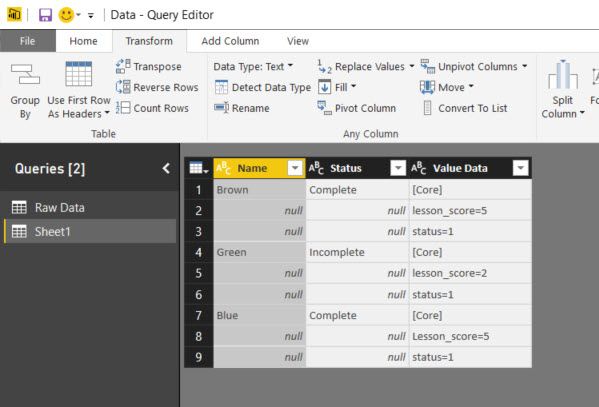
I have the following table structure:
I want to transform it into single rows with new column 'lesson_score' with the assocated value in the row, so ultimately it would look something like this:
Cannot work it out... Help!
James
Solved! Go to Solution.
If you really want single rows, the code below results in:

Edit: this won't load to the data model because of duplicate column names "Status" and "status".
I'll await further feedback first before any adjustment of the code.
Prerequisite: Names must be unique.
All steps are created using standard menu options, but I adjusted the code for the #"Filled Up" step to make it independent from the new column names.
let
Source = Excel.Workbook(File.Contents("C:\Users\Marcel\Documents\Forum bijdragen\Power BI Community\Create columns dynamically from values.xlsx"), null, true),
Table1_Table = Source{[Item="Table1",Kind="Table"]}[Data],
#"Changed Type" = Table.TransformColumnTypes(Table1_Table,{{"Name", type text}, {"Status", type text}, {"Value Data", type text}}),
#"Added Index" = Table.AddIndexColumn(#"Changed Type", "Index", 0, 1),
#"Filled Down" = Table.FillDown(#"Added Index",{"Name", "Status"}),
#"Duplicated Column" = Table.DuplicateColumn(#"Filled Down", "Value Data", "Value Data - Copy"),
#"Split Column by Delimiter" = Table.SplitColumn(#"Duplicated Column", "Value Data - Copy", Splitter.SplitTextByDelimiter("=", QuoteStyle.Csv), {"Value Data - Copy.1", "Value Data - Copy.2"}),
#"Changed Type1" = Table.TransformColumnTypes(#"Split Column by Delimiter",{{"Value Data - Copy.1", type text}, {"Value Data - Copy.2", Int64.Type}}),
#"Pivoted Column" = Table.Pivot(#"Changed Type1", List.Distinct(#"Changed Type1"[#"Value Data - Copy.1"]), "Value Data - Copy.1", "Value Data - Copy.2"),
#"Filled Up" = Table.FillUp(#"Pivoted Column",List.Skip(Table.ColumnNames(#"Pivoted Column"),Table.ColumnCount(#"Duplicated Column"))),
#"Removed Columns" = Table.RemoveColumns(#"Filled Up",{"Value Data"}),
#"Removed Duplicates" = Table.Distinct(#"Removed Columns", {"Name"}),
#"Sorted Rows" = Table.Sort(#"Removed Duplicates",{{"Index", Order.Ascending}}),
#"Removed Columns1" = Table.RemoveColumns(#"Sorted Rows",{"Index"})
in
#"Removed Columns1"
If you really want single rows, the code below results in:
Edit: this won't load to the data model because of duplicate column names "Status" and "status".
I'll await further feedback first before any adjustment of the code.
Prerequisite: Names must be unique.
All steps are created using standard menu options, but I adjusted the code for the #"Filled Up" step to make it independent from the new column names.
let
Source = Excel.Workbook(File.Contents("C:\Users\Marcel\Documents\Forum bijdragen\Power BI Community\Create columns dynamically from values.xlsx"), null, true),
Table1_Table = Source{[Item="Table1",Kind="Table"]}[Data],
#"Changed Type" = Table.TransformColumnTypes(Table1_Table,{{"Name", type text}, {"Status", type text}, {"Value Data", type text}}),
#"Added Index" = Table.AddIndexColumn(#"Changed Type", "Index", 0, 1),
#"Filled Down" = Table.FillDown(#"Added Index",{"Name", "Status"}),
#"Duplicated Column" = Table.DuplicateColumn(#"Filled Down", "Value Data", "Value Data - Copy"),
#"Split Column by Delimiter" = Table.SplitColumn(#"Duplicated Column", "Value Data - Copy", Splitter.SplitTextByDelimiter("=", QuoteStyle.Csv), {"Value Data - Copy.1", "Value Data - Copy.2"}),
#"Changed Type1" = Table.TransformColumnTypes(#"Split Column by Delimiter",{{"Value Data - Copy.1", type text}, {"Value Data - Copy.2", Int64.Type}}),
#"Pivoted Column" = Table.Pivot(#"Changed Type1", List.Distinct(#"Changed Type1"[#"Value Data - Copy.1"]), "Value Data - Copy.1", "Value Data - Copy.2"),
#"Filled Up" = Table.FillUp(#"Pivoted Column",List.Skip(Table.ColumnNames(#"Pivoted Column"),Table.ColumnCount(#"Duplicated Column"))),
#"Removed Columns" = Table.RemoveColumns(#"Filled Up",{"Value Data"}),
#"Removed Duplicates" = Table.Distinct(#"Removed Columns", {"Name"}),
#"Sorted Rows" = Table.Sort(#"Removed Duplicates",{{"Index", Order.Ascending}}),
#"Removed Columns1" = Table.RemoveColumns(#"Sorted Rows",{"Index"})
in
#"Removed Columns1"
The Power BI Data Visualization World Championships is back! Get ahead of the game and start preparing now!
| User | Count |
|---|---|
| 40 | |
| 35 | |
| 34 | |
| 31 | |
| 28 |
| User | Count |
|---|---|
| 137 | |
| 102 | |
| 71 | |
| 67 | |
| 65 |