Don't miss your chance to take the Fabric Data Engineer (DP-600) exam for FREE! Find out how by watching the DP-600 session on-demand now through April 28th.
Learn moreJoin the FabCon + SQLCon recap series. Up next: Power BI, Real-Time Intelligence, IQ and AI, and Data Factory take center stage. All sessions are available on-demand after the live show. Register now
Hi, I am trying to make a table similar to an Excel table in Power BI.
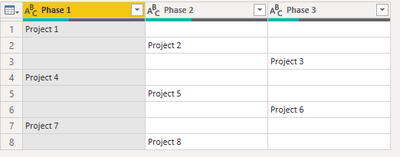
An example query looks like this:
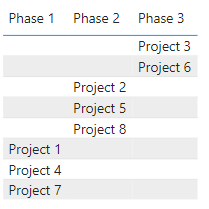
And the table that I have made looks like this:
I wish for a table where there are no spaces, so multiple data can be on the same row, as if you were to fill out an Excel sheet. So the list of e.g. projects in phase 1 would just start from the top, and the same with the other phases.
Hope you can help!
Solved! Go to Solution.
Hi @kalleleander ,
unfortunately you have to use some M-code here. Please paste the following code into the advanced editor and follow the steps:
let
Source = Table.FromRows(
Json.Document(
Binary.Decompress(
Binary.FromText("i45WMlTSUVKK1YlWAtLGYIYRkogJjAGjTZViYwE=", BinaryEncoding.Base64),
Compression.Deflate
)
),
let
_t = ((type nullable text) meta [Serialized.Text = true])
in
type table [Column1 = _t, Column2 = _t]
),
#"Changed Type" = Table.TransformColumnTypes(Source, {{"Column1", Int64.Type}, {"Column2", Int64.Type}}),
Custom1 = List.Transform(
Table.ToColumns(#"Changed Type"),
each List.Select(_, (l) => l <> null and l <> "")
),
Custom2 = Table.FromColumns(Custom1)
in
Custom2
In there, you split up the table into a list of single columns (which will then become list objects).
Next, you filter those list objects so no empty fields will be in there any more.
Then you re-assemble to a table again.
Imke Feldmann (The BIccountant)
If you liked my solution, please give it a thumbs up. And if I did answer your question, please mark this post as a solution. Thanks!
How to integrate M-code into your solution -- How to get your questions answered quickly -- How to provide sample data -- Check out more PBI- learning resources here -- Performance Tipps for M-queries
Hi @kalleleander ,
unfortunately you have to use some M-code here. Please paste the following code into the advanced editor and follow the steps:
let
Source = Table.FromRows(
Json.Document(
Binary.Decompress(
Binary.FromText("i45WMlTSUVKK1YlWAtLGYIYRkogJjAGjTZViYwE=", BinaryEncoding.Base64),
Compression.Deflate
)
),
let
_t = ((type nullable text) meta [Serialized.Text = true])
in
type table [Column1 = _t, Column2 = _t]
),
#"Changed Type" = Table.TransformColumnTypes(Source, {{"Column1", Int64.Type}, {"Column2", Int64.Type}}),
Custom1 = List.Transform(
Table.ToColumns(#"Changed Type"),
each List.Select(_, (l) => l <> null and l <> "")
),
Custom2 = Table.FromColumns(Custom1)
in
Custom2
In there, you split up the table into a list of single columns (which will then become list objects).
Next, you filter those list objects so no empty fields will be in there any more.
Then you re-assemble to a table again.
Imke Feldmann (The BIccountant)
If you liked my solution, please give it a thumbs up. And if I did answer your question, please mark this post as a solution. Thanks!
How to integrate M-code into your solution -- How to get your questions answered quickly -- How to provide sample data -- Check out more PBI- learning resources here -- Performance Tipps for M-queries
Check out the April 2026 Power BI update to learn about new features.
If you have recently started exploring Fabric, we'd love to hear how it's going. Your feedback can help with product improvements.
A new Power BI DataViz World Championship is coming this June! Don't miss out on submitting your entry.
| User | Count |
|---|---|
| 43 | |
| 38 | |
| 35 | |
| 21 | |
| 15 |
| User | Count |
|---|---|
| 65 | |
| 58 | |
| 28 | |
| 27 | |
| 25 |