cancel
Showing results for 
Search instead for 
Did you mean: 

The Power BI Data Visualization World Championships is back! Get ahead of the game and start preparing now! Learn more

Reply
asdaifallah
New Member

Create a column with a specific date

I am trying to create a column with a specific date (date only) using M-query.


this will be the report date. whereby i will calculate an aging to some other data.


I am not looking for today's date though.


for example, i want all the column to include the same date of 1-Dec-2017.


thanks in Advance

1 ACCEPTED SOLUTION

@asdaifallah,


If your problem has been resolved, please help accept solution. Your contribution is highly appreciated.

Community Support Team _ Sam Zha
If this post helps, then please consider Accept it as the solution to help the other members find it more quickly.

View solution in original post

4 REPLIES 4
MarcelBeug
Community Champion
Community Champion

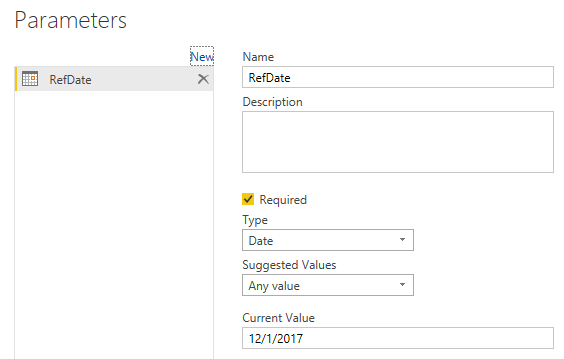
Looks like you need a parameter for your reference date.


RefDate.png


No need to add a column with the reference date: you can use the parameter value to calculate the aging.

But you can still add a column with the reference date, though.

Both are included in this query:


let
    Source = #table(type table[Date = date],List.Zip({List.Dates(#date(2017,1,1),20,#duration(15,0,0,0))})),
    AddedAging = Table.AddColumn(Source, "Aging", each RefDate - [Date], type duration),
    AddedRefDate = Table.AddColumn(AddedAging, "RefDate", each RefDate, type date)
in
    AddedRefDate


Specializing in Power Query Formula Language (M)

Thank you so much. Appreciate the quick help!

@asdaifallah,


If your problem has been resolved, please help accept solution. Your contribution is highly appreciated.

Community Support Team _ Sam Zha
If this post helps, then please consider Accept it as the solution to help the other members find it more quickly.

Hi,


I found another solution to throw in here.


You just add a custom column and have the value as "1", then when it shows in your table in the query editor, you change the data type from "number" to "date." This changes the "1" to "12/31/1899." Last step, replace values from "12/31/1899" to whatever your date is that you are wanting. Here's the M Query code: 


#"Added Custom3" = Table.AddColumn(#"Grouped Rows", "Report Date", each 1),
#"Changed Type1" = Table.TransformColumnTypes(#"Added Custom3",{{"Report Date", type date}}),
#"Replaced Value" = Table.ReplaceValue(#"Changed Type1",#date(1899, 12, 31),#date(2022, 11, 6),Replacer.ReplaceValue,{"Report Date"})


Thanks

Helpful resources

Announcements
Power BI DataViz World Championships

Power BI Dataviz World Championships

The Power BI Data Visualization World Championships is back! Get ahead of the game and start preparing now!

December 2025 Power BI Update Carousel

Power BI Monthly Update - December 2025

Check out the December 2025 Power BI Holiday Recap!

FabCon Atlanta 2026 carousel

FabCon Atlanta 2026

Join us at FabCon Atlanta, March 16-20, for the ultimate Fabric, Power BI, AI and SQL community-led event. Save $200 with code FABCOMM.